The extruders of a 3D printer can be divided into two types according to their different feeding methods: Bowden Extruder and Direct Drive Extruder. The following will compare and contrast the two types of extruders.
FFF • Dual Extrusion • High-Speed Printing up to 300mm/s • RFID Traceable Workflow
FFF • Dual Extrusion • HEPA Filter With Activated Charcoal • Up to 300°C
SLS • Low TCO • High Output • High-Precision Prints • Industrial and Functional Material
DLP • True DLP Precision • Faster Prints • RFID Traceable Workflow • Broad Resin Portfolio
DLP • High Resolution Resin Printing • RFID Traceable Workflow • Wide Range of Resin Compatibility
FFF • Dual IDEX • Flexible and Fiber-Reinforced Filaments • Enclosed Build Chamber
FFF • Dual IDEX • For Fiber-Reinforced Filaments • Dry Boxes • Enclosed Build Chamber
FFF • Dual IDEX • For Flexible Materials up to Shore Hardness 70A • Enclosed Build Chamber
Large-Format FFF (500 × 500 × 500 mm) • Dual IDEX • Carbon Fiber Composites & High-Strength Polymer
The extruders of a 3D printer can be divided into two types according to their different feeding methods: Bowden Extruder and Direct Drive Extruder. The following will compare and contrast the two types of extruders.
3D printers with Bowden Extruders have the extruder and stepper motor installed on the printer outer shell. The filament is fed remotely through the Teflon tube to the nozzle.
Two common 3D printer brands that feature the Bowden Extruder are Ultimaker and Delta 3D printer.


3D printers with Direct Drive Extruders usually have the extruder and stepper motor installed on the nozzle and the filament is fed directly to the nozzle.
Examples of 3D printers with Direct Extruders are Raise3D’s E2, Raise3D’s Pro2 Series, Raise3D’s Pro3 Series, and Raise3D’s E2CF.


Connect with Raise3D:
Have you had a great experience with Raise3D that you would like to share? Please contact us at inquiry@raise3d.com. We look forward to hearing from you.
For more information about Raise3D printers and services, browse our website, or schedule a demo with one of our 3D printing experts.
FFF • Dual Extrusion • High-Speed Printing up to 300mm/s • RFID Traceable Workflow
FFF • Dual Extrusion • HEPA Filter With Activated Charcoal • Up to 300°C
SLS • Low TCO • High Output • High-Precision Prints • Industrial and Functional Material
DLP • True DLP Precision • Faster Prints • RFID Traceable Workflow • Broad Resin Portfolio
DLP • High Resolution Resin Printing • RFID Traceable Workflow • Wide Range of Resin Compatibility
FFF • Dual IDEX • Flexible and Fiber-Reinforced Filaments • Enclosed Build Chamber
FFF • Dual IDEX • For Fiber-Reinforced Filaments • Dry Boxes • Enclosed Build Chamber
FFF • Dual IDEX • For Flexible Materials up to Shore Hardness 70A • Enclosed Build Chamber
Large-Format FFF (500 × 500 × 500 mm) • Dual IDEX • Carbon Fiber Composites & High-Strength Polymer
Dual extruder 3D printers perform advanced functions to accommodate a wide variety of 3D printing projects, making a 3D printer an important asset. Dual extruder 3D printers have many applications and can be incorporated into business operations to improve prototyping, production, and manufacturing processes. A comprehensive understanding of a dual extruder 3D printer’s mechanical setup and functionality is crucial for businesses to decide whether they need a dual extruder 3D printer, and if so, what type of dual extruder 3D printer will be the right one for their needs.
FFF 3D printing is the process of melting and extruding a 3D printing material, also known as filament, then building up thin layers of the melted material to create a physical object. The system of parts that operate together to melt then release the melted filament to build up the layers of a 3D printed part is generally known as the extruder or extruder system of an FFF 3D printer. The two main parts of an extruder system are the cold end and the hot end.
The 3D printer feeds the spool of 3D printing filament to the cold end. The cold end generally consists of a motor and gear. The motor runs to turn the gear. The gear then grabs and guides the filament strand through a tube that connects to the hot end.
The hot end receives the filament that is passing through the tube from the cold end. It passes the filament into a chamber that is already heated to the melting temperature of the filament. This heated chamber is also known as a heat block. The melted filament is then ejected through nozzles onto the build plate. To learn more about the different types of nozzles available for a 3D printer, click here.
A dual extruder 3D printer is an FDM printer with two extruders. Examples of good dual extruder 3D printers from Raise 3D are the Pro2, Pro2 Plus, and E2 from Raise3D.
In short, the benefit of having a dual extruder 3D printer is performing dual extrusion 3D printing. Dual extrusion printing means both extruders will be used during the printing process. This capability enables a dual extruder 3D printer to perform more advanced functions and processes to accommodate a wider variety of 3D printing projects than a 3D printer with a single extruder.
Two typical uses of a dual extruder 3D printer are printing are for:
A dual-color model is when one model has a 2 different color pattern. The two different colors can show an image or information. An example of a dual-color model is the Raise3D coin, which is printed in the colors red and black. The red and black colors function not only to create the Raise3D logo but also to distinguish the company’s contact information.
Dual Color 3D Printed Raise3D Coin


A dual-material model is when one model uses two different materials, also known as filaments*.
*Not all materials can print with another material. To learn more about which materials can be printed together, please contact Raise3D.
A good example of why being able to print dual-material models is important is in printing a model that needs a support structure. Support structures are usually required for parts that have an overhang or bridge geometry. A support structure will prevent the overhang or bridge geometry from breaking before the filament has a chance to cool off and solidify. Support structures are created in the 3D slicing software with the model and assigned to an extruder and 3D printing material to print this support structure.
![]()
A support structure can also be printed with a second extruder and material. This means one extruder and material will be assigned to print the model, while the other extruder and material will be assigned to print the support. This method of printing a support structure is another example of printing a dual-material model.
Side Note: A support structure can also be printed using the same extruder and material as the model part. This means the same material and extruder will print the model and the support structure.
PLA Printed Part After Dissolved PVA Structure
It is important to remember that not all 3D printing materials can be paired together. Therefore, the material of the support structure will depend on what can work with the material that is used for the model.
Two common combinations of materials used for printing a model with a support structure are:
However, removing the support without causing damage to the model is an important concern to keep in mind. PVA filament is a popular and practical material for support structures when applicable.
Dual Material PLA and PVA 3D Printed Part
PVA is water-soluble, meaning it dissolves in water. Therefore, when a model with a PVA support structure is submerged in a water bath, the support will eventually dissolve, leaving behind the model. In general, using soluble supports will make the process of removing the support less painful and less of a hassle. However, soluble supports are invaluable for models whose design makes it difficult or impossible to remove the support structure if the support’s material is not dissolvable. Below is an example of a model that would be difficult to remove the support structure if the material for the structure was not soluble.
![]()
Close Ups of 3D Printed Parts
Another common example where dual-material printing is necessary is in producing 3D printed parts with texture. Dual extrusion can achieve this result by printing with two materials: for example, one hard material and one flexible material. The hard material extrudes from one extruder while the flexible material extrudes from the other extruder. As a result, the printed part will be partially soft and flexible, and partially rigid.
There are times when a part can be dual material, with each material being a different color, making it dual color as well. An example of a dual material and dual color model is this Rigid Heel Insole. It is printed in the materials TPU and PLA, in the colors red and white.
Dual Material Dual Color 3D Printed TPU and PLA Insole


A dual extruder 3D printer’s capability to print models in two colors or two materials gives its users more freedom when designing the models and more applications.
A dual extruder 3D printer will feature one of two types of dual extruders, dependent or independent extruders, also known as IDEX. For this guide, we will refer to non-IDEX extruders as dual extruders and non-IDEX 3D printers as dual extruder 3D printers.
People mainly categorize the dual extruder 3D printer by how the dual extruders are set up.
For this guide, we will refer to non-IDEX extruders as dual extruders.

Since dual extruders are attached and move together during printing (also known as contact design), there is a risk of the nozzle interfering with the print job during the printing process. To minimize this risk, the dual extruders must have electronic lifting technology. A lifting nozzle technology leads to a higher quality print job because it will lift a nozzle up to minimize the risk of the nozzle interfering with the print job. The Pro2 and Pro2 Plus from Raise3D are examples of dependent dual extruder 3D printers with a 1.5 mm lifting nozzle technology.

Pro2 Dual Extruder 3D Printer
Independent dual extruders are detached and can move individually along the axis when printing, giving a dual extruder 3D printer with IDEX added capabilities.
It is important to note that while both types of extruders produce high-quality print jobs and can perform advanced processes, a dual extruder 3D printer with IDEX can perform even more specialized functions.
An IDEX 3D printer is a 3D printer with independent dual extruders. An IDEX 3D printer, such as the E2 from Raise3D, is capable of even more specialized functions such as printing in Duplication Mode and Mirror Mode.

E2 Desktop 3D Printer
Duplication Mode is printing in a synced pattern. Duplication Mode one extruder creates a part, and the second extruder creates an exact copy of that same part. This advanced feature will double production within the same timeframe.
Mirror Mode is when the independent extruders work individually to print a part and an inverse of that part. This means one extruder prints a part while the second extruder simultaneously prints the inverse of that part. This advanced feature will create two 3D printed parts at the same time, increasing production, while shortening a project’s timeline.
When printing in Duplicate or Mirror mode with IDEX, both extruders will move independently along the axis in a synced (duplicate mode) or mirrored (mirror mode) pattern. This also means that even with an IDEX 3D printer, it is not possible to print 2 different models from 2 different extruders at the same time (unless the two models are mirrored).
If the IDEX 3D printer is not printing in Mirror or Duplicate Mode, one of the extruders can remain off to the very of the other side while the other extruder prints. This means an IDEX printer can perform print with one extruder without the risk of damaging the print job with the motionless extruder.
If a dual extruder 3D printer is well designed and manufactured and has the proper software settings it can produce high-quality dual extrusion prints, regardless of whether or not the printer has IDEX. However, IDEX opens up the printer’s functionality beyond producing high-quality dual extrusion prints, to printing in Duplicate mode or Mirror mode increasing the productivity per machine per print round.
Different dual extruder 3D printers can perform dual extrusion printing and more advanced functionalities. This opens up their capabilities making these 3D printers important assets capable of improving operations such as production and manufacturing in a wide range of industries.
FFF • Dual Extrusion • High-Speed Printing up to 300mm/s • RFID Traceable Workflow
FFF • Dual Extrusion • HEPA Filter With Activated Charcoal • Up to 300°C
SLS • Low TCO • High Output • High-Precision Prints • Industrial and Functional Material
DLP • True DLP Precision • Faster Prints • RFID Traceable Workflow • Broad Resin Portfolio
DLP • High Resolution Resin Printing • RFID Traceable Workflow • Wide Range of Resin Compatibility
FFF • Dual IDEX • Flexible and Fiber-Reinforced Filaments • Enclosed Build Chamber
FFF • Dual IDEX • For Fiber-Reinforced Filaments • Dry Boxes • Enclosed Build Chamber
FFF • Dual IDEX • For Flexible Materials up to Shore Hardness 70A • Enclosed Build Chamber
Large-Format FFF (500 × 500 × 500 mm) • Dual IDEX • Carbon Fiber Composites & High-Strength Polymer
PVA filament is a 3D printing material mainly used for support structures for models printed in other filament. Common PVA can only be printed well with PLA. Higher grade product like PVA+ from Raise3D is compatible with many more popular materials such as PETG, PA (nylon) and PA12 CF. PVA is water-soluble, meaning it dissolves in water. This characteristic makes it a popular 3D printing material for support structures because it can be easily removed, especially for models whose designs make it difficult or impossible to remove the support structure by hand.
However, when printing with PVA filament, it is important to remember that it’s a material that absorbs moisture easily. If it is not processed properly, there is a chance the printing will fail.
PVA is not the only type of 3D printing material that can be removed by dissolving. Other filaments that can be dissolved include BVOH and HiPS from BASF, but these 3D printing materials usually suffer from a lower printing success rate. Also, these materials have a printing time that is 2-3 times longer than usual. Therefore, users need to do what they can to lower the risk of printing failure.

In this guide, we will introduce the basic settings in ideaMaker for specialized support filaments such as PVA, BVOH, and HiPS. These specialized support filaments can be effective for 3D printers from Raise3D as well as printers from other brands*.
*Disclaimer: When reading through this guide, keep in mind that while Polysupport is another kind of specialized support filament, it is not dissolvable. Therefore, the slicing settings in this guide do not apply to it.
Support settings for PVA are different from conventional filaments, because PVA supports dissolve and can be removed.

When applying PVA supports, the most commonly used settings are marked by red boxes shown in the above picture.

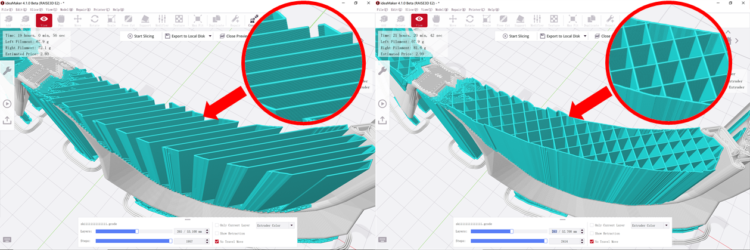
(Left: Lines, Right: Grid)
You can choose the pattern of the support structure. These patterns have a default setting of Lines. However, while it is easy to break them by hand, supports using this pattern are also less stable and it is easier for them to deform and collapse.
Since PVA filament can be dissolved, there is no requirement for manually removing the resulting supports. Therefore, an advantage of PVA is that users have the option to choose more stable patterns, such as the Grid and Triangles, which otherwise would be less desirable options for supports that need to be removed by hand.

(Left: 0.2mm, Right: 1.0 mm)
Users can set the distance of the gap between the support and the object. By reducing the distance, the support structure will stick more tightly to the overhang surface. This helps to prevent collapse and raise the smoothness of the downward-facing surface.

(Left: 0.2mm, Right: 1.0mm)

(Left: 0 layer, Right: 1 layer)
The vertical distance between the object and the support top/bottom surface can be changed, and users can set the distance in layers. With 0 layers, the object and the support will stick together. This helps reduce the risk of prints failing, such as the overhang area collapsing.
When applying the same printing material for both object and the support, such as PLA filament, a distance setting of 0 layers will result in the support not easily breaking away from the object. But if the support is printed with PVA, the PVA support can be dissolved rather than broken away, which is far more useful and convenient.
The gap distance is calculated by the number of layers and the layer height. (If layer height is 2.0 mm, gap of 1 layer is 2.0 mm).

Dense support is created by increasing the density of a few interface layers between the object and the support structure. It can prevent extruded mesh from falling into intervals of the support structure.
Although such settings will increase the printing time and cost, these settings are still recommended if you want to increase printing stability and surface quality.

To change the setting, you can click on “Dense Support” tag next to “Support” tag.

The green part is normal support, and the blue part indicated by the red arrow is dense support.
You can change the number of dense support layers between the regular support structure and the object.
Generally, three layers are enough, but if you want to entirely remove support, it is suggested to increase the number of layers.

Users can add dense support as initial layers in the bottom of the support structure.
Although dense support results in more printing time, it helps reduce the chance of printing failure by increasing the stability of PVA support.

(Left: 80%, Right:100%)
You can set the density of the dense support area. This works the same as the infill density of the model itself. As density increases, the support structure grid will gradually become tighter while the interface between the model and support improves. Reducing the density can shorten printing time but it is suggested to keep density at least at 80%.
FFF • Dual Extrusion • High-Speed Printing up to 300mm/s • RFID Traceable Workflow
FFF • Dual Extrusion • HEPA Filter With Activated Charcoal • Up to 300°C
SLS • Low TCO • High Output • High-Precision Prints • Industrial and Functional Material
DLP • True DLP Precision • Faster Prints • RFID Traceable Workflow • Broad Resin Portfolio
DLP • High Resolution Resin Printing • RFID Traceable Workflow • Wide Range of Resin Compatibility
FFF • Dual IDEX • Flexible and Fiber-Reinforced Filaments • Enclosed Build Chamber
FFF • Dual IDEX • For Fiber-Reinforced Filaments • Dry Boxes • Enclosed Build Chamber
FFF • Dual IDEX • For Flexible Materials up to Shore Hardness 70A • Enclosed Build Chamber
Large-Format FFF (500 × 500 × 500 mm) • Dual IDEX • Carbon Fiber Composites & High-Strength Polymer
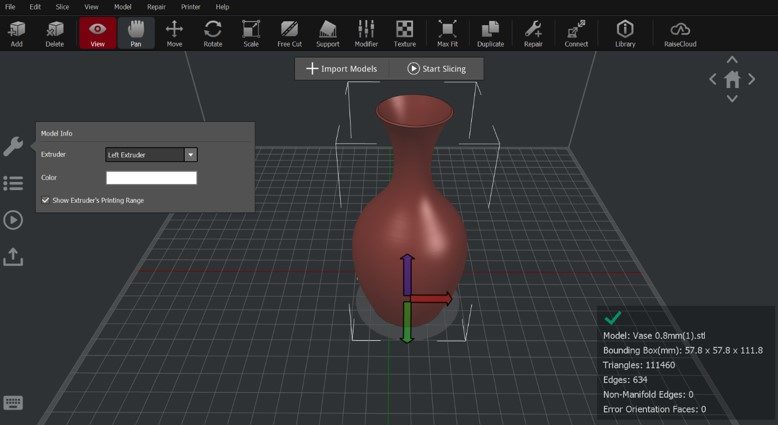
With ideaMaker Texture, the user can skip lengthy CAD processing and generate a 3D texture directly from a 2D greyscale image, and can apply it to the model’s surface. Examples of 2D images that can be spread over a model’s surface include patterns, figures, or logos. ideaMaker uses slicing to automatically convert any image into a 3D texture to be printed as a unique surface finish. ideaMaker Texture expands the possibilities of a model’s appearance while broadening the appeal of it.
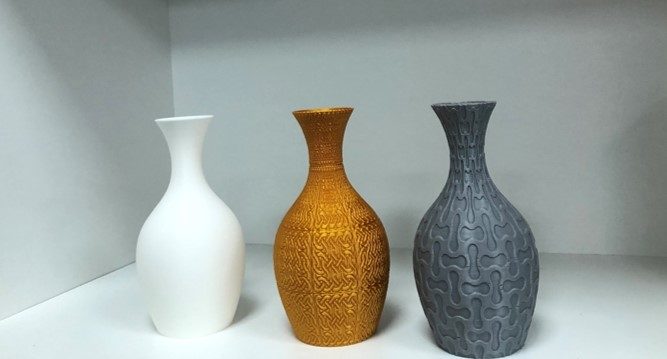
Vase with Texture applied
Texture can easily turn any 2D image into 3D texture on a model’s surface. This enables the user to try out an unlimited amount of images for a huge range of appearances. This is useful for any scenario that requires customization, with customized digital product appearances benefitting especially. Examples of customized digital product appearances include headphones, controllers, automotive interior parts, artistic crafts, household products, miniature architecture, and computer mice.
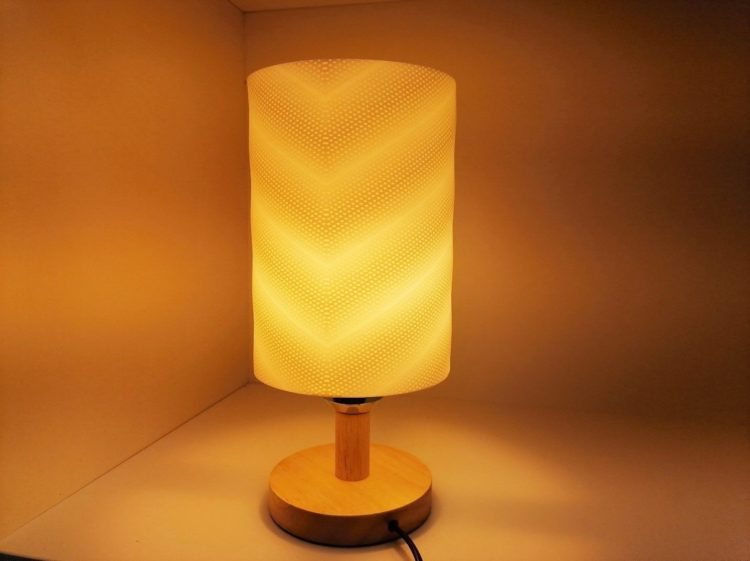
Lampshade with Texture
A great example is to apply Texture on Print+, a DIY headphone kit that uses 3D-printed casing. It is designed to be printed with Polymaker’s PolyMax PLA, which provides a wide range of color options. Now, with ideaMaker Texture, the user can customize the 3D texture of a headphone case even further, using any greyscale image they like.
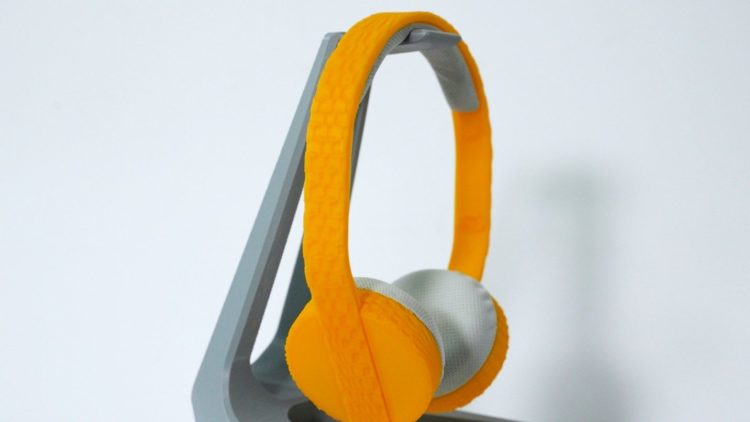
DIY headphones with texture
ideaMaker Texture is user-friendly and saves a significant amount of time when compared to conventional modeling requirements and procedures. Textures can be modified by applying a 2D image and changing a few settings. This easy-to-use feature gives those still learning modeling skills the possibility of customizing the surface of a 3D printable object with a texture. There is a Texture module in ideaMaker Library which provides a vast number of 2D texture images, and where the user can import a texture image from an online library to ideaMaker with one click, as well as also having the option of uploading a local image they designed to ideaMaker Library, and share the texture, the model appearance design, and customization experience.
Texture is easy to use and only takes a few steps to generate the 3D texture on a model. All that is necessary is to import an .STL into ideaMaker 4.1.0, then click the Texture icon in the toolbar and choose an image. Then adjust the texture mapping by degree, position, and number of duplicates until achieving the desired parameters. After that, the user can slice and preview the resulting application of the 3D texture on the surface of the model.
The process of applying Texture is designed so that beginners and non-professional designers can fully utilize this feature, only needing 4 steps.
Step 1:Import Model

Import model
Step 2: Add and Adjust Texture for Model


There is no image requirement for size, format, color or resolution (supported format includes .jpg, .jpeg, .bmp, .png, .texture). ideaMaker will convert information in the image to greyscale values. The greater the contrast in the picture, the more notable the 3D texture will be on the model.
Based on image content, the user can apply Texture to a variety of situations including pattern (left), figure (middle), text and logos (right).

In ideaMaker 4.1.0, Texture cannot be applied on a flat surface of the model that is parallel to the print bed. Therefore, when adding a textured image, the user should consider the model’s orientation and the mapping of an image on the model’s surface.
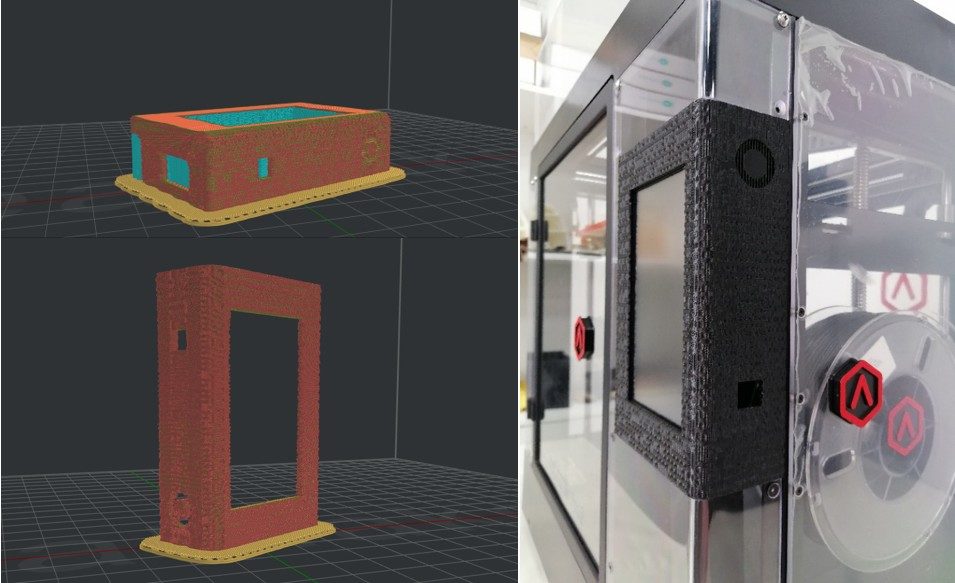
Different result of Texture for model in two orientations
Step 3: Preview of Texture Result
In the slicing preview, the user see what the 3D printed surface with texture looks like.

Step 4: Print! Make a Model with a Unique Appearance
Once the Gcode is uploaded to the Raise3D printer, it will take care of the rest. The user will finally possess a creative and unique model. Post-processing, such as painting, polishing or UV printing, can give extra appeal to final object.
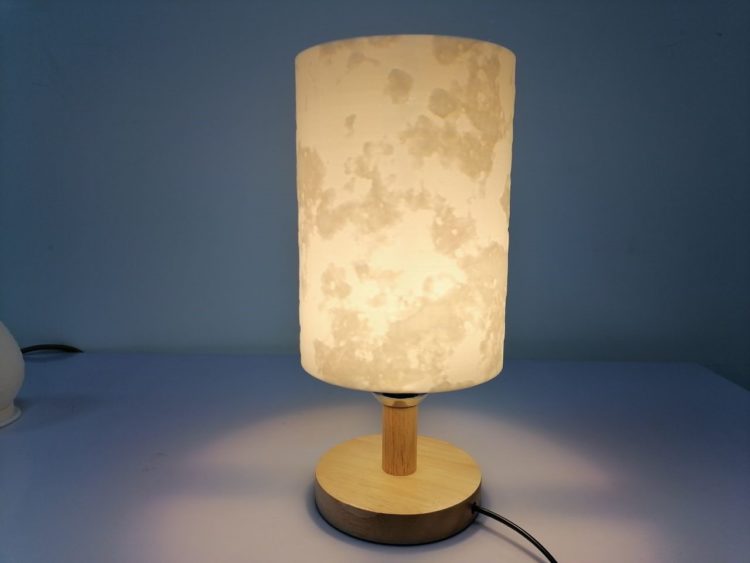
Lampshade with Moon surface applied using ideaMaker Texture
ideaMaker 4.1.0 provides several useful settings to easily customize the application of a texture.
1. How to shift texture on the model?
Changing values in “Move” will shift the texture on the model. Please note, texture in ideaMaker 4.1.0 is wrapped according to axial symmetry. A value in the first box will decide the horizontal offset between the texture and the axis.
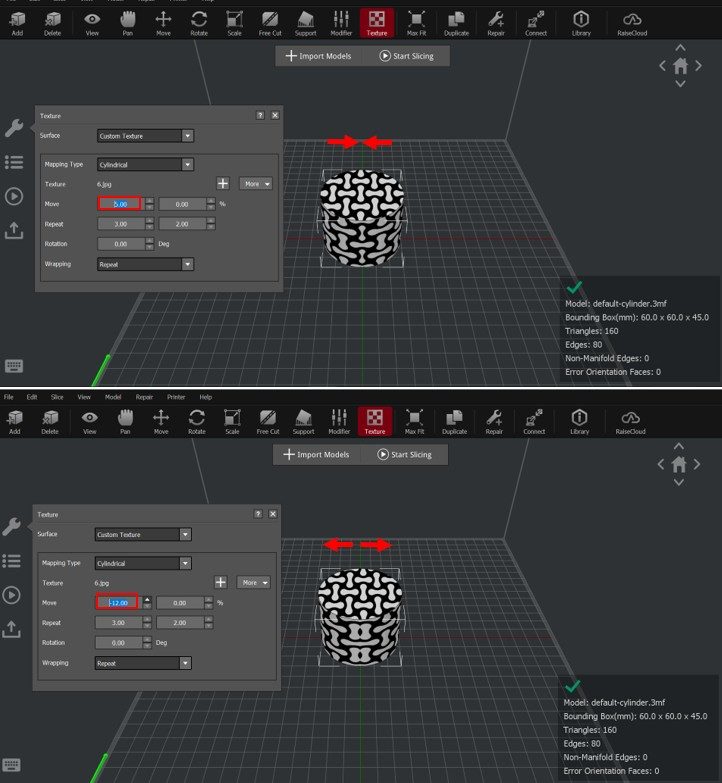
Positive value: Textures will move closer to the axis; Negative value: Textures will move away from the axis
A value in the second box will decide the offset in the vertical direction.
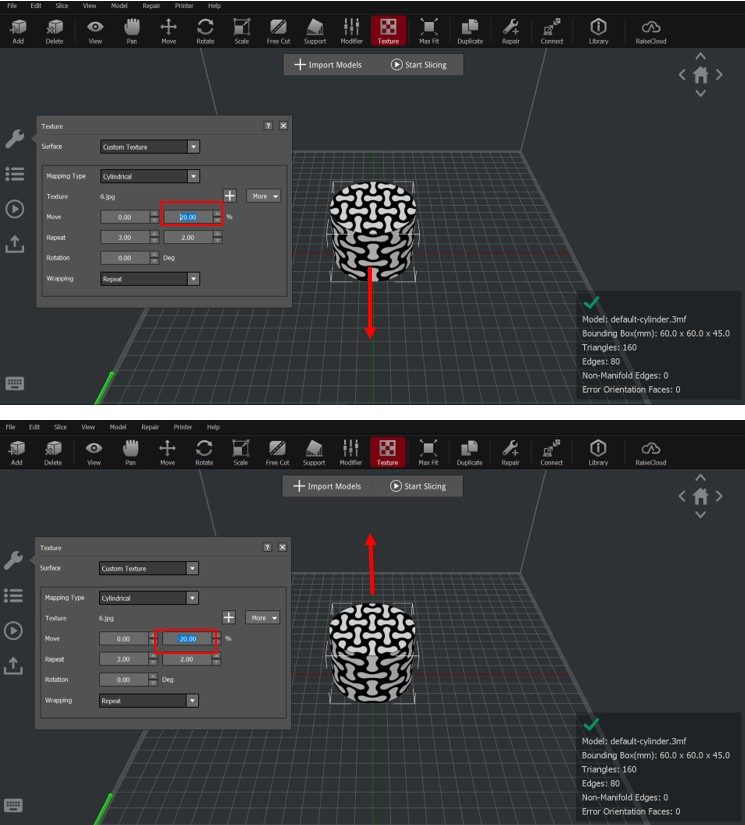
Positive value: Texture moves downwards; Negative value: Texture moves upwards
2. How to Adjust the Repetition of Texture
Adjusting the value of “Repeat” changes how the texture repeats. A value in the first box adjusts the way the pattern repeats in horizontal directions while a value in the second box decides repetitions in vertical directions.
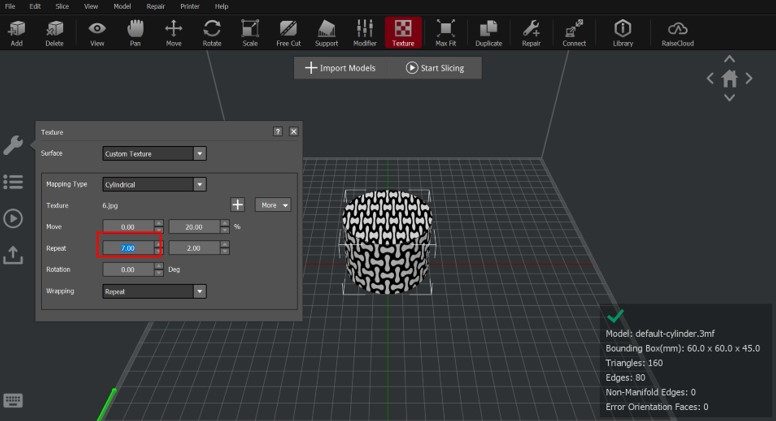
Adjusting horizontal repetitions
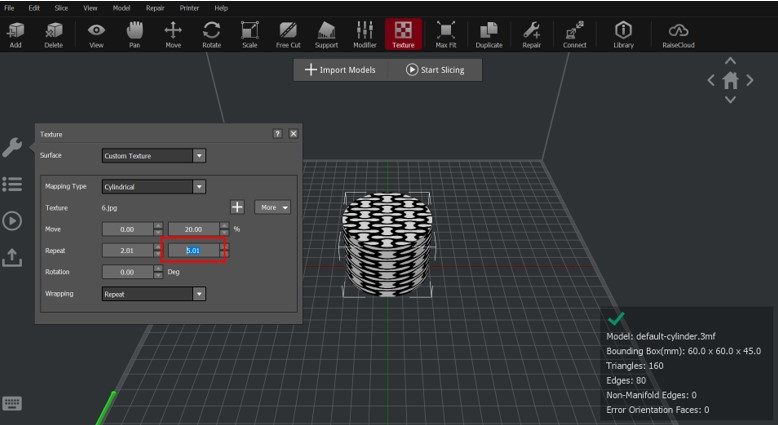
Adjusting vertical repetitions
3. How to Rotate the Texture?
With “Rotation”, the texture will rotate clockwise or counter-clockwise along the axis.
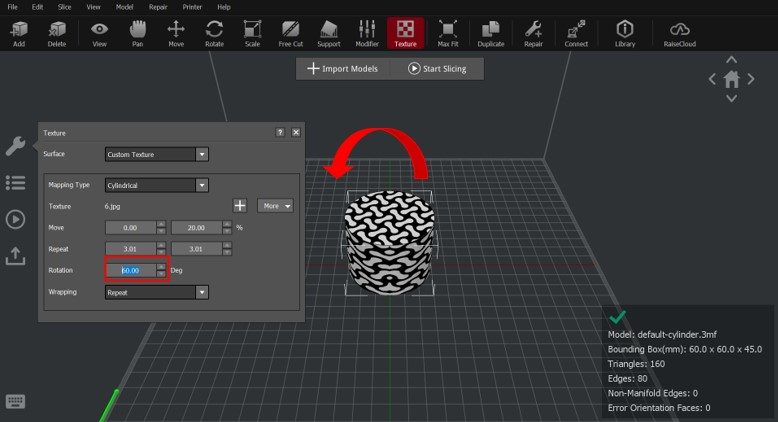
Positive value: Counter-clockwise rotation
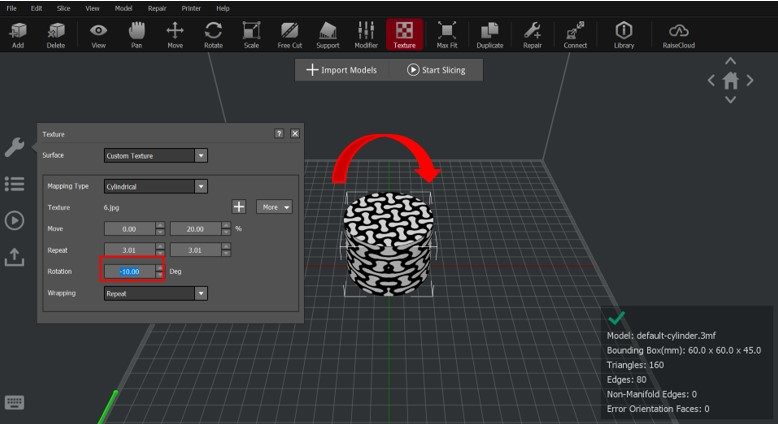
Negative Value: Clockwise rotation
Advanced Settings of Texture
Besides adjusting the arrangement of texture on the surface, a user can also change settings in the “Texture” category of slicing templates. Some useful options include Texture Resolution, Texture XY Offset and Texture Outside Only.

Texture Resolution decides how accurate the image will be when converted into 3D texture. The higher the value is, the sharper the 3D pattern will be.
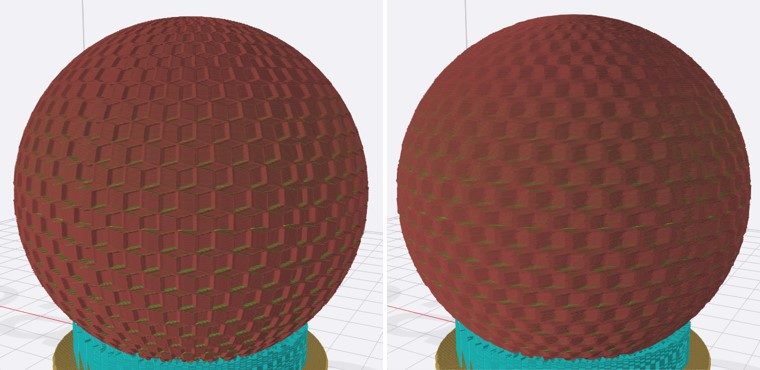
Left: Resolution=0.1mm; Right: Resolution=0.5mm
Texture XY Offset decides how much of the model surface will be extruded or pulled based on the texture image within a certain grey value. The larger the number is, the more pronounced the extrusion or pull will be. A negative value inverts the direction of the extrusion or pull.
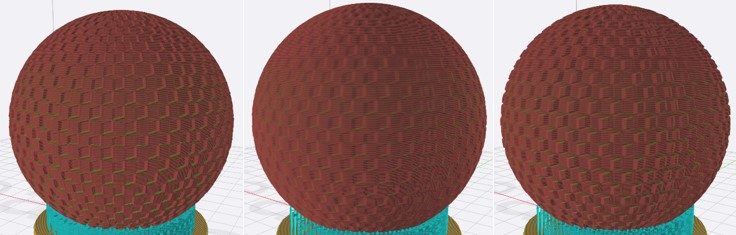
Left: Offset=1.00mm; Middle: Offset=0.5mm; Right: Offset=-1.00mm
A user can enable Texture Outside Only to allow ideaMaker to identify inside the surface of the model and add texture to only to the outside. For typical geometry, like a vase, ideaMaker can identify its inside and keep in its original, non-textured state.
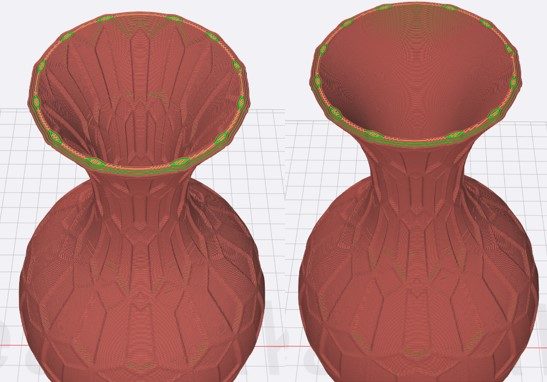
Left: Texture Outside Only=Disabled; Right: Texture Outside Only=Enabled
In addition, the user can add modifiers to block certain areas from generating texture.
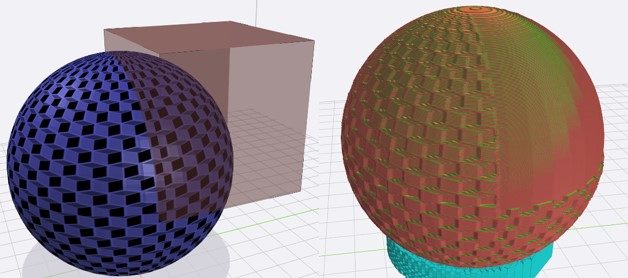
Texture is not applied in an area blocked by a modifier
How to Acquire A More Textured Image?
Use ideaMaker Library to acquire high-quality textured images.
ideaMaker Library now has a Texture category for users to upload and download free images of textures, which supports one-click import and share.


Now that you understand of the functions of ideaMaker Texture, you can 3D print your own creations using Texture.
If you have any additional questions about the ideaMaker Library Textures, or want to inquire further regarding ideaMaker, reach out to us at inquiry@raise3d.com.
FFF • Dual Extrusion • High-Speed Printing up to 300mm/s • RFID Traceable Workflow
FFF • Dual Extrusion • HEPA Filter With Activated Charcoal • Up to 300°C
SLS • Low TCO • High Output • High-Precision Prints • Industrial and Functional Material
DLP • True DLP Precision • Faster Prints • RFID Traceable Workflow • Broad Resin Portfolio
DLP • High Resolution Resin Printing • RFID Traceable Workflow • Wide Range of Resin Compatibility
FFF • Dual IDEX • Flexible and Fiber-Reinforced Filaments • Enclosed Build Chamber
FFF • Dual IDEX • For Fiber-Reinforced Filaments • Dry Boxes • Enclosed Build Chamber
FFF • Dual IDEX • For Flexible Materials up to Shore Hardness 70A • Enclosed Build Chamber
Large-Format FFF (500 × 500 × 500 mm) • Dual IDEX • Carbon Fiber Composites & High-Strength Polymer
Option 1: Upload the sliced G-Code file directly to the Raise3D series printer via WLAN.
Option 2: Upload the sliced G-Code file to the RaiseCloud platform.
Option 3: Upload the sliced G-Code file to OctoPrint.
1. Make sure your printer and your computer are already on the same network.

Figure 1 Enter the setting interface


Figure 2 Connect the printer with your network
2. There are three methods to upload sliced G-Code files in ideaMaker to Raise3D series printer.
Method 1 After the model is sliced, click “Upload to Printer” in the “Estimated Print Result” window to upload the G-Code file.

Figure 3 Select “Upload to Printer” in the “Estimated Print Result” window
Method 2 Select “Upload to Printer” in the menu bar of the main interface to export the G-Code file.

Figure 4 Select “Upload to Printer” in the menu bar
Method 3 Select the “Upload” button on the left, and then click “UPLOAD FILES TO LOCAL PRINTERS” below to directly upload local files to the printer.

Figure 5 Select “UPLOAD FILES TO LOCAL PRINTERS” in the “Uploading Queue”
A) No matter which method you select, then, you will see the “Select Printer” page. You can select the printer you want to connect here. You can also rename the model on the “Select Printer” page.

Figure 6 Select the printer you want to connect
B) After you select a printer, “Upload Queue” will be displayed on the left side of the screen. You can check the upload progress of the model here.

Figure 7 Check the printing progress in “Upload Queue”
C) After the uploading is complete, you can start to print the model. On the Raise3D printer, select the “Print” page, and all files uploaded via WLAN are placed in “Local storage”.

Figure 8 Local storage
3. You can also remotely connect and control the printer in ideaMaker. This function is only available for Raise3D series printers.
A) Select “Printer”> “Connect to Printer (Raise3D printers)” in the menu bar.

Figure 9 Select “Printer” > “Connect to Printer (Raise3D printers)”
B) Select the printer you want to connect to on this page. You can search for printers on the same network on the “Scanning” interface. You can select the “Bookmark” icon to add this printer to the bookmark page. Select the “arrow” icon to connect to the printer.

Figure 10 Select the printer you want to connect
C) Connect to your printer.

Figure 11 Connecting your printer
D) Now you can control the printer remotely. ideaMaker has the same operation interface as the printer’s touch screen, so you can also directly control the printer on your printer.

Figure 12 Remotely control your printer
E) The uploaded file will be placed in “Local Storage”.

Figure 13 Click “Local storage” to check the uploaded files
F) Select the file to be printed, you can view the information of the file, and then select the “Print” button to start printing.


Figure 14 Check the file information and start printing
1. RaiseCloud is a cloud platform for managing your printers and printing progress. You can bind Raise3D series printers and third-party printers to this platform, so that you can print, monitor, and manage your printers, print files, and print progress in batches.

Figure 15 RaiseCloud interface
2. First, you need to create a RaiseCloud account and log in in ideaMaker.
A) Select the “RaiseCloud” icon on the menu bar. Enter the account, password in the pop-up window to log in to RaiseCloud. If you do not have a RaiseCloud account, click “Sign Up” below to register your account in the RaiseCloud official website.

Figure 16 Log in to RaiseCloud
3. After you slice the model in ideaMaker, you can upload the slice file to RaiseCloud.
Method 1 After the model is sliced, select “Upload to RaiseCloud” in the “Estimated Print Result” window to upload the G-Code file.

Figure 17 Click “Upload to RaiseCloud” in the “Estimated Print Result” window
Method 2 Select “Upload to RaiseCloud” in the menu bar of the main interface to export the G-Code file.

Figure 18 Select “Upload to RaiseCloud” in the menu bar
Method 3 Click the “Upload” button on the left, in the RaiseCloud tab, then click “UPLOAD TO RAISECLOUD” below to directly upload local files to the RaiseCloud.

Figure 19 Select “UPLOAD TO RAISECLOUD” in the Uploading Queue

Figure 20 Modify the name of the uploaded file

Figure 21 Check the “Uploading Queue”

Figure 22 Manage your files on the RaiseCloud website
1. OctoPrint is a web management platform for 3D printers, which allows you to control and monitor the printer and printing progress directly from the browser.
2. You can upload the sliced file to OctoPrint directly in ideaMaker.
Method 1 After the model is sliced, select “Upload to OctoPrint” in the “Estimated Print Result window” to upload the G-Code file.

Figure 23 Select “Upload to OctoPrint” in the “Estimated Print Result window”
Method 2 Select “Upload to OctoPrint” in the menu bar of the main interface to upload the sliced G-Code file.

Figure 24 Select “Upload to OctoPrint” in the menu bar
Method 3 In the “Upload Queue” on the left, select “UPLOAD FILES” to upload local files directly to OctoPrint.

Figure 25 Select “UPLOAD FILES” in the “Upload Queue”


Figure 26 Configure your OctoPrint URL and API Key
FFF • Dual Extrusion • High-Speed Printing up to 300mm/s • RFID Traceable Workflow
FFF • Dual Extrusion • HEPA Filter With Activated Charcoal • Up to 300°C
SLS • Low TCO • High Output • High-Precision Prints • Industrial and Functional Material
DLP • True DLP Precision • Faster Prints • RFID Traceable Workflow • Broad Resin Portfolio
DLP • High Resolution Resin Printing • RFID Traceable Workflow • Wide Range of Resin Compatibility
FFF • Dual IDEX • Flexible and Fiber-Reinforced Filaments • Enclosed Build Chamber
FFF • Dual IDEX • For Fiber-Reinforced Filaments • Dry Boxes • Enclosed Build Chamber
FFF • Dual IDEX • For Flexible Materials up to Shore Hardness 70A • Enclosed Build Chamber
Large-Format FFF (500 × 500 × 500 mm) • Dual IDEX • Carbon Fiber Composites & High-Strength Polymer
ideaMaker has built-in three slice templates with set parameters, namely Speed, Standard and High Quality. You can choose the appropriate slice template according to your needs.

Figure 1 Open “Manage Templates”

Figure 2 Select ideaMaker built-in filament template

Figure 3 Three kinds of templates

Figure 4 Speed slice template

Figure 5 Standard slice template

Figure 6 High Quality slice template
1. Click “Slice” in the menu bar, and then click “Compare Templates

Figure 8 Open “Compare Templates”

Figure 9 Compare the specific parameters of the default slice template

Figure 10 Compare the difference between the local template and the default template
FFF • Dual Extrusion • High-Speed Printing up to 300mm/s • RFID Traceable Workflow
FFF • Dual Extrusion • HEPA Filter With Activated Charcoal • Up to 300°C
SLS • Low TCO • High Output • High-Precision Prints • Industrial and Functional Material
DLP • True DLP Precision • Faster Prints • RFID Traceable Workflow • Broad Resin Portfolio
DLP • High Resolution Resin Printing • RFID Traceable Workflow • Wide Range of Resin Compatibility
FFF • Dual IDEX • Flexible and Fiber-Reinforced Filaments • Enclosed Build Chamber
FFF • Dual IDEX • For Fiber-Reinforced Filaments • Dry Boxes • Enclosed Build Chamber
FFF • Dual IDEX • For Flexible Materials up to Shore Hardness 70A • Enclosed Build Chamber
Large-Format FFF (500 × 500 × 500 mm) • Dual IDEX • Carbon Fiber Composites & High-Strength Polymer
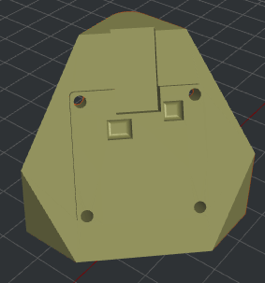
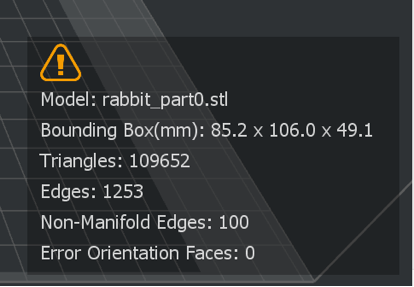
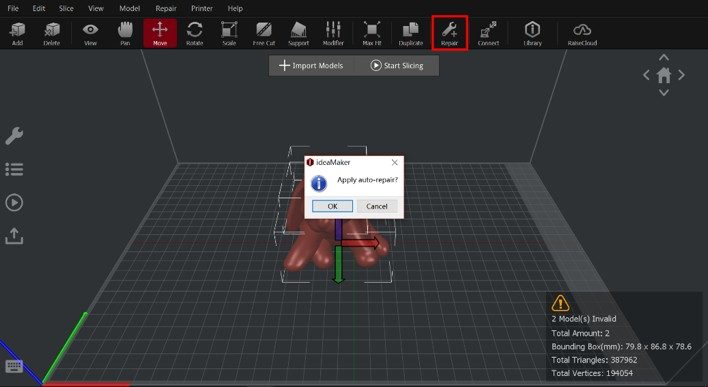
After you import the model, the model is red or green; or when you import the model, an error message is displayed on the lower right corner of the main interface, then you need to repair the model.


Figure 1 There is An Error in the Model
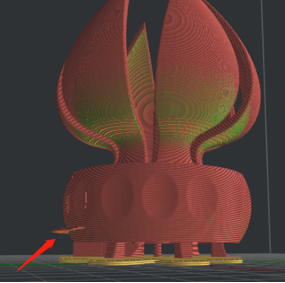
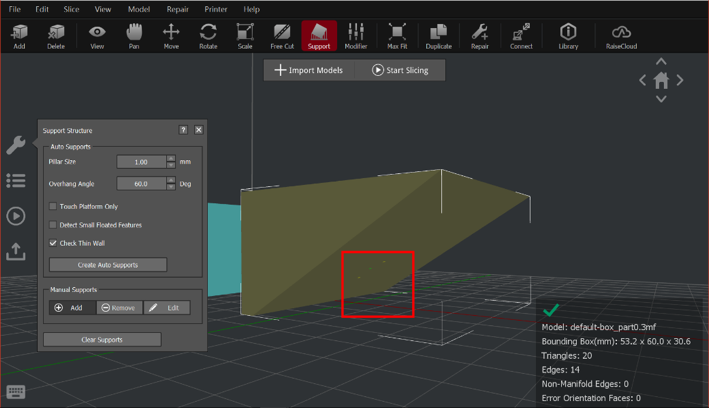
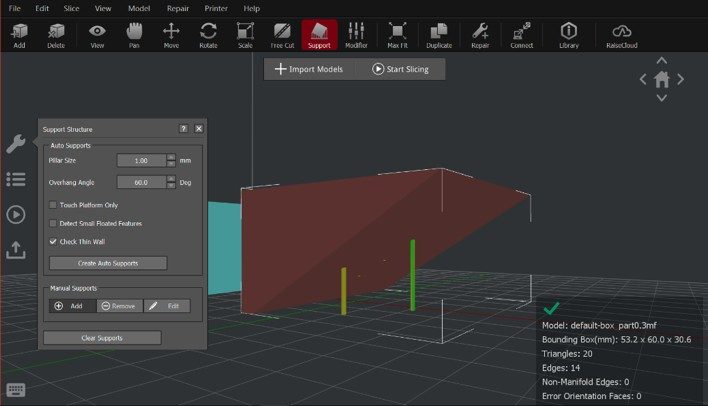
When there are errors in the model, you can’t add support for the model. After slicing, the model may be damaged or the model will be structurally incomplete.


Figure 2 Do not add supports, it will damage the model

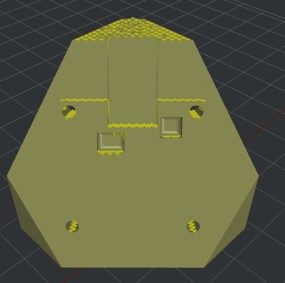
Figure 3 Auto-Repair the model

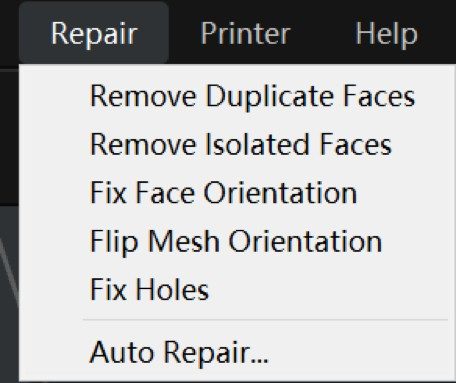
Figure 4 The “Repair” menu


Figure 5 Before the model repair (top) After the model repair (bottom)
FFF • Dual Extrusion • High-Speed Printing up to 300mm/s • RFID Traceable Workflow
FFF • Dual Extrusion • HEPA Filter With Activated Charcoal • Up to 300°C
SLS • Low TCO • High Output • High-Precision Prints • Industrial and Functional Material
DLP • True DLP Precision • Faster Prints • RFID Traceable Workflow • Broad Resin Portfolio
DLP • High Resolution Resin Printing • RFID Traceable Workflow • Wide Range of Resin Compatibility
FFF • Dual IDEX • Flexible and Fiber-Reinforced Filaments • Enclosed Build Chamber
FFF • Dual IDEX • For Fiber-Reinforced Filaments • Dry Boxes • Enclosed Build Chamber
FFF • Dual IDEX • For Flexible Materials up to Shore Hardness 70A • Enclosed Build Chamber
Large-Format FFF (500 × 500 × 500 mm) • Dual IDEX • Carbon Fiber Composites & High-Strength Polymer
Businesses need industrial 3D printers for their quality 3D printing results. However, the necessary high level of 3D printing quality ultimately requires a more expensive 3D printer. Therefore, industrial 3D printers have a higher price tag. Depending on the kind of specialized functionalities needed in the 3D printer, budgets for an industrial 3D printer is at least $5,000 – $10,000. However, depending on other characteristics such as print size and materials, it is not uncommon for an industrial 3D printer price to be over $1 million. For this article, we will focus on industrial 3D printers priced on a $5,000 – $10,000 budget since they are within reach of businesses of all sizes.
An industrial 3D printer is designed to be a high-quality machine with mechanical as well as hardware and software features in place to ensure a high success rate and high print quality.
Some mechanical features that contribute to an industrial 3D printer being a high-quality machine include:
Some fail-safe measures that help ensure a high success rate include:
A feature that contributes to a high print quality includes a 32-bit ARM Cortex motion controller board for high position accuracy and smooth movement for the motion system during the printing process. A motion controller receives the instructions for creating a 3D printed part and segments the instructions into manageable steps. Each step will include a set of actions performed by the 3D printer. An industrial 3D printer will have a high performing controller, such the 32-bit motion controller on Raise3D printers to segment the instructions into smaller steps. By having smaller steps the 3D printer will be performing less action within each step. This allows industrial 3D printers to have more accuracy and smoother movement while being regulated by the 32-bit motion controller.
The high-quality design of an industrial 3D printer is important because the quality of the build of the machine will affect the 3D printing process, which will affect the quality of the final product. For example, every 3D printer has a flat, heated surface, called a build plate where the printer layers the 3D printing material to create a 3D printed part. A high quality and well-designed build plate and printer bed will ensure a successful print.
It is important to understand that since the build plate is where parts are created, the design and structure of the build plate can affect the 3D printing process, and ultimately the final result of the 3D printed part. Therefore, an industrial 3D printer’s build plate will be designed to a higher standard.
For example, all Raise3D printers are designed with a metal build plate. The metal build plate is very flat and provides even heat distribution. The flatness and even heat distribution make the print model stick to the print bed well, with less of a chance of warping off the print bed. The even heat distribution ensures that all 3D printing materials, filaments, are not damaged during the printing process due to unequal heat distribution across the build plate.
For the industrial 3D printer’s design and features to be performed to a high standard, the printer needs to be built in a high-standard factory. For example, the Raise3d factory is ISO certified under ISO 9001 and ISO 14001.
Most industrial 3D printers feature dual extruders because dual extruders expand the printer’s printing capabilities. First, it is important to understand that depending on there are two types of dual extruders available. Industrial 3D printers can feature dual extruders which work in unison or independently of one another. Extruders that work independently of one another are known as Independent Dual Extruder System, IDEX. Depending on which kind of dual extruders are featured on the industrial 3D printer, leads to even more specialized functions.
In general, dual extruders enable the printer to process a wider range of 3D printing materials, also known as filaments. The ability to process a wider range of filaments allows the industrial printer to create more kinds of 3D printed parts. This includes 3D printed parts made up of two colors, parts made of two different filaments, and parts that require a support structure during printing.
Support structures are only created using a filament that can act as a print support material. Two examples of support material include HIPS which is commonly paired with ABS, and PVA which is commonly paired with PLA. PVA is a specialized filament that is a water-soluble 3D printing material. It is often used in support structures and for water-soluble 3D printed parts. However, PVA can only be processed if the 3D printer has dual-extruders. Industrial 3D printers, like those from Raise3D, are designed with dual extruders and can accommodate filaments with processing requirements, like PVA.
Simply because the industrial 3D printer has dual extruders does not mean that both extruders must be used for each print job. There are times when print jobs only require one nozzle to produce the 3D printed part. However, a 3D printer operating with one extruder runs the risk of accidentally hitting the part with the extruder/nozzle that is not in use, causing issues or print failures. Industrial 3D printer manufacturers implement two common methods to prevent this problem.
The first method is to lift the non-printing nozzle higher to the model layer that is being printed. Nozzles stick out of extruders and can hit the part being printed when they are not in use. Under the design of the first method, an industrial 3D printer will enable nozzles not in use to lift into the extruder to not hit the printed part. For example, Raise3D’s Pro2 dual extruder 3D printer and the Pro2 Plus large format 3D printer lift nozzles to produce high-quality dual extruder prints. Both of these Raise3D printers have a 1.5 mm nozzle lifting distance, meaning the nozzles will lift 1.5 mm away from the printed part.
The second method requires an industrial 3D printer featuring an independent dual extruder system, IDEX. The IDEX printer will prevent print issues from the unused extruder by moving the unneeded extruder/nozzle away from the part being printed. For example, the E2 desktop 3D printer from Raise3D is an industrial 3D printer with IDEX. If the E2 was printing with only one extruder, the E2 will use its IDEX capability to separate the two extruders. Then it would push the unneeded extruder off to the side, away from the print job. By separating the two extruders, the E2 can continue printing without running the risk of damaging the print with the unneeded extruder.
Both methods are proficient at printing 3D printed parts designed for an industrial 3D printer with dual extruders. Regardless of the kind of dual extruders an industrial 3D printer features, it will produce a high-quality 3D printed part. However, depending on the production and manufacturing needs of a business, IDEX can offer additional features such as the E2’s Duplicate or Mirror Mode. Duplicate mode is when the E2 prints a part and a copy of the part at the same time. Mirror mode is when the E2 prints the part and the part’s inverse at the same time. Both Mirror Mode and Duplicate Mode use IDEX to print one part on each extruder. Both processes lead to faster and more efficient production. If faster production and manufacturing is important, IDEX may be a function to keep in mind when searching for an industrial 3D printer.
The high design standard of industrial 3D printers leads to better accuracy during the actual 3D printing process. A high degree of accuracy is crucial in the printing process because it helps produce a better final product.
3D printing is a process where thin layers of material are built up to create a part. To build these layers, the 3D printer needs to be able to smoothly glide back and forth without malfunctioning or losing its position. Therefore the machine itself needs to be built to protect against these types of issues during the printing process. Industrial 3D printers are designed to a higher standard to have a smoother printing process and produce a high-quality 3D printed part.
For example, Raise3D industrial 3D printers are all built with a full metal frame which acts as a reliable motion system for smooth movement and precise positioning during the 3D printing process. The full metal frame on Raise3D’s printers is made of aluminum. Aluminum is both lightweight and durable to withstand the force of the 3D printer’s back and forth movement during the printing process. If a printer’s frame is not metal, it may not be strong enough to withstand the force from the printing process. If the frame can not handle this type of force, it can be damaged by the back and forth movement during the printing process. If the frame is damaged then the X, Y, and Z axes will be altered. The X, Y, and Z axes are used to measure the part’s design and size. If the X, Y, and Z axes are altered, they can not follow the design and size instructions for the part. Axes that can not match the instructions for a part’s design will lead to an inaccurate final 3D printed part. However, a full metal frame like that found on Raise3D printers is strong enough to withstand this type of force to lead to an accurate final 3D printed part. Raise3D’s full metal frame gives our printers a smoother movement. The beneficial combination of the metal frame’s accuracy and smoother movement results in a better 3D printed part. A better 3D printed part results in a better performing 3D printed part.
More than one 3D printing material, known as filaments, may be necessary to accommodate varying structural or functional requirements (some such requirements include flexibility, and strength). An industrial 3D printer will be designed to accommodate a wide variety of filaments to meet different kinds of project requirements.
One capability of an industrial 3D printer will be a higher nozzle and printer bed temperature. Higher nozzle and bed temperatures give the ability to print more materials and engineering plastics. Being able to accommodate more printing materials and engineering plastics will give the industrial 3D printer more uses, also known as applications.
FFF • Dual Extrusion • High-Speed Printing up to 300mm/s • RFID Traceable Workflow
FFF • Dual Extrusion • HEPA Filter With Activated Charcoal • Up to 300°C
SLS • Low TCO • High Output • High-Precision Prints • Industrial and Functional Material
DLP • True DLP Precision • Faster Prints • RFID Traceable Workflow • Broad Resin Portfolio
DLP • High Resolution Resin Printing • RFID Traceable Workflow • Wide Range of Resin Compatibility
FFF • Dual IDEX • Flexible and Fiber-Reinforced Filaments • Enclosed Build Chamber
FFF • Dual IDEX • For Fiber-Reinforced Filaments • Dry Boxes • Enclosed Build Chamber
FFF • Dual IDEX • For Flexible Materials up to Shore Hardness 70A • Enclosed Build Chamber
Large-Format FFF (500 × 500 × 500 mm) • Dual IDEX • Carbon Fiber Composites & High-Strength Polymer
1. The system specifications supported by ideaMaker are as follows, please check whether your computer supports ideaMaker. If your graphics card driver version does not support ideaMaker, please upgrade the graphics card driver to meet the system requirements, or you can choose another computer that meets the requirements.
2. If the page flickers when you use ideaMaker, it is recommended to replace the graphics card with a discrete graphics card.