What is the Information Prompt in the Lower Right Corner?

1. What is the Information Prompt in the Lower Right Corner?

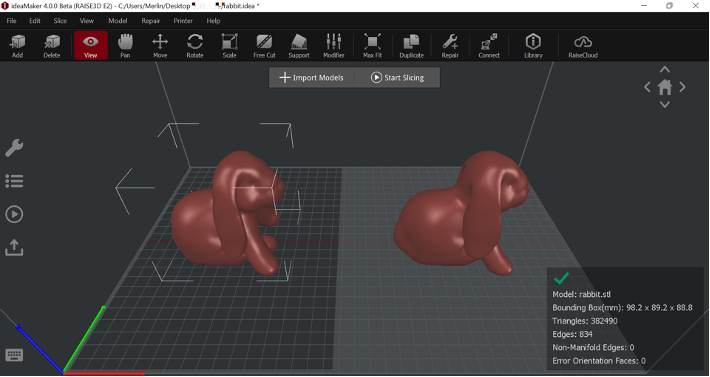
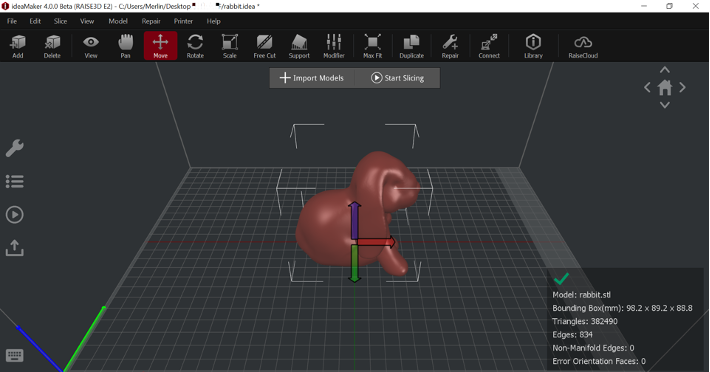
When you import the model into ideaMaker, the information of the model will be displayed in the lower right corner of ideaMaker, including model name, bounding box size, triangles, edges etc.

Model Information

Figure 1 Model Information

2. What does the prompt message in the lower right corner contain?

  1. Model refers to the name of the model.
  2. Bounding Box(mm) refers to the size of the model.
Bounding Box

Figure 2 Bounding Box

Note:

  1. When rotating model or scaling the model, if you choose “Local Transform”, the size of “Local Bounding Box” will be displayed.
  2. World Transform refers to global scale based on printer’s coordinate axis.

1) Local Transform refers to zoom scale based on model’s coordinate axis.

Figure 3 Bounding Box

"Local Bounding Box”

Figure 3 “Local Bounding Box”


2) Triangles refers to the number of triangles in the model. Model faces are subdivided into triangles. A model with a higher number of triangles will usually have a smoother surface effect, but will lead to system overloading.

Triangles

Figure 4 Triangles


3) Edges
refers to the number of edges in the model.

The number of edges

Figure 5 The number of edges.


4) Non-Manifold Edges refers to the number of non-manifold edges in the model. Generally, there are two types of non-manifold errors, one is an open object which means the model has holes or loose edges, another one is extra faces such as internal faces, overlapping faces etc.

Non-manifold edges

Figure 6 Non-manifold edges


5) Error Orientation Faces
refers to the number of error orientation faces in the model. In geometry, the orientation of an object (such as a line, a plane or a rigid body) is used to describe how it is placed in the space in which it is located. If the model is displayed in green, you’ll need to flip mesh orientation.


Model has an error

Figure 7 Model has an error


Note: You can select “Repair”> “Flip Mesh Orientation” on the Menu Bar to flip the orientation of the model.


Flip Mesh Orientation

Figure 8 Flip Mesh Orientation

3. How to Repair the Error Displayed in the Lower Right-Hand Corner?

  1. When there is an error in the model, a yellow warning sign will be displayed in the lower right corner, and the error message of the model (such as Non-Manifold Edges) will be displayed.

    Model Error Message

    Figure 9 Model Error Message

  2. Click the “Repair” tool in the Tool Bar, ideaMaker will automatically repair the errors in the model.

    ideaMaker will automatically repair the errors

    Figure 10 ideaMaker will automatically repair the errors

  3. In the “Repair” menu, ideaMaker provides a variety of repair options, such as “Remove Duplicate Faces”, “Remove Isolated Faces”, “Fix Face Orientation”, “Flip Mesh Orientation”, and “Fix Holes”. You can fix the errors on your model one by one according to your need.

    "Repair” menu

    Figure 11 “Repair” menu

  4. If the errors in the model cannot be eliminated after being repaired, you can return to 3Ds MAX, Rhino, Maya, PROE, Solidworks and other modeling software to edit or repair the model.

The Best 3D Printer Designed For All Businesses

3D printers are becoming a more common piece of machinery within manufacturing and R&D. Investing in a 3D printer is quickly becoming an immediate necessity for more businesses. Businesses of any size can speed up production, prototyping, and manufacturing while creating the exact parts and components they need while cutting operating costs by incorporating 3D printing into their operations.

For companies to receive the full benefits of 3D printing, they need to invest in a 3D printer designed to be used by businesses. Purchasing a 3D printer is an important investment. Knowing which 3D printer is the right one for your business involves:

  1. Knowing the budget for the 3D printer
  2. Understanding what kind of projects the 3D printer will be used for
  3. How easily the 3D printer can be implemented into the company

Raise3D understands that different businesses have different operational needs and resources. Therefore, we designed all our 3D printers with all businesses in mind. A 3D printer from Raise3D has a range of features and capabilities, prints efficiently, processes a range of 3D printing material and produces high-quality 3D printed parts.

Situations of Micro and Small Businesses Compared to Medium and Large Businesses

Micro and small businesses generally operate with a stricter budget which can be a limiting factor. Therefore, they must be more cautious and concerned about effectively distributing their budget. However, medium and large businesses generally operate with a larger budget, which gives them the option to invest in more expensive printers, such as a metal 3D printer, that can cost upwards of $500,000.

While medium and large businesses do not face budget limitations to the same degree that micro or small businesses do, medium and large organizations face other obstacles. For example, not all engineers or departments within the organization get access to the company’s most advanced equipment, like a metal 3D printer. There will be a capacity limitation for those who do receive access to expensive equipment like a metal 3D printer.

Different business sizes face different limitations. A 3D printer designed to be used for business operations can address each kind of business limitation for businesses of all sizes.

Raise3D Products

An Affordable 3D Printer Benefits Businesses of All Sizes

A 3D printer intended for business will produce high-quality 3D printed parts. In general, a printer’s ability to produce high-quality 3D printed parts will result in a more expensive printer. However, a business’ size and amount of resources directly affects what type of 3D printer they can purchase.

For example, small and micro businesses have stricter budgets, so they need a 3D printer that is high quality but affordable. Meanwhile medium and large businesses have bigger budgets, but they can’t distribute enough expensive machinery (such as an expensive 3D printer) for everyone to use in the company. A more affordable high-quality 3d printer would give medium and large businesses the ability to meet their operational demand for accessibility. A 3D printer designed to be used by businesses can produce high-quality 3D printed parts at a price that is affordable for businesses. What constitutes an affordable 3D printer to a business will depend on the size of the business.

For a medium and large business, there are situations where an engineer’s prints can be executed by a 3D printer that is not so expensive to operate. For example, if the engineer needs to print a part that can be produced on the Pro2 dual extruder 3D printer, it will only cost a few dollars. In this situation, it does not make economic sense to use a million-dollar 3D printer to produce a part that can be done on a less expensive printer.

Other times, even though the company’s expensive 3D printer is ultimately needed to produce the 3D printed part, the part’s design may still need to be verified. In this situation, it makes more sense to verify the part’s design on a more cost-effective 3D printer before producing it on the expensive 3D printer.

3D printers that are priced affordably for businesses are also easier to implement across an organization. Due to the high cost of the initial sales price and maintenance of expensive 3D printers, expensive 3D printers are usually kept in an organization’s central location and run by specialists. However, a 3D printer that is affordably priced for businesses is more likely to be scattered across different departments, offices, locations, and run by multiple professionals ranging from engineers to designers.

Finally, due to the affordability of a 3D printer designed for business, departments are usually able to purchase a 3D printer with its budget. This shows that micro and small businesses are easily able to afford a 3D printer because a department’s budget is usually much smaller than the total budget of micro and small businesses.

3D Printers from Raise3D Are Designed For All Businesses

A 3D printer designed for business needs to have a variety of features and capabilities, produce high-quality 3D printed parts, and process different kinds of 3D printing materials for all current and future projects at an affordable price for businesses of all types and sizes. Raise3D offers a range of 3D printers with a variety of features and specialized capabilities, designed with all businesses and budgets in mind.

Raise3D range of printers includes:

  1. E2, a desktop 3D printer priced at $3,499
  2. Pro2, a dual extruder 3D printer priced at $3,999
  3. Pro2 Plus, a large-format 3D printer priced at $5,999


E2 Desktop 3D Printer

E2 Desktop 3D Printer

One feature all 3D printers from Raise3D have is the ability to connect to RaiseCloud. RaiseCloud is a cloud-based 3D printing management platform that is convenient for all businesses. RaiseCloud connects to a camera allowing the user to monitor the printing process remotely from a phone. RaiseCloud manages the printing projects to keep teams synchronized and any number of 3D printing projects on track. The ability to manage and monitor printing makes the team and ultimately business more productive and efficient.

RaiseCloud on Phone

RaiseCloud on Phone

Another feature all printers from Raise3D have are preventative measures to pause the print job in the event of a power outage or if the 3D printing material, also known as a filament, runs out.

For more details about 3D printers from Raise3D click here.

Why Raise3D Printers Are the Best 3D Printers For Any Business

For a $10,000 budget, a business has a couple of different printer purchasing options available. A business can purchase one Pro2 Plus large format 3D printer or two Pro2 or E2 3D printers for increased productivity. This purchase will still leave room in the budget for 3D printer accessories, parts, and filament.


Pro2 Plus Large Format 3D Printer

Pro2 Plus Large Format 3D Printer

In general, Raise3D E2, Pro2, Pro2 Plus 3D printers are the best 3D printers for micro and small businesses for several reasons. A 3D printer designed for business from Raise3D has many features for a variety of different capabilities, including the ability to process more than one filament for any kind of current or future project. 3D printers from Raise3D produce high-quality 3D printed parts, and fit into a micro and small business’ budget.

Pro2 Dual Extruder 3D Printer

Pro2 Dual Extruder 3D Printer

For medium and large businesses, the E2, Pro2, and Pro2 Plus from Raise3D are still the best 3D printer options, even though there are other more expensive 3D printers designed for other purposes. For medium and large businesses, it is more important to work the budget carefully across different equipment and technologies. For example, if a business has a $1 million budget, should the business spend it all on a single 3D printer or invest in 200 or more Pro2 dual extruder 3D printers? The answer is not absolute. A business can deploy 200+ Pro2 3D printers across the entire R&D team nationally or even globally. This will ensure the business’ entire R&D team will be able to get adequate access to 3D printing and improve a variety of business operations. This includes but not limited to increasing productivity while reducing cost, shorten the product’s R&D period, accelerate production, maximize the potential of the R&D team, and more. However, when it is necessary, it is a good idea for a business to invest in metal 3D printing as well.

Adopting 3D printers into business operations is becoming more common. Since each business has its own project needs, it is important to determine what kind of 3D printers will be worth the investment. 3D printers designed for business operations produce high quality 3D printed parts while remaining affordable. They improve efficiency and productivity while creating complex designs, prototypes and new parts in a shorter period of time.

All of Raise3D printers are designed to be used for business operations with specialized features and capabilities for any project.  Raise3D printers will improve operations and productivity in the short and long term for businesses of all sizes. Contact us today for more information on how a 3D printer from Raise3D can improve your business and schedule a demo today.

Brief Introduction of Duplication Mode and Mirror Mode

What is the Duplication Mode and Mirror Mode?

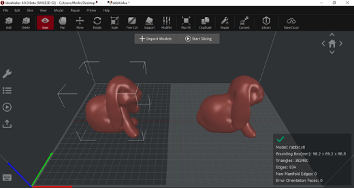
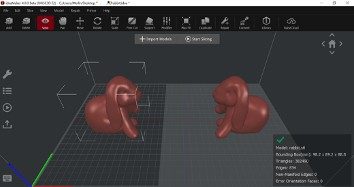
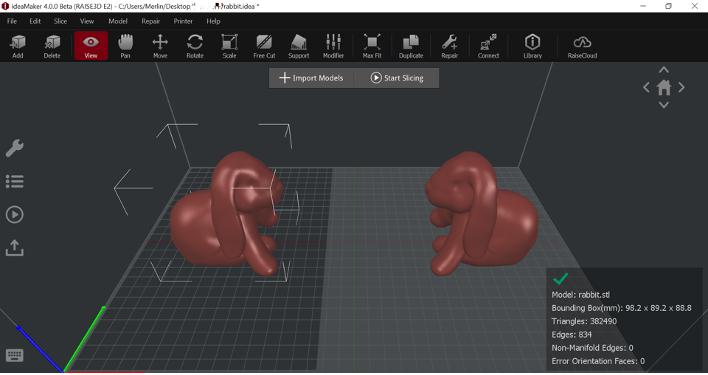
The Duplication /Mirror Mode refers to the printing mode in which a printer with independent dual extruders prints two identical or symmetrical models at a time during the 3D printing process.

Duplication Mode means that the size, angle, and orientation of the two printed models are exactly the same; The two models printed in Mirror Mode are mirror-symmetrical.

What Kind of 3D Printers Can Enable Duplication Mode and Mirror Mode?

  1. The printer equipped with IDEX can enable Copy/Mirror Mode. IDEX stands for “Independent Dual Extrusion”, which refers to the technology that allows a 3D printer to work with its two extruders simultaneously and independently. By using two independent extruders, you can print two identical models at a time, thereby greatly improving production efficiency.

    Duplication Mode

    Mirror Mode

    Figure 1 Duplication Mode (top) and Mirror Mode (bottom)

  2. Raise3D E2 printer is equipped with IDEX (Independent Dual Extrusion) and can print in Duplication/Mirror Mode.

    Raise3D E2 prints two models at the same time

    Figure 2 Raise3D E2 prints two models at the same time

Prepare for Duplication Mode and Mirror Mode: Calibrate the Offset Value of the Nozzles and the Flatness of the Printing Plate.

  1. When using Raise3D E2 printer to print a copy/mirror model, you must first calibrate the offset value of the printer’s two nozzles and the flatness of the printing plate, otherwise copy/mirror printing is not recommended.
  2. Operate the printing plate leveling to check the flatness of the printing plate

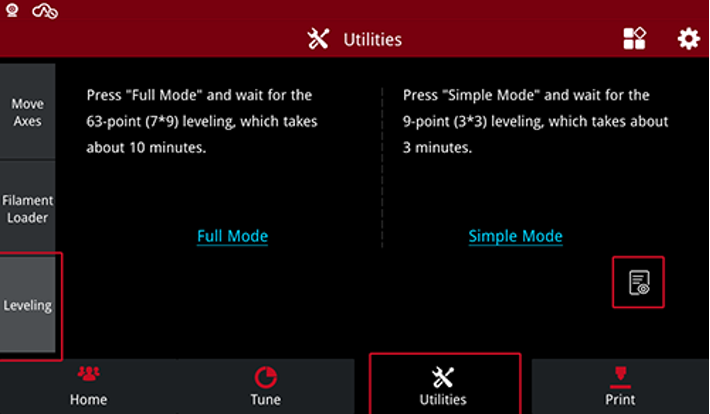
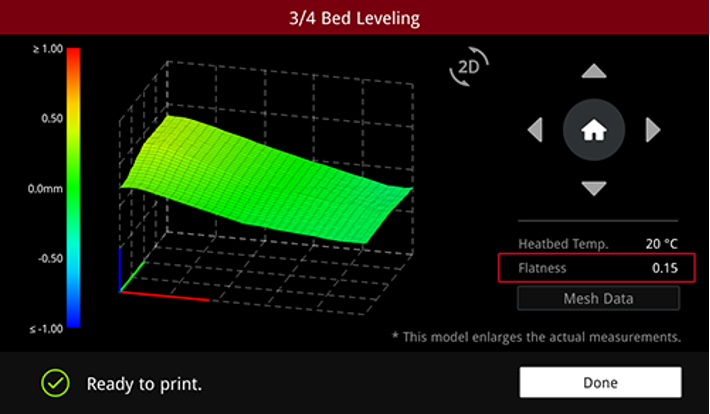
    A) On the E2 touch screen, select “Utilities>Leveling”, and then click the “Browse Data” icon to check the flatness of the printed board.

    Note: It is not recommended to print in Duplication/Mirror Mode if the flatness of the printing plate should be less than 0.15mm.

    Level

    Figure 3 Level the flatness of the printing plate

  3. Operate offset calibration and calibrate the left and right nozzle offset values.
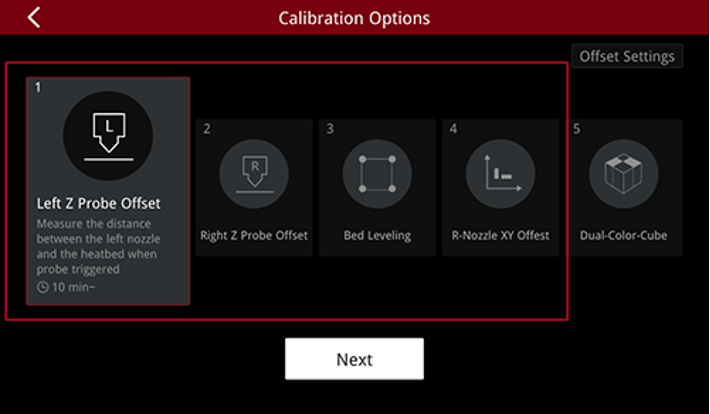
    A) Run the first to fourth steps of the offset calibration wizard in sequence. The wizard has complete operating instructions. Please follow the instructions.
    Note: It is not recommended to print in Duplication/Mirror Mode if the flatness of the printing plate should be less than 0.15mm.

    Operate offset calibration

    Figure 4 Operate offset calibration

  4. For more detailed information on how to calibrate the flatness of the printing plate and how to calibrate the offset value of the left and right nozzles, please refer to E2 Manual-How to Achieve Duplication Mode and Mirror Mode Printing.

How to Enable Duplication Mode and Mirror Mode in ideaMaker?

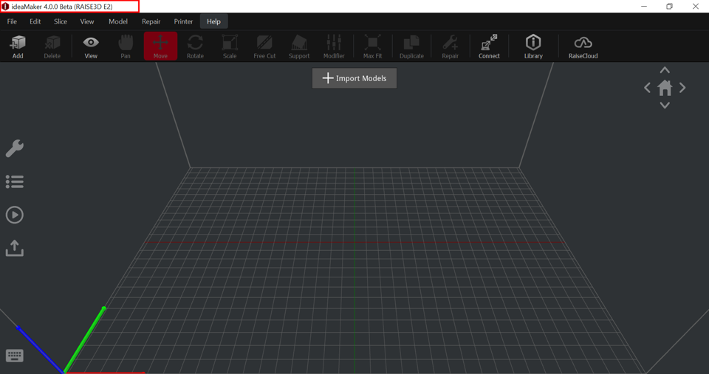
  1. If you want to print in Duplication/Mirror Mode, please make sure that your ideaMaker version is 3.5.1 and higher. After opening ideaMaker, you can check your ideaMaker version in the upper left corner of the window.
    Note: If you want to download or upgrade ideaMaker, please visit the official website: https://www.raise3d.com/download/.

    Check the version of ideaMaker

    Figure 5 Check the version of ideaMaker

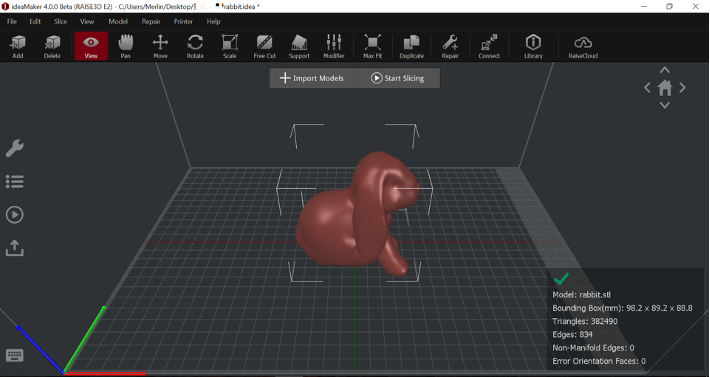
  2. Import the model you want to print.

    Import the model

    Figure 6 Import the model

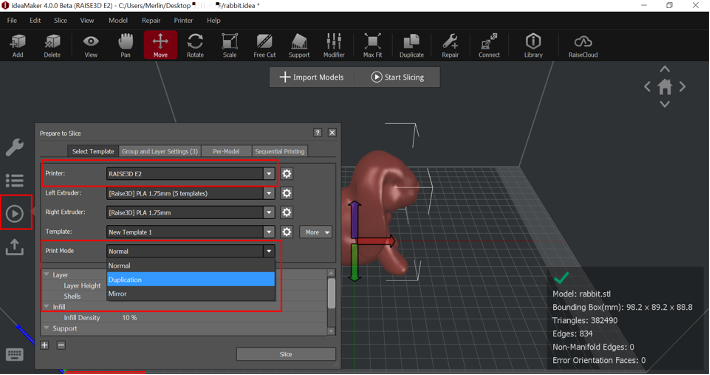
  3. Click the “Start” icon in the left column, select “Copy” or “Mirror” in the “Print Mode” drop-down menu, and ideaMaker will automatically generate a copy or mirror model.
    Note: You need to select “RAISE3D E2” in the first “Printer” submenu.

    Enable Duplication/Mirror Mode

    Figure 7 Enable Duplication/Mirror Mode

  4. The difference between the three printing modes.

    A) Normal Mode: Commonly used printing mode. Only a single model is placed in the center of the main interface.

    Normal Mode

    Figure 8 Enable Duplication/Mirror Mode

    B) Duplication Mode: It means that the left nozzle and the models printed by two nozzles are of the same size, angle, and orientation.

    Duplication Mode

    Figure 9 Duplication Mode

    C) Mirror Mode: The printer will print two models that have the same size but are mirror-symmetrical.

    Mirror Mode

    Figure 10 Mirror Mode

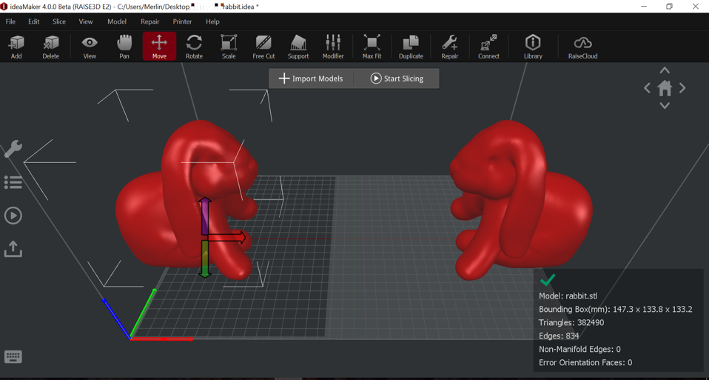
    D) You can adjust the position of the original model, and the model printed by another nozzle will change its position accordingly.

  5. In the Mirror Mode, the size of the print boundary will be smaller than in the Duplication Mode. If the model is too large and exceeds the print boundary, the slicing will fail (if the model exceeds the print boundary, please adjust the model size so that It can be sliced correctly).

    Model exceeds printing boundary

    Figure 11 Model exceeds printing boundary

  6. When you finishing slicing, you can use Duplication/Mirror Mode to print. For more information about how to use E2 printer to print in Duplication/Mirror Mode, please refer to E2 Manual-How to Print with Duplication Mode or Mirror Mode.

How to Run the ideaMaker 3D Slicing Software for the First Time

What is ideaMaker?

ideaMaker is a slicing software that can convert 3D models into G-Code instructions that can be recognized by 3D printers. ideaMaker is suitable for Raise3D equipment. If third-party equipment is used, you can also adjust the relevant parameters in ideaMaker.

Where Can ideaMaker Be Downloaded?

  1. 1. ideaMaker is available in the USB storage included in the accessory box with your printer.
  2. You can get the latest version on Raise 3D official website at: https://www.raise3d.com/download/.

    Currently ideaMaker supports Windows, MAC, Linux32-bit and Linux64-bit systems.

    Download the ideaMaker installation package

    Figure 1 Download the ideaMaker installation package

What Are the System Requirements for ideaMaker?

Microsoft Windows XP or later, 64-bit recommended

Mac OS X v10.10 or later

Ubuntu 14.04 or later

2GB of RAM, 8GB or more recommended

OpenGL 2.0-capable system

Intel® Core 2 or AMD Athlon® 64 processor; 2 GHz or faster processor

2.0 GB or more of available hard-disk space

1280 x 800 display with 32-bit color and 512 MB or more of dedicated VRAM

How Can ideaMaker Be Installed?

  1. After the installation package is downloaded, double-click to open it. Select the language of the installation package you need.
    Note: If your computer has installed ideaMaker, you need to click Yes to uninstall it first

    Uninstall the previous ideaMaker version

    Figure 2 Uninstall the previous ideaMaker version

  2. Before installing, you need to close ideaMaker which is running in background. If not, ideaMaker will pop-up installation error as Figure 3.

    Close the ideaMaker running in background

    Figure 3 Close the ideaMaker running in background

  3. After closing all ideaMaker processes, enter the ideaMaker installer.

    Enter the ideaMaker installer

    Figure 4 Enter the ideaMaker installer

  4. Read the installation license agreement and click “I Agree” to go to the next step.

    Read the installation license agreement

    Figure 5 Read the installation license agreement

  5. Select the installation path for ideaMaker and click “Next”.

    Select the installation path

    Figure 6 Select the installation path

  6. Select the components you want to install, and then click “Install” to start the installation process.

    Note: Microsoft Visual C++ 2008 SP1 Redistributable is auto checked by the installation software. If you have installed that in your computer before, you don’t need to select it again.

    Select the components

    Figure 7 Select the components

  7. After the installation is completed, click “Next” to complete the installation.

    The installation is complete

    Figure 8 The installation is complete

  8. Congratulations, you have completed the installation of ideaMaker, you can choose to run the software immediately or enter the Raise3D official website. Click “Finish” to complete the installation process.

    Figure 9 Complete the installation process

  9. You can run ideaMaker and start your first printing.

    Run ideaMaker

    Figure 10 Run ideaMaker

  10. The following are common installation errors for your reference:

    A) The installation package was not fully downloaded. You can try to re-download the installation packaging.

    The installation package was not fully downloaded

    Figure 11 The installation package was not fully downloaded

    B) Error opening file for writing, if you encounter this error during installation, try to close the ideaMaker running in background via task manager, then click “Retry” to install again.

    Close the ideaMaker running in background and click “Retry"

    Figure 12 Close the ideaMaker running in background and click “Retry”


How to Import Multiple Models at the Same Time in ideaMaker

When users use 3D printers to print models in the early stages, they usually print only one model at a time until they get a satisfactory result. But when the model is composed of multiple parts, or when you want to print multiple model files at once, importing only one model at a time will increase your workload. This manual will teach you how import multiple models into ideaMaker at the same time.

1. Open ideaMaker and import the model. There are several ways to import model files.

  1. Click the “+” button to import the .STL, .OBJ or .3MF model files.

    Click the "+" button to import the models

    Figure 1 Click the “+” button to import the models

  2. Click “File” on the menu bar, and then click “Import Models” to import model files.

    Click "Import Models" to import model files

    Figure 2 Click “Import Models” to import model files.

  3. Click the “Add” icon on the Tool Bar to import the model.
    Click the "Add" icon on the Tool Bar to import the model

    Figure 3 Click the “Add” icon on the Tool Bar to import the model


  4. When you open the local disk, you can click “Ctrl+S” to select multiple model files then import them into ideaMaker.

    Directly select multiple models

    Figure 4 Directly select multiple models

  5. When you import multiple models into ideaMaker, you can select a single model to modify the size and position of the model.

    Import multiple models

    Figure 5 Import multiple models

  6. You can also click the “Move” tool in the Tool Bar, and then click “Arrange All Models”, ideaMaker will automatically arrange all the models.

    Arrange

    All Models

    Figure 6 Arrange All Models

2. When you create a 3D model with model making software, if your model contains multiple parts, it is recommended for you to save the model in .3MF format (3D Manufacturing File).

  1. When you import a file in .3mf format, ideaMaker will automatically import all parts of the model.
  2. For example, “Box 1-4” is a model file in .3MF format. When you import this file into ideaMaker, the system will automatically import every part of the model. You can also modify each part individually.

    Import

    Import the model file in .3MF format

    Figure 7 Import the model file in .3MF format

What is a Slicing File?

Why Is It Important to Slice a Model?

  1. Generally speaking, slicing means converting the 3D model file into a machine language that can be recognized by the printer, and the printer can only print successfully after recognizing this machine language. This machine language is called the G-Code file.
  2. G-Code is the most widely used computer numerical control (CNC) programming language, which is used to control automated machine tools. G-Code stands for “geometric code”. It controls the movement of the nozzle through alphanumeric combinations.
  3. Visually speaking, your 3D model will be converted into countless layers, and the printer will accumulate the filament layer by layer. It looks like slicing the model into countless layers.

    Model layers after slicing

    Figure 1 Model layers after slicing

What is a Slicing File?

The slicing file is a file generated in the slicing software after adjusting the model parameters according to your printing needs. This slice file contains model-related settings (such as layer height, platform additions, support, etc.), as well as printer and nozzle settings. The slice file can be recognized and printed on a 3D printer. The general slice file format is .gcode, and ideaMaker will also generate special file in the .idea format.

3D Model File Types that can be Imported into ideaMaker:

  • Stereolithography (.STL)
  • Wavefront OBJ (.OBJ)
  • 3D Manufacturing File (.3MF)
  • OLT Printing File(.OLTP)

File Types that Will Be Exported from ideaMaker:

  • Printing File (.GCODE)
  • ideaMaker Date File (.DATA)

Which 3D Model File Types Can be Used in ideaMaker?

3D model file types that can be imported into ideaMaker:

  1. Stereolithography (.STL)
    Stereolithography (SLA or SL; also known as stereolithography apparatus, optical fabrication, photo-solidification, or resin printing) was developed by 3D SYSTEMS in 1988. It is a three-dimensional graphics file format that serves rapid prototyping manufacturing technology.
  2. Wavefront OBJ (.OBJ)
    OBJ (or .OBJ) is a geometry definition file format developed by Wavefront Technologies for its advanced Visualizer animation package. The file format is open and has been adopted by other 3D graphics application vendors.
  3. 3D Manufacturing File (.3MF)
    3D Manufacturing File is an open source file format standard developed and published by 3MF Consortium. 3MF is an XML-based data format specifically for additive manufacturing. It includes information about materials, colors, and other information that cannot be expressed in STL format.
  4. OLT Printing File(.OLTP)

Exported File Formats:

The following file types can be exported to ideaMaker:

  1. Printing File (.GCODE)
    .GCODE is the most widely used Computer Numerical Control (CNC) programming language.
  2. ideaMaker data File (.DATA)
    It includes models’ thumbnail image and slicing settings.

Other Formats Supported:

  1. ideaMaker Slicing Template (.BIN)
    It includes slice settings such as printing speed, nozzle temperature, retraction printer profile, filament profile, group and layer settings, and more.
  2. ideaMaker Printer Template (.PRINTER)
    It includes the printer size, nozzle diameter and other printer-related settings.
  3. ideaMaker Filament Template (.FILAMENT)
    It includes filament’s flow rate, the filament’s diameter and other filament-related settings.
  4. ideaMaker Project File (.IDEA)
    It includes models’ manual support, modifiers, group and layer settings, model basic information, and other slicing settings. With ideaMaker 4.0, you can import the slice template saved in the project file.

How to Start Your First Print with ideaMaker

After you have installed ideaMaker and successfully run it, you can start your first printing. This tutorial will introduce how to print your model using ideaMaker for the first time. (This tutorial takes ideaMaker 4.0.0 Beta as an example).

Step 1 Run ideaMaker and Import the Model

1. Open ideaMaker and enter the ideaMaker welcome interface.

There are several sections in the welcome interface, you can access to each section, or you can skip the welcome interface.


Start the preliminary steps of printing Start the preliminary steps of printing.

Recently opened files Recently opened files.

Preliminary settings for model printing, including printer settings, filament settings, manage templates and preferences Preliminary settings for model printing, including printer settings, filament settings, manage templates and preferences.

RaiseCloud is a cloud platform for monitoring and managing the multiple printing process RaiseCloud is a cloud platform for monitoring and managing the multiple printing process.

ideaMaker Library is a sharing platform for users to share and download slice templates ideaMaker Library is a sharing platform for users to share and download slice templates.

Access to the latest information and product-related resources of Raise3D Access to the latest information and product-related resources of Raise3D.

Welcome to ideaMaker

Figure 1 Welcome to ideaMaker

2. Enter the configuration wizard settings. Close the welcome interface, the printer will appear the initial configuration wizard. You can follow the wizard to set your printer type, the number of extruders and the type of filament used.

A) Set your printer type.

Set your printer type

Figure 2 Set your printer type

B) Set the number of extruders.

Set the number of extruders

Figure 3 Set the number of extruders

C) Set the type of filament you use.

Set the type of filament you use

Figure 4 Set the type of filament you use

D) After completing the configuration wizard settings, you can enter the main interface of ideaMaker. For more settings about printers and filaments, please select the “Printer” on the menu bar, and select “Printer Settings” or “Filament Settings” to set the printer or filament.


"Printer Settings" or "Filament Settings".

Figure 5 “Printer Settings” or “Filament Settings”.

3. Import the model file after entering the main interface.

A) Click the “+” button to import a .STL, .OBJ or .3MF model file.

Click the "+" button to import a model

Figure 6 Click the “+” button to import a model

Note: If you find an error message in the prompt box in the lower right corner, you can click the “Repair” button on the menu bar to automatically repair your model.

Repair the model

Repairing the model

Figure 7 Repair the model

B) Click “File” on the menu bar, and then click “Import Models” to import model files.

Import the model through the menu bar

Figure 8 Import the model through the menu bar

C) Click the “Add” button on the Tool Bar to import the model.

Click the "Add" icon to import the model

Figure 9 Click the “Add” icon to import the model

Step 2 Slice the Model

1. The purpose of slicing is to convert the model file into a G-Code command that the printer can recognize. Because the principle of the Raise3D printer is to form the melted filaments layer by layer. So visually, slicing means dividing the model into countless printing layers.

2. Click “Start Slicing” to slice the model.

Click “Start Slicing” to slice the model

Figure 10 Click “Start Slicing” to slice the model

3. Select your printer type and filament type.

A) Select the printer type you use in the pop-up “Select Template” window. For example, if the printer you use is Raise3D E2, please select “Raise3D E2”.

Select the printer type

Figure 11 Select the printer type

B) If you are not using a Raise3D series printer, you need to set up a third-party printer in ideaMaker. Click the Settings icon to enter the printer settings. You can set the printer parameters in the printer settings.

Click the Settings icon to enter the printer settings

Figure 12 Click the Settings icon to enter the printer settings


C) You can click “Add/Duplicate” to add a third-party printer and configure the third-party printer.

Add a third-party printer

Figure 13 Add a third-party printer


D) You can also click “Import” to import the printer settings in the local disk.

Figure 14 Import the printer settings from the local disk

E) Select the type of filament you use. There are many types and specifications of filaments in ideaMaker. It is recommended that you use Raise3D official filaments.

Select the type of filament

Figure 15 Select the type of filament


4. Select a slicing template, or click the “Copy” button to create a new template for the model based on the existing three templates. ideaMaker provides three default slicing templates: “Speed”, “Standard” and “High Quality”.

Select a slicing template

Figure 16 Select a slicing template

5. Select the template you need, and then click the “Edit” button or double-click the template. Select the Platform Addition and Support type, and then click “Save and Close”. (You can click “Advanced Settings” to modify other parameters. For specific settings, please refer to ideaMaker User Manual 5.1.3. Edit Template.)

Edit the slicing template

Figure 17 Edit the slicing template


Click “Save and Close”

Figure 18 Click “Save and Close”

6. Click the “Slice” button to start slicing. ideaMaker will automatically slice the model.

Click the "Slice" button

Slice the model

Figure 19 Slice the model

7. After the slicing is completed, the system will pop up an “Estimated Print Result” for your reference. You can check the estimated printing time, estimated printing price and other information. You can upload the model to the printer here, or you can preview the slicing result first.

PreviewPreview the slice result.

Upload to Printer You can upload the slice files to your printer, RaiseCloud and Octoprint.

Export Export the sliced file to local disk.


Estimated Print Result

Figure 20 Estimated Print Result

8. Click the “Preview” button, you can view the slicing effect of the model.

Model preview interface

Figure 21 Model preview interface

A) Drag the button to view the printing of the model layer by layer and step by step.

Check the model layer by layer

Figure 22 Check the model layer by layer

Note: You can check the retraction points with “Show Retraction”. Check one layer with “Only Current Layer”.

Check the retraction points with "Show Retraction". Check one layer with "Only Current Layer".Figure 23 Check the retraction points with “Show Retraction”. Check one layer with “Only Current Layer”.

B) Select “Structure”, ideaMaker will show different structures in the model in different colors. The cyan refers to Support and Raft. The red refers to Outer Shell. The green refers to the Inner Shells. The yellow refers to Infill. The blue lines refer to the moving paths of nozzle.

View model structure

Figure 24 View model structure


C) In addition, you can also preview the model by selecting “Extruder Color”, “Speed“, “Layer Height”.

Choose view type

Figure 25 Choose view type


View the model by extruder color (left)

Figure 26 View the model by extruder color


by print speed (right)

Figure 26a. View the model by print speed


View the model by model layer height

Figure 27 View the model by model layer height


by model structure

Figure 27a. View the model by model structure


Figure 28 Enable “2D” to check the current layer with orthographic view.

Step 3 Save and export the sliced G-Code files.

  1. Close the Preview after checking the model.

2. Now you will have four options to load the files to the printer.

Option 1: Export the sliced G-Code file to USB storage or SD card.

Option 2: Upload the sliced G-Code file to the printer via WLAN.

Option 3: Upload the sliced G-Code file to RaiseCloud.

Option 4: Upload the sliced G-Code file to OctoPrint.

Option 1 Export the sliced G-Code files to USB storage or SD card.

1. Click “Export” button in the Estimated Print Result window to export the sliced G-Code file.

Export the sliced G-Code file

Figure 29 Export the sliced G-Code file


2. Click “Export to Local Disk button” in main screen to export the sliced G-Code files.

Export the sliced G-Code files in the main view

Figure 30 Export the sliced G-Code files in the main view


3. Export the sliced file to a USB storage device or a folder in the computer. Then copy the G-Code file (.gcode file and .data file) to the USB storage device. It is important to copy two files.

Raise3D printer can support .gcode files and .data files

Figure 31 Raise3D printer can support .gcode files and .data files


4. Insert the USB device into the printer, select “Print” and then select the USB storage device to find the print file, and start printing for the first time.

Select USB storage to find print files

Figure 32 Select USB storage to find print files

Option 2 Upload the sliced file via WLAN.

1. Click “Upload to Printer” in the “Estimated Print Result” window to upload the G-Code file.

Upload to Printer

Figure 33 Upload to Printer

2. You can click “Upload to printer” button in main screen to upload the sliced G-Code files.

Click “Upload to Printer” to upload the sliced G-Code files

Figure 34 Click “Upload to Printer” to upload the sliced G-Code files


3. Click the upload button on the left, and then click “UPLOAD FILES TO LOCAL PRINTERS” to upload the G-Code file to local printers.

Upload the G-Code file in Upload Queue.

Figure 35 Upload the G-Code file in Upload Queue


4. Then you will see the Select Printer page. You can select the printer you want to print with here. And you also can rename the model in Select Printer page.

Select a printer you want to use from the drop list

Figure 36 Select a printer you want to use from the drop list


5. After you upload the file, you can check the uploading progress in Upload Queue.

Check the uploading progress

Figure 37 Check the uploading progress


6. After uploading is complete, you can start printing. Select the print file on the touch screen of the printer to print. Files uploaded by WLAN are stored in Local storage.

Local storage

Figure 38 Local storage

Option 3 Upload the sliced file to RaiseCloud.

1. Click “Upload to RaiseCloud” button in main screen to upload the sliced G-Code files.

Note:

  1. It can only work properly with ideaMaker version 3.6.0 or higher.

    Upload the sliced file to RaiseCloud

    Figure 39 Upload the sliced file to RaiseCloud

Option 4 Upload the sliced files to OctoPrint.

  1. Click “Upload to OctoPrint” on the main interface to upload the sliced G-Code file.

    Upload the sliced file to OctoPrint

    Figure 40 Upload the sliced file to OctoPrint

Step 4 Print your model on the printer

1. After you successfully export the G-Code slice file and upload it to the printer, you can print your model on the printer.

A) Select “Local Storage” or “USB Storage”, and then find the file you want to print.

Choose the model you want to print

Figure 41 Choose the model you want to print

B) Click “Print” to print the model file.

Print the model

Figure 42 Print the model


How to Connect a Third-Party 3D Printer to ideaMaker?

Before slicing the model in ideaMaker, you need to match your printer with ideaMaker, so that the slicing settings of the model will match the printer you are using. ideaMaker provides you with a variety of built-in printer types. If your printer is not in the list of ideaMaker supported printers, you need to manually configure the third-party printer in ideaMaker.

Part 1 General Settings

1. Make sure you have downloaded and installed ideaMaker.

Note: To upgrade or download ideaMaker, please visit the official website: https://www.raise3d.com/download/.

2. If you are configuring a third-party “printer” in ideaMaker for the first time, please select “Printer” in the menu bar, and then select “Configuration Wizard”.

Enter the Configuration Wizard

Figure 1 Enter the Configuration Wizard

3. There is a preset list of all printers supported by ideaMaker in Printer Type. If your printer model is in the list, select it directly. If you want to add a third-party printer, select “Other (Third-party Printer)”.

Select “Other (Third-party Printer)”

Figure 2 Select “Other (Third-party Printer)”

4. In the “Add Printer” interface, you can set the specifications and parameters of the third-party printer here.

A) Modify the printer name and abbreviation.You can enter the name of the printer in “Printer Type”. For example, set the third-party printer to “new printer” here.“Printer Type Abbreviation” refers to the abbreviation of the printer model (optional).

Set the nozzle and other parameters

Figure 4 Set the nozzle and other parameters.

B) Set the nozzle and build plate parameters according to your printer.

  • “Nozzle Diameter”: The diameter of the nozzle.
  • “Build Width”: The maximum printable width, which needs to be set according to your build plate specifications.
  • “Build Depth”: The maximum printable depth,which needs to be set according to your build plate specifications.
  • “Build Height”: The maximum printable height, which needs to be set according to the lowerable height of your printer’s Z-axis.
  • “Distance From Border of Build Plate” refers to keeping a safe distance from the border of the build plate.

Note: This function is to check if models are placed outside of the extruder’s printing range.


Set “Distance From Border of Build Plate” to 20 mm

Figure 5 Set “Distance From Border of Build Plate” to 20 mm

  • “Build Plate Shape” refers to the shape of build plate. There are two shapes: “Rectangle” and “Ellipse”.


Build Plate Shape

Figure 6 Set the shape of the build plate


  • “Bed original at the center” with this function enabled, the original of coordinates in the G-Code file will be set as the build platform’s center point. With this function disabled, it will be set as the build platform’s left-front corner.

Note: 1. This function works only for third-party printers.

  1. Make sure the printer firmware supports it before using this function.
  • “Firmware” refers to the motion controller board firmware type. You can choose “Marlin”, “Raise3D Pro2” and “RepRap Firmware”.
Select the motion controller board

Figure 7 Select the motion controller board

  • Set the relevant parameters of the extruder.

C) Set the relevant parameters of the extruder.

  • Set the number of extruders. If you are using a single extruder, select “1”; if you are using a dual extruder, select “2”

    Select the number of extruders

    Figure 8 Select the number of extruders

  • Select the filaments used for the main extruder. It is recommended that you use Raise3D official filaments.

    Select the Filament Used

    Figure 9 Select the filaments used

D) Set the Sequential Printing

Sequential Printing

Figure 10 Sequential Printing

  • Gantry Height” for Raise3D Pro2 series printer, refers to the distance between nozzle and crossing rods to avoid collision in sequential printing. For Raise3D E2 printers is a random number made up by our developers.
  • “Allow Custom Printing in Sequential Printing” refers that with this function enabled, you can arrange printing order of the models manually.
  • “Validate Printing Priority before Slicing” means that after enabling this function, ideaMaker will check whether the print order of the model is valid. Please refer to ideaMaker User Manual 4.5.4 Sequential Printing for more information.

5. Set the G-Code file export method. When slicing, you can export the slice file to a local disk, and you can also upload the slice file to a printer or upload to the RaiseCloud and the OctoPrint.

Set the G-Code file export method

Figure 11 Set the G-Code file export method

Here you can fill in the URL and API key to setup OctoPrint.

Configure the OctoPrint

Figure 12 Configure the OctoPrint.


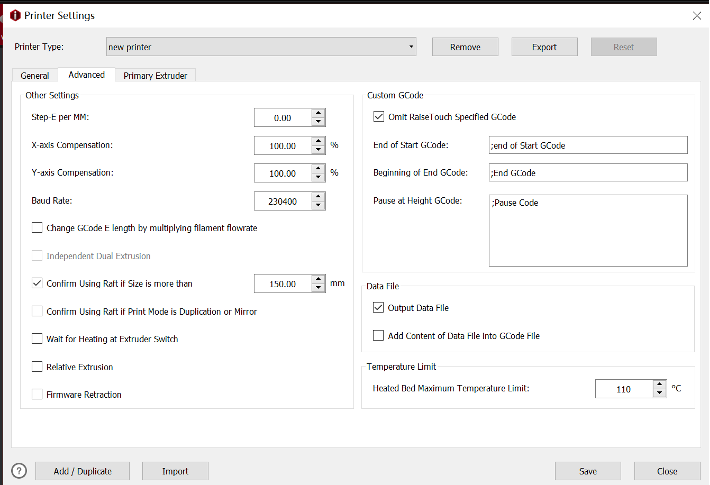
Part 2 Advanced Settings

Advanced settings interface

Figure 13 Advanced settings interface

1. After you complete the general settings of the printer, you can set the advanced settings of the printer.

D) Step-E per MM “Step-E per MM” refers to the steps required to extrude 1mm filament.


E)  X axis Y axis“X-axis compensation” refers to model size compensation in X axis. “Y-axis compensation” refers to model size compensation in Y axis.


  • For example, the model’s design size is 100mm, but the printed model’s measured size is 102mm, that means the X-axis compensation is 100mm/102mm*100%=98.04%.
  • The model’s design size is 100mm, but the printed model’s measured size is 98mm, that means the Y-axis compensation is 100mm/98mm*100%=102.04%.

Note: Dimensional deviation may be caused by filament flow rate, mechanical deviation (such as belt tension) and so on. This function only works for XY axis mechanical deviation.


  • “Change GCode E length by multiplying filament flow rate”, refers that with this function enabled, the global flow rate will not be controlled by code M221 anymore but always keeps at 100%. The E value in the G-Code file will be edited directly, so that the motion board doesn’t need to calculate flow rate.

F) Independent Dual Extrusion “Independent Dual Extrusion”, with this function enabled, ideaMaker will allow printing with Duplication and Mirror mode.

Note: The printer should have at least two print heads for this feature. For Raise3D printers, only E2 printers can enable this function.


G)  The Default Value is 150mm“Confirm Using Raft if Size is more than”, with this function enabled, ideaMaker will automatically measure the model’s width and depth and print with a raft if it is bigger than set value. “Confirm Using Raft if Printing Mode is Duplication or Mirror”, with this function enabled, ideaMaker will automatically printing raft when the Duplication or Mirror mode is selected.

Note: The default value is 150mm.


H) Wait for Heating at Extruder Switch“Wait for Heating at Extruder Switch” when this function is enabled, the system will wait for heating to the target temperature for switching extruders.


I)  Relative Extrusionwhen this function is enabled, the system will output relative E values instead of absolute values in the G-Code files.

Note: 1. This function works only for third-party printers.

2.Make sure the printer firmware supports the relative extrusion before using this function.


Firmware Retractionwith this function enabled, the retraction and restart commands of G1 will be replaced by G10/G11.

Note:

  1. This function works only for third-party printers.
  2. Make sure the printer firmware supports the firmware retraction before using this function.
  3. Set up Custom G-Code. ideaMaker will avoid outputting M1001, M1002 and M2000 for third-party printers, and instead of alternate GCode set as the following figure.
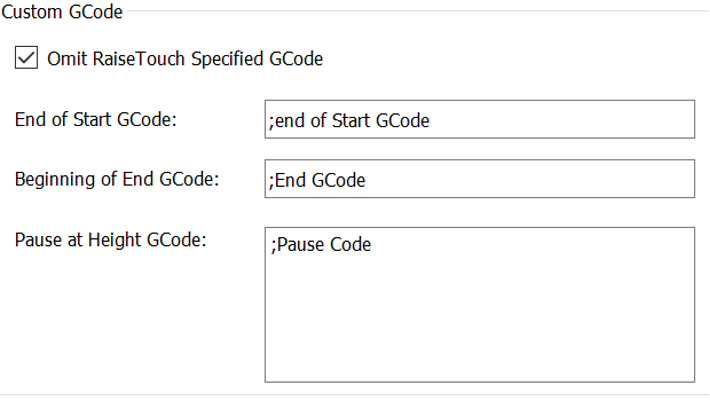
    Set up Custom G-Code

    Figure 14 Set up Custom G-Code

  4. Set up the Data File.

    Output Data Filewith this function enabled, ideaMaker will not export Data file, and it will lead to that the models preview images can’t be displayed in touchscreen.Figure 15 Set up the Data File.

    Add Content of Data File into GCode Filerefers that with this function enabled, the information of .data files will be add into the G-Code file, and the G-Code file can be import into ideaMaker as a template slicing file.

    Note: For third-party printer, it is recommended that this option can be turned off to improve compatibility.

  5. Set the maximum temperature limit setting of the heated bed.

    Temperature Limit

    Figure 16 Set the maximum temperature limit

Part 3 Extruder Settings

1. You can set the offset amount from the left side of the main extruder to the nozzle; the offset amount from the right side to the nozzle; the offset amount from the front side to the nozzle and the offset amount from the back side to the nozzle. For more information, please refer to 8.3 Extruder Settings.

Set the offset amount of the left extruder

Figure 17 Set the offset amount of the left extruder.


2. Set temperature limits for your extruder. It all depends on the temperature limit of the hot end you use.

Set temperature limits for your extruder

Figure 18 Set temperature limits for your extruder.


3. When you finishing the setting, click “Save”. Go back to the configuration wizard again, select your printer name “new printer”, confirm the number of extruders, the heated plate and the filament used. After all settings are complete, you can import your model for printing.

Finish the Configuration Wizard

Figure 19 Finish the Configuration Wizard.

Part 4 Configure the printer with two independent extruders

1. If your printer has the IDEX system (with two independent extruders), you need to configure the two extruders when configuring your third-party printer.

For example, select a third-party printer in the Configuration Wizard and name the new printer “new printer 1”. Select the number of extruders as 2, and set the filaments used for each extruder. Then set your left and right nozzle diameters and print bottom plate.

Configuration Wizard

Create a two nozzle printer

Figure 20 Create a two-nozzle printer.

2. Enter advanced settings, when your printer is equipped with independent dual extruders, check “Independent Dual Extrusion”, ideaMaker enables you to print in Duplication and Mirror mode.

Check “Independent Dual Extrusion”

Figure 21 Check “Independent Dual Extrusion”.


3. If you use Duplication and Mirror mode to print, check “Confirm Using Raft if Printing Mode is Duplication or Mirror”. When you print in Duplication or Mirror mode, there may be a slight offset between some nozzles. Therefore, enabling Raft will help to ensure that your nozzle doesn’t dig into the bed on one side. While the other one is printing perfectly fine.

4. Check “Wait for Heating at Extruder Switch” to ensure that when one extruder is switched to another, the hot end has fully heated up. Other settings are as set in Part 2.


Check “Wait for Heating at Extruder Switch”

Figure 22 Check “Wait for Heating at Extruder Switch”.


5. Enter the Left Extruder setting, set the offset value and maximum limit temperature of the left nozzle.
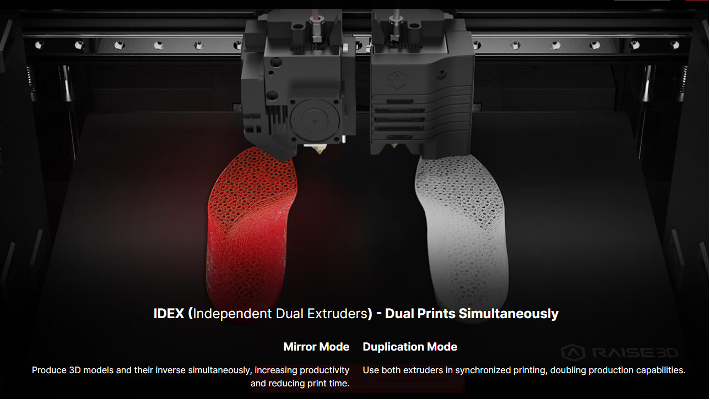
 

Set the offset value of the left nozzle

Figure 23 Set the offset value of the left nozzle.


6. Enter the Right Extruder setting, you can set the offset value X and offset value Y. If the offset value X and the offset value Y are both 0mm, you will get a virtual extruder offset. For more information, please refer to ideaMaker User Manual 8.3 Extruder Settings.

Set the right nozzle offset value

Figure 24 Set the right nozzle offset value.


7. When you have completed the settings, you can finish the configuration wizard and start to print.