Top 6 Essential 3D Printer Accessories

3D printer accessories are additional tools and parts that fulfill a specific function or requirement of the 3D printing process. For example, some filaments like PVA and Nylon need to be dried to print properly and produce higher quality 3D printed parts and reducing the risk of failing a print job. The most common 3D printer accessories include filament dryers, vacuum containers, dry boxes, different sized 3D printer nozzles, hardened nozzles, 3D printer carts, and 3D printer bed adhesive.


  1. Filament Dryer: PrintDry Filament Pro
  2. Vacuum Container: PrintDry Vaccuum Container
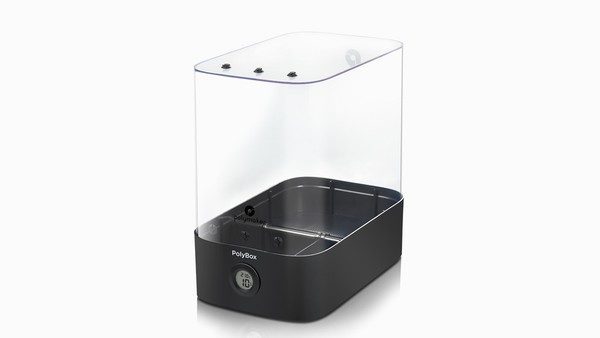
  3. Drybox: Polybox
  4. 3D Printer Carts: Raise3D Pro2 Plus printer cart Raise3D Pro2 printer cart
  5. 3D Printer Bed Adhesive: Magigoo, Magigoo PP, Magigoo PA
  6. Hardened nozzles: Raise3D hardened nozzle


Why Are Filament Dryers Necessary in 3D Printing?


Most filaments print at 200C or above, and filaments must be dry before beginning the printing process. If a filament is still wet during printing, the moisture from the wet filament will vaporize in the nozzle. This will have a high chance of printing failure and cause a poor final print quality. Nylon and PVA are two typical examples of filaments absorb moisture from the air. It is necessary to dry them out before printing. It is recommended to dry out PLA and ABS filaments if they were exposed to air for more than one week, especially in an area that contains high humidity. A useful 3D printer accessory that dries out filaments is the PrintDry Filament Dryer Pro. PrintDry Filament Dryer Pro is a storage box that provides a heated environment that bakes filaments. The heated-environment of the dryer allows moisture to escape, ensuring that the filament remains dry.

3D Printer Accessory PrintDry Filament Dryer Pro


Vacuum Containers Are Important 3D Printer Accessories


Filaments that absorb moisture can be kept dry between print jobs so the next printing job can begin without delay. A 3D printer accessory such as the PrintDry Vaccum Container will keep filaments dry in storage.  The PrintDry Vaccum Container features a special vacuum valve and pump which suck the air out of the container creating a vacuum seal. The vacuum seal prevents moisture in the air from entering the storage container. The PrintDry Vacuum Container indicates when the vacuum seal has been created.  The center of the vacuum valve will collapse inwards from its original dome shape once the vacuum seal is created.

3D Printer Accessory PrintDry Vacuum Container


Why and How Do Dryboxes Benefit the 3D Printing Process?


When filaments are dried, it means low moisture has left the filament. If the material property is hydrophilic, meaning if the dried filament is left in the open air, it will begin to absorb moisture, making it wet again. And wet filaments lead to a failed print job. Sometimes filaments used in projects with a longer printing time are exposed to the moisture in the air longer. In such cases, after a certain amount of hours, the filaments can become wet again which will lead to a failed print job. A 3D printer accessory such as the Polybox is a dry box that works with industrial 3D printers to keep filaments dry during the printing process. The PolyBox features a filament guide tube from the PolyBox to the 3D printer’s extruder to prevent any moisture from affecting the filament during the printing process.

3D Printer Accessory PolyBox


3D Printer Carts Are Practical and Make 3D Printing Easier


Professional 3D printers such as dual extruder 3D printers and large format  3D printers that are larger than desktop 3D printers need a dedicated workspace. Carts are an excellent way of giving the 3D printer its needed workspace. For example, Raise3D offers pedestal printer carts with wheels to roll around. These pedestal carts are designed to keep work at eye-level. Raise3D pedestal carts can bring the printer to the proper operating height so the user can easily operate the 3D printer without having to bend over. Finally, the carts also help to organize any tools needed during the 3D printing process while also storing accessories, filaments, and parts.

3D Printer Accessory. 3D Printer Cart Drawer with Tools
3D Printer Accessory. Close Up of 3D Printer Cart Drawer with Tools

More 3D printer accessories can assist the 3D printing process. However, each application is different, and it is imperative to evaluate what specific applications and printing projects require. For example, it is recommended to keep spares of common consumables such as hot ends, build plates, buildtak, nozzles, and more. For any additional questions, contact Raise3D.


3D Printing Adhesive is Necessary for Some Filaments


Filaments need to be able to stick to the build plate of the 3D printer while the part is being built up during the printing process. Some 3D printers come with a plain glass plate and it is mandatory to apply an adhesive to the glass plate to make a print stick to the glass plate. 3D printers with glass plates are not recommended because applying the glue is a messy process. The glass plate itself could also break becoming a potential hazard. However, Raise3D professional 3D printers feature a build plate with a buildtak surface. A buildtak surface is a great sticking surface for most 3D printing materials. However, certain 3D printing materials require extra adhesive to stick to the surface. In such cases, glue sticks, like MagiGoo, are a good complimentary 3D printer accessory.

3D Printer Accessory Magigoo
MagiGoo

In general, it is recommended to have at least one extra build plate to swap out for each printer. However, there are certain situations in which having a spare build plate to swap out is practical. For example, it may be necessary to change to a different 3D printing material, and that material may require a different print bed. Other times the production process may be quicker if the printer bed holding a finished 3D printed part is removed and replaced with a fresh print bed to continue the next print job, instead of waiting to take out the finished 3D printed part first.


Different Glues Are Necessary for Different Filaments


However, sometimes different types of glue are required for different kinds of filaments. For example, MagiGoo also offers MagiGoo PA and MagiGoo PP. MagiGoo PP works with PP filament. The molecular structure of PP filament makes it difficult for the PP filament to adhere to other materials, like the 3D printer bed. MagiGoo PP will help models made with PP filament stick to the printer bed.

3D Printer Accessory Magigoo PP
Magigoo PP

MagiGoo PA is intended to work only with PA filament. There are three main types of PA filament which can either be grafted together or reinforced with carbon or glass. PA has difficulty sticking to the 3D printer build plate with a tendency to warp, making them a challenge to print with. MagiGoo PA is intended to address these PA specific concerns while retaining the high-quality and user-friendly design of the original MagiGoo.

3D Printer Accessory Magigoo PA
Magigoo PA

How Do Different Sized 3D Printer Nozzles Impact 3D Printing?


Having different 3D printer nozzles is essential for different types of print jobs. For example, bigger nozzles, like a .8 3D printer nozzle, prints out more material and a thicker layer height. This means the print job can be completed faster. It is common to use a bigger nozzle with a thicker layer height to quickly produce a 3D printed part. However, print quality and finer features are usually compromised in the final printing result. For example, the print layer will be more obvious in the final 3D printed part. However, this compromise may not matter for certain applications or can be adjusted in the post finishing. In such cases, this form of printing will save printing time. In contrast, smaller nozzles, like a .4 3D printer nozzle are necessary to print a thinner layer height.

The thinner layer height and smaller nozzle sized will be able to produce finer details and produce a better print quality in the final 3D printed part. In general, doubling the value of the layer height should cut the print time down by about half, but it always varies from model to model.

3D Model
Nozzle Size Layer Height Print Time
0.4mm nozzle 0.2 layer height 42 hours, 15 minutes, and 32 seconds
0.8mm nozzle 0.4 layer height 16 hours, 36 minutes, and 52 seconds


Why Are Hardened Nozzles Essential For 3D Printing?


Nozzles do not just come in different sizes. There are also hardened nozzles that are mandatory for applications that require filaments made with composite materials such as carbon fiber, glass fiber, etc. For a full list of such filaments, click here. Composite materials are harder than brass and will be abrasive to the brass nozzle. This will damage the brass nozzle by enlarging the nozzle tip size. When this occurs, the print file settings no longer match the actual nozzle size on the 3D printer. In this situation, the print quality decreases, and the risk of a failed print job increases.

There are three kinds of hardened nozzles. The first is a brass nozzle with a hardened coating, such as the current hardened nozzles on the Raise3D printers. Since the nozzles are mainly brass, the heat conductivity is not affected, meaning the printing temperature is not affected much. Finally, brass nozzles with a hardened coating are the most affordable. However, it is recommended to keep spare hardened coated nozzles to replace the hardened nozzle whenever the coating wears off.

The second type is a high-speed steel nozzle with WS2 coating. It is abrasion-resistant, with a high printing performance, and priced between the brass nozzle with a hardened coating and the brass nozzle with a ruby tip.

The third and final type of hardened nozzle is a brass nozzle with ruby tips. Brass nozzles with ruby tips have an overall good printing performance, but they are also quite expensive. It is not uncommon for brass nozzles with ruby tips to be priced as high as $100 per nozzle.


Connect with Raise3D:

Have you had a great experience with Raise3D that you would like to share? Please contact us at inquiry@raise3d.com. We look forward to hearing from you.

For more information about Raise3D printers and services, browse our website, or schedule a demo with one of our 3D printing experts.

How to Run ideaMaker for the First Time

1. What is ideaMaker?

ideaMaker is a slicing software that can convert 3D models into G-Code instructions that can be recognized by 3D printers. ideaMaker is suitable for Raise3D equipment. If third-party equipment is used, you can also adjust the relevant parameters in ideaMaker.

2. Where to download ideaMaker?

1. ideaMaker is available in the USB storage included in the accessory box with your printer.

2. You can get the latest version on Raise 3D official website at: https://www.raise3d.com/pages/download. Currently ideaMaker supports Windows, MAC, Linux32-bit and Linux64-bit systems.

Download the ideaMaker installation package
Figure 1 Download the ideaMaker installation package

3. System Requirements

Microsoft Windows XP or later, 64-bit recommended

Mac OS X v10.10 or later

Ubuntu 14.04 or later

2GB of RAM, 8GB or more recommended

OpenGL 2.0-capable system

Intel® Core 2 or AMD Athlon® 64 processor; 2 GHz or faster processor

2.0 GB or more of available hard-disk space

1280 x 800 display with 32-bit color and 512 MB or more of dedicated VRAM

4. How to install ideaMaker?

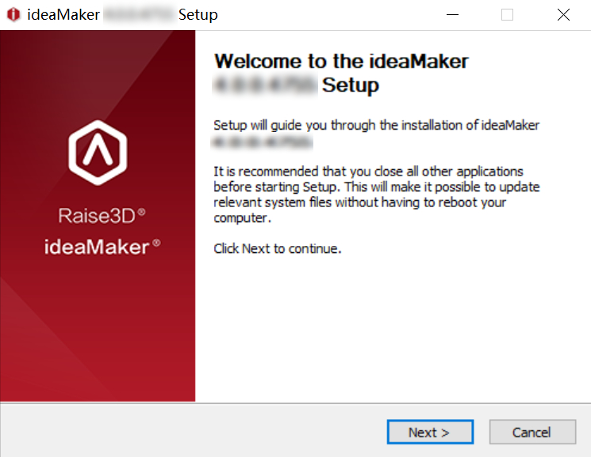
1. After the installation package is downloaded, double-click to open it. Select the language of the installation package you need.

Note: If your computer has installed ideaMaker, you need to click Yes to uninstall it first.

Uninstall the previous ideaMaker version
Figure 2 Uninstall the previous ideaMaker version

2. Before installing, you need to close ideaMaker which is running in background. If not, ideaMaker will pop-up installation error as Figure 3

Close the ideaMaker running in background
Figure 3 Close the ideaMaker running in background

3. After closing all ideaMaker processes, enter the ideaMaker installer

Enter the ideaMaker installer
Figure 4 Enter the ideaMaker installer

4. Read the installation license agreement and click “I Agree” to go to the next step

Read the installation license agreement
Figure 5 Read the installation license agreement

5. Select the installation path for ideaMaker and click “Next”

Select the installation path
Figure 6 Select the installation path

6. Select the components you want to install, and then click “Install” to start the installation process.Note: Microsoft Visual C++ 2008 SP1 Redistributable is auto checked by the installation software. If you have installed that in your computer before, you don’t need to select it again

Select the components
Figure 7 Select the components

7. After the installation is completed, click “Next” to complete the installation.

The installation is completed
Figure 8 The installation is completed

8. Congratulations, you have completed the installation of ideaMaker, you can choose to run the software immediately or enter the Raise3D official website. Click “Finish” to complete the installation process.

Complete the installation process
Figure 9 Complete the installation process

9. You can run ideaMaker and start your first printing

Run ideaMaker
Figure 10 Run ideaMaker

10. The following are common installation errors for your reference:

  1. 1) The installation package was not fully downloaded. You can try to re-download the installation packaging.
The installation package was not fully downloaded
Figure 11 The installation package was not fully downloaded

2) Error opening file for writing, if you encounter this error during installation, try to close the ideaMaker running in background via task manager, then click “Retry” to install again.

Close the ideaMaker running in background and click “Retry”
Figure 12 Close the ideaMaker running in background and click “Retry”

How to Adjust the Size, Position and Angle of the Model

ideaMaker provides a series of convenient tools on the tool bar for you to adjust the size of the model, moving the position of the model, changing the angle of the model, and cut the model (This manual takes ideaMaker 4.0.0 Beta as an example).

ideaMaker

1. View the Model

View Button

1) Click this button, hold down the right mouse button and drag the mouse, you can rotate the main interface 360° to view the model from different angles.

View the Model
Figure 2 View the Model.
Pan Button

Click this button, you can hold down the left mouse button and drag the mouse to pan the view and browse the model

Pan the view
Figure 3 Pan the view

2. Move the Model

Move Button

Select the model, hold down the left button and drag the mouse to move the position of the model.

Red represents the X axis, green represents the Y axis, and blue represents the Z axis.

Move the model
Figure 4 Move the model

Set the exact X/Y/Z coordinate value to move the selected model.

Note: Check “Inches”, the unit of model movement will be inches.

Set the exact X/Y/Z coordinate value to move the selected model
Figure 4 set the exact X/Y/Z coordinate value to move the selected model

Introduction to options:

Place in Extruder's Printer's Range

with this function enabled, the selected model will be placed in the center of extruder’s printing range instead of build plate’s range.

Make Center

moves the model to the center of the build plate.

On Platform

dropping the model on the build plate.

Arrange All Models

arrange models automatically when you print several models simultaneously.

Align Together

aligning the models to the default position in 3D designing software when printing several models simultaneously.

Automatically align multiple models
Figure 8 Automatically align multiple models

3. Rotate the Model

Rotate Button

with this button enabled, you can rotate the model by dragging the color circle with the left mouse button.

Red represents the X axis, green represents the Y axis, and blue represents the Z axis.

Drag the color circle with the left mouse button to rotate the model
Figure 8 Drag the color circle with the left mouse button to rotate the model

Enter the exact value in the input box to rotate the model.

Enter the exact value in the input box to rotate the model
Figure 8 Enter the exact value in the input box to rotate the model

In the “Local Transformation” tab, the model will rotate according to its own coordinate axis.

Roll: Rotate along the Y axis of the model itself.

Pitch: Rotate along the X axis of the model itself.

Yaw: Rotate along the Z axis of the model itself.

Local Transformation
Figure 9 Local Transformation

4. Scale the Model

Scale Button

with this button enabled, you can click the up and down arrows in the menu bar to zoom the model.

Scale the model
Figure 10 Scale the model

You can also enter values in the left dialog box to change the size of the model.

Enter values in the left dialog box to change the size of the model
Figure 11 Enter values in the left dialog box to change the size of the model

Note: Check “Inches”, the unit of model movement will be inches.

Check Inches
Figure 12 Check “Inches”
Uniform Scaling Checkbox

scale the width, depth and height in the same scale. The percentages at beside the size show the relative scale of the original size.

Local Transformation refers to scale the model based on model’s coordinate axis.

Local Transformation
Figure 13 Local Transformation

5. Free Cut the Model

Free Cut Button

click this button, a plane will appear, which divides the model into two parts.

Create a cutting plate
Figure 14 Create a cutting plane

There will be three options to cut the selected model.

Option 1: Move the red, blue, green arrow to move the cutting plate.

Move the arrow to move the cutting plate
Figure 15 Move the arrow to move the cutting plate

Option 2: Click the red, blue, green circle to rotate the cutting plate.

Rotate the color circle to rotate the cutting plate
Figure 16 Rotate the color circle to rotate the cutting plate

Option 3: Enter accurate values in the input box to move the position of the cutting plate and rotate the cutting plate.

Enter accurate values in the input box
Figure 17 Enter accurate values in the input box
The selected model has been cut into two parts
Figure 18 The selected model has been cut into two parts

6. Click the Right Mouse Button for Shortcut Operation

Right-click the selected model, you can see more shortcuts, such as: Duplicate, Delete, Array, Transform, Free Cut, etc. You can conveniently adjust the size, angle and the position of the model in the right-click menu.

Right-click menu
Figure 19 Right-click menu

Note: Array refers to arranging the selected model and the duplicated models into a specified array.

Array the duplicated models
Figure 20 Array the duplicated models.

When no model is selected, Right-click to see more shortcut functions, such as “Add standard Primitives”, “Per-Group Settings”, “Modifier”, etc.

Model Context Menu
Figure 21 Model Context Menu

When and How to Use 3D Printed Support Structures

1. What is a Support Structure in 3D Printing?

1) The support structure is the added part that supports the overhanging structure or bridge structure when slicing the model, which needs to be removed after printing. The principle of the FDM printer is to melt and overlay the filament layer by layer. The amount an overhang can support itself depends on the stiffness of the material it is made of. The stiffer the material, the further an overhang can stick out. However, at a certain point, the weight of the overhang will overcome the stiffness of the material, causing the overhang to collapse.

The Support Structure
Figure 1 The Support Structure

2) According to the 45 degrees principle, if the angle of the overhang structure from the vertical is less than 45 degrees, then you can print without adding support; if the overhang is larger than 45 degrees from the vertical, support structure is required. Therefore, it is necessary to increase the support in time according to the structure and shape of the model to prevent printing failure.

Add support if the overhang angle is larger than 45 degrees

Figure 2 Add support if the overhang angle is larger than 45 degrees

2. When to Add a Support Structure?

1) When the model structure is complex or the model has an irregular structure, all supports need to be added.

Irregular structure

Figure 3 Irregular structure

2) When the model structure is relatively simple, but there is an overhang structure, bridge structure or hollow structure in a certain part, supports should be added to make the model stable.

Overhang structure and Bridge structure

Figure 4 Overhang structure and Bridge structure

3) When the overall shape is cylindrical, conical or cuboid, and the lower part is relatively large; when the upper and lower widths of the model are the same without hanging parts; or when the model has a very simple structure, supports are not needed.

Simple Structure
Figure 5 Simple Structure

4) According to the structure of the model and your needs, you can add or delete the support of the model in appropriate parts.

3. How to Add A Support Structure in ideaMaker?

1) When you select the slice template, in the Edit Template interface, you can select the type of support. There are three types of support:

None: Do not add support to the model.

Touch Platform Only: Only create the supports which will touch the build platform.

ALL: Add supports to all suspended and overhang structures of the model.

Select the support type when slicing
Figure 6 Select the support type when slicing

Two Support Type

Figure 7:  Two Support Type

2) Or you can click the “Support” tool in the Tool Bar, and then you can automatically or manually add support. You can set support-related parameters in the left menu bar.

Click the "Support" to add support
Figure 8 Click the “Support” to add support
Adjust the pillar size

Adjust the pillar size.

Note: Only when the support type is pillar, the pillar size will take effect.

Only when the support type is pillar, the pillar size will take effect

Support Pillar Size

Figure 9 Support Pillar Size

Overhang Angle

The minimum overhang angles. If the real overhang angle is smaller than this value, support will not be generated.

Touch Platform Only

Only create the supports which will touch the build platform.

You can set the "Pillar Size" and "Overhang Angle" first. And try "Create Auto Supports". Then adjust the support with "Manual Supports".
Figure 10 You can set the “Pillar Size” and “Overhang Angle” first. And try “Create Auto Supports”. Then adjust the support with “Manual Supports”.
Detect Small Floated Features

With this function enabled, ideaMaker will automatically detect and preserve smaller details in the model that are not connected to the build surface and produce the appropriate support structure.

Unable the Function of "Detect Small Floated Features"
Figure 11 Unable the Function of “Detect Small Floated Features”
Enable the function of "Detect Small Floated Features"
Figure 12 Enable the function of “Detect Small Floated Features”
Check Thin Wall

With this function enabled, ideaMaker will automatically create travel moves or spurious points when the model is a thin wall structure. If not, ideaMaker will not detect thin wall structures, and won’t generate support structures.

Manual Supports

With this function enabled, ideaMaker will automatically create travel moves or spurious points when the model is a thin wall structure. If not, ideaMaker will not detect thin wall structures, and won’t generate support structures.

4. ideaMaker covers many settings related to support in the advanced settings of the slice template.

1) Import the model to ideaMaker and choose to slice the model. Double-click the slice template to enter the settings, and enter the advanced settings in the Edit Template interface.

Enter the advanced settings of the slice template
Figure 13 Enter the advanced settings of the slice template

2) Select the “Support” tab, where you can set settings such as Support Type, Support Infill Type, Infill Ratio, etc. For more support settings, please refer to ideaMaker User Manual 5.1.3.5. Support.

Support Tab
Figure 14 “Support” Tab

3) Common support settings are as follows:


“Support Extruder” refers to selecting which extruder to print support.

Support Extruder

Figure 15 “Support Extruder”

“Support Type” refers to the structure of support. “Normal” refers to the support which is computed based on locality which may cause random hang. “Pillar” refers to the support which is entirety based on

Support Type
Figure 16 “Support Type”

and computed based only pillars.

“Support Infill Type” refers to the infill pattern for the support structure.

Support Infill Type
Figure 17 “Support Infill Type”

“Max Overhang Angle” defines which parts of the model will have support added. Overhang Angle refers to the angle between the overhang surface and Z axis.

Max Overhang Angle 45 Degrees

Max Overhang Angle

Figure 18 “Max Overhang Angle”


“Horizontal Offset” refers to the distance between the support structure and the model parts in X/Y direction.

Horizontal Offset

Figure 19 “Horizontal Offset”

4. For more support settings, please refer to ideaMaker User Manual 5.1.3.5. Support.

How to Share Templates to ideaMaker Library

Got your slicing settings all dialed in for your favorite filament? You can now upload your ideaMaker slicing profiles to the online ideaMaker Library with just a few clicks.


1. Click the RaiseCloud icon in the top right of ideaMaker’s main interface to log into your RaiseCloud account. If you have not registered a RaiseCloud account, please register an account at this link: https://cloud.raise3d.com/reg.html.

Log into your RaiseCloud account

2. Click the “Play” icon on the left side of the screen to open the “Prepare to Slice” panel. In the Left or Primary Extruder drop-down, choose the filament whose profile you want to share. From the Template drop-down, select the template, then click “More”.

Click the Play icon on the left side of the screen to open the Prepare to Slice panel

3. In this menu, click “Share to ideaMaker Library”.

In this menu click Share to ideaMaker Library

4. A pop-up window will appear in ideaMaker. When that window indicates that loading is complete, click “OK” to close it.

A pop up window will appear in ideaMaker

5. An ideaMaker Library sharing page will open automatically in your browser. The page will automatically populate the sections marked below using the template’s existing details. You’ll just need to enter a title and description for the slicing template, and choose an image to go with the profile.

An ideaMaker Library sharing page will open automatically in your browser

6. Once you’ve posted your settings template, we will review the content you submitted within 24 hours. If there are no issues, then your template will be added to the ideaMaker Library’s collection.

6.	Once you’ve posted your settings template, we will review the content you submitted within 24 hours

Connect with Raise3D:

Have you had a great experience with Raise3D that you would like to share? Please contact us at inquiry@raise3d.com. We look forward to hearing from you.

For more information about Raise3D printers and services, browse our website, or schedule a demo with one of our 3D printing experts.

How to Configure OctoPrint in ideaMaker

1. Preparation

Please confirm that the following preparations have been completed before configuring or using OctoPrint in ideaMaker:

1) If using a third-party printer, first configure printer settings for it in ideaMaker.

2) Install OctoPrint on your device and configure its network settings appropriately. Follow steps 1-3 of our guide here: https://cloud.raise3d.com/html/howToBindOcto.html.


2. Configure ideaMaker to upload to OctoPrint

There are multiple ways to configure ideaMaker to have G-Code uploaded to OctoPrint. The first method is to set OctoPrint in an existing third-party printer’s Printer Settings as the default target when exporting G-Code. We will also walk through some other locations where you can configure this G-Code export method, such as in the Slice Preview interface or the print estimate window.


All of these methods will require you to enter your OctoPrint URL and an API Key:

1. The URL is the static IP you configured for the Raspberry Pi. Please refer to the following article for the specific configuration method of the URL: https://cloud.raise3d.com/html/howToBindOcto.html.


2. Currently there are two types of API Keys, namely Global API Keys and Private API Keys. For the Global API Key, users need to first enter OctoPrint, click the “Settings” icon, and then click the API tab in the left-hand menu bar to find the Global API Key.

Global API Key

3. The Private Key can be found in the “User Settings” or “Application Keys” sections.
1) First, click “User Settings” in the upper left corner.

OctoPrint
2) In the “Application Keys” tab, you can generate or view your own Private Key.

Option Settings

3) You can also view the Private Key in “Application Keys” in the left-hand menu bar.

OctoPrint Settings

2.1 Configure OctoPrint Export through Printer Settings

1) Click “Printer” on the menu bar, then click “Printer Settings”.

Click on Printer Settings

2) In the Printer Settings window, select your third-party printer from the Printer Type menu, then set the Default Action for G-Code Export to “Upload to OctoPrint”. Click “Setup” to enter your OctoPrint details.

Printer Settings with Red Boxes

3) Enter the IP address and API Key in the Setup OctoPrint window, then click “OK”. Click “Save” to save the settings.

Save the Settings

2.2 Configure OctoPrint in the Slice Preview interface

You can also configure OctoPrint settings for third-party machines when previewing your sliced G-Code. Click the small arrow to the left of “Preview” on the top bar, and choose “Upload to OctoPrint”. Click “Setup” in the new window. Enter the IP address and API Key in the Setup OctoPrint window, then click “OK”.

ideaMaker


2.3 Configure OctoPrint in the Estimated Print Result window

You can also select Upload to OctoPrint in the “Estimated Print Result” pop-up window after slicing a file. Select your third-party printer, then click “Setup” in the upload to OctoPrint window. Enter the IP address and API Key in the Setup OctoPrint window, then click “OK”.

ideaMaker 4.0

2.4 Configure OctoPrint in the Uploading Queue

1) You can also access the “Upload to OctoPrint” window via the “Uploading Queue” by selecting OctoPrint, then Upload Files.

You can also access the Upload to OctoPrint window via the Uploading Queue.png

2) After selecting the file to upload by clicking the button marked in the above figure, users can select which third-party printer to upload to and click “Setup” in the “Upload to OctoPrint” pop-up window to configure the settings.

Users can select which third-party printer to upload to and click Setup

3) Fill in the API Key and URL in the corresponding columns, then click “OK” to finish the configuration.

3. Upload files to OctoPrint

1) After slicing, click “Upload to Octoprint” to automatically open the “Upload to Octoprint” window.

Open the Upload to Octoprint window.png

2) Or you can directly upload the local G-Code files to the “Upload Queue” in the left-hand menu bar.

Upload the local G-Code files to the Upload Queue

3) Click “Upload” to upload the file.

Note: If you do not fill in the “Folder” column, the file will be uploaded to the root directory. If you enter a directory that does not exist, OctoPrint will create a new folder and upload the file to that folder.

Upload the file

4) After the file is uploaded successfully, click the OctoPrint icon.

Click the OctoPrint icon

5) Uploaded files can be viewed on the OctoPrint page.

Uploaded files can be viewed on the OctoPrint page

6) If the “Start printing the file directly after upload” option is enabled, the printer will print the file immediately after the file is uploaded.

Start printing the file directly after upload

Connect with Raise3D:

Have you had a great experience with Raise3D that you would like to share? Please contact us at inquiry@raise3d.com. We look forward to hearing from you.

For more information about Raise3D printers and services, browse our website, or schedule a demo with one of our 3D printing experts.

What is a Desktop 3D Printer?

The defining characteristic of a desktop 3D printer is its build volume. Build volume is an industrial term that refers to the size of a part that a 3D printer can produce. Desktop 3D printers generally have a smaller build volume and produce smaller, high-quality 3D printed parts.


How Much Does a Desktop 3D Printer Cost?

Since a desktop 3D printer has a smaller build volume, it also tends to be one of the more affordable industrial 3D printers. Build volume has a major impact on the cost of each 3D printer. A smaller build volume generally results in an affordable machine. It is easy to find a desktop 3D printer for under $5,000.


An example of a desktop 3D printer is the 
E2. The E2 from Raise3D has a build volume of 13X9.4X9.4 inches (330X240X240 mm) and also comes with independent dual extruders, and is priced at $3,499. The independent dual extruders, also known as IDEX, can move in unison or independently of one another. This flexibility leads to specialized abilities, such as printing the part and a copy of the part simultaneously for increased productivity or printing the part and a mirror image of the part simultaneously.


What is a Desktop 3D Printer Good For? Is a Desktop 3D Printer Right for Me?

The nature of some projects requires 3D printed parts of a specific size. If the project requires a small part, then a desktop 3D printer can be an excellent option. Since desktop 3D printers have a smaller build volume, they are ideal for any project whose sizing requirements will remain on a small scale for the long-term. Some cases where desktop 3D printers are an excellent fit is for small-scale manufacturing, education, and engineering. For example, schools teaching students how to use 3D printers will need to perform the same types of projects each year. Therefore, it makes sense for a school to invest in a desktop 3D printer.


How Big is the Actual Desktop 3D Printer?

Since these types of printers create smaller 3D printed parts, the actual machines are not very large. Generally, these machines can sit on a desk next to the computer.


Have a technical question regarding 3D printers from Raise3D?

Visit Technical Questions to answer questions you may have regarding any of our 3D printers.

Connect with Raise3D:

Have you had a great experience with Raise3D that you would like to share? Please contact us at inquiry@raise3d.com. We look forward to hearing from you.

For more information about Raise3D printers and services, browse our website, or schedule a demo with one of our 3D printing experts.

How to Use a 3D Printer: A Beginner’s Guide to 3D Printing

3D printing is an additive manufacturing process that uses thin layers of filament (in most cases, plastic) to create a physical object from a three-dimensional model. A digital file creates the model which eventually transfers to the printer. The 3D printer creates thin layers, one on top of another, until a 3D printed object is formed. 3D printing also allows the production of models of more complex shapes with less material than traditional manufacturing techniques.

Research shows that 3D printing history starts in the ’70s. It was not until 1980 that early additive manufacturing equipment and materials were developed. Hideo Kodama initiated a patent for this technology but, unfortunately, never commercialized it. In the ’90s 3D printing began to attract attention from technologies around the world. These years also saw the invention of fully functional human organs for transplants in young patients using 3D printed methods covered with particles and cells from their very own body. It was a major success for the medical industry.

Despite these advancements, 3D printing had limited functional productions until the 2000s, when additive manufacturing gained popularity. Additive Manufacturing is the process of adding materials together to produce an item. The procedure of additive manufacturing is in stark contrast to the concept of subtractive manufacturing. Subtractive manufacturing is the process of removing material by carving out a surface to create an object. This process also produces a great deal of material waste. In this regard, the term 3D printing still refers more to technologies that use polymer materials and, additive manufacturing refers more to metalworking. But by the early 2010s, the terms of these two processes were used in popular language across the market, media, companies, and manufacturers.

Around 2008 the first self-replicating 3d printer model was created. That means a 3D printer was able to recreate itself by printing its parts and components. This enabled users to produce more printers for others. Studies show that later the same year, a person successfully walked with a 3D printed prosthetic leg fully printed in one piece. Then in the 2010’s the additive processes matured, and 3D printing work began to create objects layer by layer. In 2012, with the addition of plastic and other various materials for 3D printing, several authors began to think that 3D printing could be important for a developing world.

During the following years, more applications for 3D printing have emerged, including the world’s first aircraft. Makers using 3D printers agree that this method is faster and cheaper compared to traditional methods and are ideal for those who need rapid prototyping (RP). Terms such as desktop manufacturing, rapid manufacturing, and rapid prototyping have since become synonymous with 3D printing.

The market offers a wide variety of 3D printers. Sophisticated machines are expensive, but there are also more affordable models available with high-quality printing and features. 3D printing also offers easy-to-use desktop printers, which are increasingly popular among schools and engineers.

How Does 3D Printing Work?

In a shell, 3D printing works by blending layers of material to build an object. In this process, the 3D printer machine works with the direction of a computer 3D modeling software that regulates the process with high precision and exactness.

The 3D printing manufacturing includes several types of manufacturing technologies, all these work in the same way by creating models’ layer by layer essentially. Each one of these types of 3D printing manufacturing processes may utilize a different type of material, finish, and cost.

Some of the most common and utilized types of technologies are FDM, SLS, SLM, SLA, and DLP. Below read on a summary of each one of these technologies.

Let us start with the most common of these, the FDM or Fused Deposition Modelling, this is a trading name given by Stratasys. Even though this concept has been around since the ’90s, a lot of 3D printers since 2009 starting to utilize this process. This technology is also known as FFF (Fuse Filament Fabrication). In this type of process, several layers are aligned together until a shape is formed, by melting plastic that is deposited via a heated extruder. The most common materials used or filaments of this type of process are ABS and PLA.

Another SLS or Selective Laser Sintering uses a laser to sinter powdered plastic material and turn this into a solid model. Normally, this type of technology is a popular choice due to the rapid ability to create prototypes and small-batch manufacturing.

SLM or Selective Laser Melting uses a high-power density laser to melt and fuse metallic types of powder. With his type of technology, the metal material can be fully melted into a solid 3D model. This process also allows for the shape to be created layer by layer and create parts that cannot be easily cast with other conventional methods. The file is sliced into layers on a CAD computer software, normally and .STL file, and then it is loaded onto a file preparation software, then the material is melted using a high- power laser beam until a part is complete.

Continuing SLA or Stereolithography creates parts with high levels of detail, smooth surfaces, flawless finishes, and quality. This type of technology is widely used for applications on the mechanical industry and models.

Finally, DLP or Digital Light Processing is a technique similar to SLA that cures the resin materials by using light through a light projector screen. Because of the light usage, an entire layer can be built at once making this process relatively faster but recommendable for low-volume production runs of mostly plastic parts.

1. Create a CAD (Computer-Aided Design) file

The first step to creating a 3D printed object is creating a virtual design with computer software or a 3D scanner. On this, the exact dimensions of the object to build are simulated to see how this will look like when finishing the 3D printing. When designing a 3D object utilizing CAD, fewer errors may result while printing, and fortunately, these can be corrected before the process. There is also another way of creating an object manually, like sculpting where a 3D scanner is needed to collect the data, shape, and appearance of the desired object.

2. Convert the CAD file

Once the design is being created, the next thing is to convert the file into a format that can be read by the 3D printer. One of the most common files used is STL (standard tessellation language). STL files may sometimes create a larger file due to the number of surfaces. There is also another option of a file format used named AMF, Additive Manufacturing File format that stores information more conveniently.

3. Manipulate the STL file

Once the STL file is created, and ready to be sent to the 3D printer, the orientation and size for the object to be printed must be set. STL files also allow us to repair any inconsistencies in the original.

4. Prepare the 3D printer 

Once the digital file is ready to be printed, all materials need to be ready as well to start the printing process. Once the STL file is ready, then it must be processed by a slicing software that aids in the 3D printing process by converting the object into layers and provides the instructions that later will be received by the 3D printer.

5. Build the object 

Once all the mentioned parameters are ready, the printing process can begin. Some printers may take some time to create the final product as this depends on how complex is the object to print. Many printers have high-end capabilities and print faster. When the process begins, the layers start to build the object with an incomparable resolution using a special measure of micrometers. For instance, the thickness of a typical layer is about 100 micrometers.

6. Process the final piece 

Once the object is ready, this must be handled very cautiously. For instance, putting gloves to handle the printed item is recommendable, finally, brush off any residual powder to clean up the piece. One of the advantages of 3D printing is that a piece can be made within hours, compared to traditional processes of manufacturing, this is very convenient and shows faster results.

How does an FFF 3D Printer Work? 

Fused Filament Fabrication (FFF) 3D Printing, is also known under the trademarked term Fused Deposition Modeling (FDM). This technology was invented after SLA (Stereolithography) and SLS (Selective Laser Sintering) techniques were present. The term FFF was initially used as an unconstrained alternative given the fact that FDM is a trademarked term.

To begin with, an extrusion heated nozzle moves over a built platform, at the same time releases molten plastic, then this begins to deposit the thermoplastic material in thin layers, one on top of another onto a print bed, which is where eventually the 3D printed object is formed. The nozzle and the printed bed move while at the same time the plastic is being extruded. In this process, the slicing software is crucial due to this being the one that separates the design into different layers for 3D printing optimization.

3D printing uses a wide range of different variations of materials such as pastes, raw materials, and thermoplastics or filaments, being these the most used and come in different colors, thickness, and sizes to fit the purpose of the 3D printing model. Filament materials used for extrusion include thermoplastics, ABS, PLA, HIPS, TPU, ASA, PETG, PLA, etc.

What can be 3D Printed?

3D printing has revolutionized the way models and prototypes are being created for the industry. The idea of rapid prototyping (RP) allows the creation of products usually within hours of days rather than weeks when traditional methods are used. With 3D printing, almost every object you can think of can be printed.

According to Statista, the worldwide market for 3D printing products and services is anticipated to exceed 40 billion U.S. dollars by 2024. This source states that this industry is expected to expand to an annual growth rate of 26.4 percent between 2020 and 2024.

3D printing can create a wide range of applications. Every day, new materials and applications are being discovered and therefore, more companies are relying on this method for quicker prototyping and production of items, including the fact that they already have their printers.

3D printing is actively involved across many important industrial organizations with a significant impact on product development, research, education, and more, and is promising to transform almost every industry as we currently know it.

3D Printing in the Consumer Goods Industry

Many companies and retailers are recurring to the usage of 3D printing due to its significant value on the commercial chain. They can customize and design their products in a quicker manner and keep up with the ever-changing consumer market. By producing pieces faster, they are also able to put their products rapidly in the market.

Some companies have used 3D printing to produce eyewear, footwear, lighting design, furniture, and more. Among the brands that have already produced athletic shoes are Nike and Adidas. In an article published by Nike at news.nike.com, they mention how Nike Flyprint is the first 3D printed textile upper-performance footwear. Nike Flyprint uppers are produced through SDM (solid deposit modeling).

Another application is 3D printing in jewelry. According to SmarTech the industry value of precious metals for additive manufacturing is expected to reach $1.8 billion worldwide by 2028. A famous Australian company Boltenstern, has launched a 3D printed jewelry line recently.

3D Printing in the Medical Industry

In the medical field, 3D printing has a lot to contribute. While donors are difficult to find, in this video published by Marketwatch, the Rochester Institute of Technology’s engineering department is researching new 3D printing techniques for health-care applications such as the capability to generate organs that can be acceptable to the recipient. Allied Market Research shows that the 3D printing market for healthcare is expected to grow at $2.3 billion by 2020.

With the rapid advancement of flexible manufacturing and innovations, 3D printing is now widely implemented for medical purposes, such as implant designs, surgical planning and training, and prosthetics. See here some articles of 3D printing for medical applications, including a most recent case study of how people are using 3D printing to produce masks to fight COVID-19.

With the rapid advancement of flexible manufacturing and innovations in Biomedical fields, 3D printing is now widely implemented for medical purposes, such as implant designs, surgical planning and training, and prosthetics. You can 3D print with thermoplastics like Polycarbonate, semi-flexible plastics, ABS, which is strong and weather resistant or PLA (Polylactic Acid), which will biodegrade over time, even inside a human body. In this case, 3D printing is used in the field of radiotherapy is used to create custom devices for beam range modulation, 3D Conformal Radiation Therapy (3D CRT), or Brachytherapy application.

In this case, spinal surgeries see Increased success rate with 3D printed guides. The Bengbu Hospital is the top-grade hospital in the Anhui Province. Since the end of 2013, Director Niu launched 3D printing application research for vertebrae in the clinical field.

Here is another case, where 3D printing has reduced costs and help the creation of prosthetic hands. Founder Mike Li worked in the IT industry up until 3 years ago when he was inspired by a video that highlighted a unique use of 3D printing for children’s prosthetics. Motivated to apply medical 3D printing for prosthetics to help others, he and other local makers volunteered their time to create and customize prosthetics for patients.

3D Printing in the Automotive Industry 

3D printing is also transforming the automotive industry, evolving from printing relatively simple prototypes of low production parts to 3D printing entire cars. In-car auto designs, auto parts can also be created using 3D printing. Sometimes, a scale small model is printed to gauge scale before the assembly process. This technique also helps the industry by producing rapid prototypes and reducing money and time for production. Some other automotive companies are dedicated to creating customized auto parts for special model cars. Read here more case studies about 3D printing in the automotive industry.

3D Printing in Aerospace

In the aerospace industry, 3D printing has remarkable uses as well. To name a few, Airbus is utilizing 3D printing technology to create plastic parts on commercial A310 and A350 XWB test aircraft. In this video, metal parts for wing slats, a section of the tail wing and door hinges are claimed to be produced by this company. The development and manufacturing of potential parts using 3D printing can be conceived as lighter, stronger, and with 70% less time to make it and 80% less expensive compared to others. Aside from this, Airbus also mentions how 3D printing contributes to the environment as it has reduced up to 95% of its metal waste.

3D Printing in Dental Applications

Research shows that the market for 3D printing dental applications is expected to grow significantly. Dental 3D printing applications include the creation of crowns, aligners, bridge models, retainers, and even orthodontic models. Read here about Dental 3D printing in Orthodontic models.

3D Printing for Prosthetics

The impact of 3D printing on the medical field has made positive advancements such as fast processing times, low costs, and the ability to create efficient prototypes and parts that require customization, such as 3D printed implants and prosthetics. 3D printing is producing hands, feet, legs, and more.

Albert Fung, a talented biology illustrator from Canada, first designed a CAD template for the initial prosthetic. Using this as a base, he and his team were able to optimize the model for each patient’s situation.

An organization named e-NABLE is currently doing work in this area. Albert Fung and Dr. Choi created five versions of the initial prosthetic design and optimized the design to accommodate individuals in Sierra Leone within one year.

3D Printing in Architecture

In this field, 3D printing allows us to quickly create an architectural model, and this is ideal because a physical model is much favored than a computer presented a model on the screen. Any architectural application can rapidly create scale models in a faster and cheaper way now. There are also other astonishing applications of 3D printing in the architectural industry, to name a few it is possible to create entire buildings and urban structures. In Madrid, Spain the first 3D pedestrian bridge was printed. This structure crosses a stream in Castilla-La Mancha Park in Alcobendas, Madrid. The structure is printed using micro-reinforced concrete and measures 12 meters in length and 1.75 wide.

3D Printing in Archeology

3D printing for museums and archeology is helping with the reproduction of exact copies of artifacts that can travel the world to help researches in their developments. Archeological pieces can also be scanned and created for students to do research. This technology is widely used by museums because ancient pieces are at a high risk of being broken or damaged when transported and by the usage of scanning and 3D printing, restoration is possible. This including fossil reconstruction.

3D Printing in Art Restoration

Although restoration is a field dedicated to preserving the past, some sculptors are turning to 3D printing to help facilitate their restoration work. A great example of this is the Scuola di Alta Formazione (SAF) of the Instituto Superiore per la Conservazione ed il Restauro (ISCR). This institute is the leader of the restoration of masterpieces of the Italian heritage. Teachers at the institute decided to use 3D scanning and 3D printing with excellent results for their restoration projects. Read here 3D printing in the restoration of Italian classical art.

Another example of this great use is a project called “Elastic Minds” by the MOMA, the Museum of Modern Art in New York, the artists were using 3D printing in a project to create art and furniture such as chairs at a complete scale. In this video about the exhibition, pieces of furniture were created by sketches in the air with laser technology and then a camera scans this to capture the movement and captures this as a drawing that then is sent into a 3D printer machine.

3D Printing in Forensics

In forensics, the usage of 3D printing is creating a breakthrough in solving cold case files, by printing skulls, shoe prints instantly, and more. Daryl Ricketts is a forensic anthropologist and a professor of anthropology at Indiana University that uses 3D printing for education and research purposes. He uses the resources of 3D printing to create forensic pieces for his students. By using CT scans, fetal specimens, fetal skeletons to do virtual autopsies. He also uses facial 3D printing for facial reconstruction from different hominids.

Furthermore, at the University of South Florida, forensic artists have sculpted 3D printed skulls with clay to reconstruct the faces of more than 900 missing and unidentified homicide victims. In this video published by CNN, artists from around the world work along with the Forensic Anthropology Laboratory to reconstruct faces to identify these victims.

3D Printing in the Film Industry

In the film industry, movie labs and companies now are using more widely the technology of 3D printing for makeup preps and special effects to create characters. As an example, artists Steve Yang and Eddie Wang from Alliance Studio are using 3D printing for a new era of special effects and sculpture creation. In this video, they shared their story of how they started to work with 3D printing when everything was using traditional methods and how this technology changed their way of creating things in a way that was not seen before.

Also in this article, Rick Baker the Star Wars famous makeup artist uses 3D printers for the creation of monsters and props. Rick Baker has been able to create parts and scaled copies of his movie characters by using the technology of 3D printing. This technology along with the digital design has helped to decrease the overall time spent for the creation of the movie models.

Many companies around the world are using 3D printing to create exceptional high-precision models for prototyping and industrial manufacturing. 3D offers a less expensive and a very affordable process due to most models being produced using plastic and other variety of materials. Moreover, this innovative method utilizes less material for manufacturing and prototyping compared to traditional techniques.

3D Printing in Education

In the fields of education, there are countless applications of 3D printing technology with such interesting applications. The past decade has seen explosive growth in STEM education in progressive schools, as theoretical textbook knowledge is being replaced by experiential, project-based learning. When students shaped by this innovative learning ecosystem join the workforce, they are scaling new heights to help transform our manufacturing processes as well. Where appropriate, additive manufacturing technologies like 3D printing are now replacing traditional methods to bring more flexibility, design innovation, and cost savings to production processes.

For instance, Lift 3.0 is using 3D printers in Russia to teach kids the value of additive manufacturing with remarkable results.

Traveling to California, here is the case of John Gardner is a student at Foothill High School in Tustin, CA, who has a great passion for engineering and technology. Once introduced to 3D printers he began to develop his prototypes for an electric skateboard, custom-fit prosthetic limbs, and more. If you are interested in more cases of 3D printing in education, visit here.

Many companies around the world are using 3D printing to create exceptional high-precision models for prototyping and industrial manufacturing. 3D offers a less expensive and a very affordable process due to most models being produced using plastic and other variety of materials. Moreover, this innovative method utilizes less material for manufacturing and prototyping compared to traditional techniques.

To learn more about, why companies are using 3D printing, click here

How to Print with a 3D Printer?

3D printing is changing the way that objects are being produced. To start in the process of 3D printing, you will need to take some steps and considerations. Read on a few below to have an idea of what you need to set up your creation!
 

Step 1: Choosing the Right 3D Printer

The first step is to contemplate your 3D printer options and choose the one that better fits the purpose of your needs. There are a lot of alternatives and manufacturers, you can always compare models, but make sure to choose a printer that has the right features for your projects and plans.

For instance, there are 3D printers that are affordable and rightly designed for education, engineering, and small-batch manufacturing. Make sure your printer has dual extruders that can print simultaneously for a better production capability. This way you can reduce printing time for rapid prototyping. There are particularly good printers that also come with high-resolution cameras, video-assisted calibration systems, and important safety features.

Some other 3D printers are made to build larger industrial originals. These printers are more advanced and have fully enclosed capabilities. Industrial grade 3D printers permit the printing of complex parts and support a variety of filaments and improve even more printing speed. If you need to choose a printer like this, make sure it offers characteristics such as motion controllers, remote user interface, and interchangeable nozzles. If you are looking for a more comprehensive guide on how to choose a 3D printer, visit our 2020 printer buying guide.

Step 2: Choosing a 3D Slicing Software

To create a 3D printed object modeling software is needed. There are a lot of websites and providers that offer free downloadable software programs to design and model, and others that offer a variety of 3D models or mockups that other people have used to create their replicas. Research and look for a slicing software that is intuitive, user-friendly, and has customized advanced features. One important point too is to make sure that the software that you prefer also supports a multi-lingual interface in case you need it.

Step 3: Set the Design for Printing

The next step is to set the design ready for the printer. When the printer receives the data from the software it sends the signal to the printer to start building the item using a filament that is like a cord that passes to the plates of the printer. The most commonly used file format for 3D printing designs is STL, (Standard Triangle Language). The original design when being printed is translated into several triangles in a 3D printing space, which sets up for the printers and related hardware to construct the resulting object. The resolution of a file is recommended to be in an optimal size so the machines and software can work smoothly to create your final product.

Step 4: Building the Object

In this last process, the object is created through layering. One layer by another is added until the shape and final object is formed. The process of repeatedly printing over the same area is called Fused Depositional Model (FDM). The most common material for 3D printing is plastic, but there are a lot of other materials that can be used and adopted by 3D printers such as PLA, ABS, HIPS, carbon fiber enforced, flexibles, and much more.

Where to Find 3D Printing Files?

If you are looking to obtaining files for 3D printing, there are a lot of websites that offer these files, some of them for free. A variety of STL files, 3D printed models, 3D printed files and 3D printing designs in other file formats can be found if you surface the website. Shown below, here is a brief list of some sites that provide files and resources for 3D printing.

As time progresses, there are more and more uses for 3D printing that shows light of phenomenal events thanks to the usage of 3D printers. Many people believe 3D printing will announce a revolution in the manufacturing industry and the world economy. Although 3D printing has certain limitations, this advanced technology is now universally adopted by big corporations as a crucial mainstay of the manufacturing industry.


Connect with Raise3D:

Have you had a great experience with Raise3D that you would like to share? Please contact us at inquiry@raise3d.com. We look forward to hearing from you.

For more information about Raise3D printers and services, browse our website, or schedule a demo with one of our 3D printing experts.

What is a Dual Extruder 3D Printer?

A dual extruder 3D printer is an FDM-type 3D printer with two extruders. Each extruder can print with a different filament material. It is useful for building soluble support structures and producing multicolored objects. The extruders can work in unison or independently of one another, depending on the type of 3D printer chosen.

What is the Use of Dual Extruders?

Each extruder can print with a different filament material. Having two extruders is useful for producing objects with multiple filaments and multiple colors. A project will require two colors to create a pattern in the design of a 3D printed object.

Sometimes dual extruders are necessary for creating a specific type of part in a particular material. For example, water-soluble supports are produced with dual extruder 3D printers.


What are the Facts of Independent and Dependent Dual Extruders?

There are two different types of dual extruder printers, dependent dual extruder printers, and independent dual extruder printers. Both types of dual extruder printers have unique characteristics.

A 3D printer with dependent dual extruders means the nozzles stay in contact with each other at all times (also known as contact design). These nozzles then move together in the same direction during the printing process. Some dependent dual extruder designs are not able to lift away from the object the machine is printing. If this problem occurs, the 3D printer parts can bump into the object it is printing, resulting in a damaged 3D printed object.

Independent dual extruders, also known as IDEX, work independently of one another for more specialized projects. Two specialized functions of IDEX are duplication mode and mirror mode. Duplication mode is when the printer prints the object and a copy of the object at the same time. Mirror mode is when the printer prints the object and the object’s inverse at the same time. For both mirror mode and duplicate mode, the extruders print one object each. Both processes lead to faster and more efficient production.

Additionally, a 3D printer with independent dual extruders can lift away from the object that is being produced. This ability helps protect the object from being damaged during printing.

To view and learn about a dual extruder 3D printer that can lift away from the object it is printing, view the Pro2

To view and learn about a 3D printer with IDEX, view the E2

Do I Need a Dual Extruder 3D Printer? Are Dual Extruders Worth It?

The answer to both questions is that it mainly depends on the kind of projects which will be 3D printed. Dual extruders are essential for any project which requires multiple filaments and colors. A dual extruder printer can even produce two parts at the same time for faster production, depending on the size of each piece.

Designers, educators, and consultants tend to have different kinds of 3D printing projects in their lines of work. Their printing needs and requirements will most likely vary with each printing project. In such cases, there may be times when a second extruder is necessary to complete the project, and other times it not necessary to complete the project. It is advisable to plan for the long-term and the possibility of needing a dual extruder 3D printer in future projects. 


How to Calibrate a 3D Printer Extruder?

To learn how to calibrate a 3D printer extruder from Raise3D, read one of the following How-To articles:

How to Calibrate 3D Printer Nozzle Offset on the Pro2 Series


Learn more about dual extruder 3D printers with the Raise3D Pro2