How to Import Slicing Profile to ideaMaker from ideaMaker Library

Raise3D Academy created this resource guide on how to import slicing profiles to ideaMaker from ideaMaker Library. Importing slicing profiles to ideaMaker from ideaMaker Library is a straight-forward process which only requires a few steps.


1. Open ideaMaker and click the “Library” button on the top toolbar to , enter “ideaMaker Library”.

Note: Please make sure to install the latest version of ideaMaker. Download and install ideaMaker at https://www.raise3d.com/download/


ideaMaker


2. After clicking the Library button, the page will redirect to the ideaMaker Library page(www.ideamaker.io).


3. Find the slicing profile you want in ideaMaker Library. Then click on it to enter the detail page.

After clicking the Library button, the page will redirect to the ideaMaker Library page


4. Click “Import to ideaMaker” on the slicing profile detail page.

Click "Import to ideaMaker" on the slicing profile detail page


5. Click “Copy” on the pop-up window.

Click "Copy" on the pop-up window  


Note: A green prompt “Copied” will appear at the top after successful copying.

Note: A green prompt "Copied" will appear at the top after successful copying


6. Go back to ideaMaker, and a template download window will pop up automatically.

Note: If the template download window does not pop up, skip to step 15.

Go back to ideaMaker, and a template download window will pop up automatically


7. Click “Download” in the “Download Template” window, and the slicing profile will start to download.

Click "Download" in the “Download Template” window, and the slicing profile will start to download


8. After the slicing profile downloads successfully, click “Next” on the window.

After the slicing profile downloads successfully, click “Next” on the window


9. The “Import Slicing Template” window will pop up. Fill the details according to the project requirements. The section labeled “Basic” will automatically fill in, but it can be modified through the section labeled “Template Name”.

The “Import Slicing Template” window will pop up. Fill the details according to the project requirements.   


10. Select whether to import this slicing profile into an existing printer or to a new printer in the “Import to the following printer” portion. Click the drop-down menu beside “Existing Printers”, and choose a printer to import the slicing profile.
Select whether to import this slicing profile into an existing printer or to a new printer in the “Import to the following printer” portion


11. To import this filament profile to a new printer, select the “New Printer” option. Then click the “Edit” icon to view the default printer settings of the template. If you want to edit it, you can also modify it in the editing interface.   

To import this filament profile to a new printer, select the “New Printer” option 


Then click the “Edit” icon to view the default printer settings of the template

12. If this slicing profile is a profile of an existing filament, click the drop-down menu. Then choose a filament to apply this slicing profile to.

If this slicing profile is a profile of an existing filament, click the drop-down menu 


13. If this slicing profile is a profile of a new filament, click “Edit” to view the default filament settings of the template. Click the “Edit” icon to modify it in the editing interface. After setting the filament information correctly, click “Save” to save the settings.  


If this slicing profile is a profile of a new filament, click “Edit” to view the default filament settings of the template

Click the “Edit” icon to modify it in the editing interface

14. After clicking “OK” to save the template settings, a “Prepare to Slice” window may pop up. Select the printer type, the printhead, and the template for printing on this window. Configure them properly, and click “Slice” to begin slicing.

After clicking “OK” to save the template settings, a “Prepare to Slice” window may pop up


Select the printer type, the printhead, and the template for printing on this window


15. If the template download window did not pop up, click “Edit” from the menu bar, then click “Preferences”.

If the template download window did not pop up, click “Edit” from the menu bar, then click “Preferences”


16. Tick the checkbox of “Monitor clipboard for downloading templates from ideaMaker Library“, then click “OK”. Restart ideaMaker, and repeat from step 3.

Tick the checkbox of “Monitor clipboard for downloading templates from ideaMaker Library“, then click “OK” 


17. Manually paste the link to avoid turning on this feature.


18. Click the “Play” button on the left sidebar, then click “More” beside the “Template” drop-down box.

Click the “Play” button on the left sidebar, then click “More” beside the “Template” drop-down box  


19. Click “Import from ideaMaker Library”, and the “Download Template” window will pop up.

Click “Import from ideaMaker Library”, and the “Download Template” window will pop up   


20. Repeat step 3 and step 4, then paste the link into the link box.

Note: After the download link is successfully pasted into the link bar, please go back to step 5 to continue the following steps.

Repeat step 3 and step 4, then paste the link into the link box


How to Set Up ideaMaker with a Third-Party Printer

This is a resource from Raise3DAcademy which shares the transcript of Joe from 3DMN’s video showing the step by step instructions of how to set up ideaMaker, a 3D slicing software from Raise3D, with a third-party printer.

-Beginning of transcript-

Hello Makers, I’m Joe. And today I’m going to be talking about ideaMaker, and how to set up this slicer with a 3rd-party printer.

We’re going to start off very easy – just going to create printer profiles, and to help you guys get started.

In today’s tutorial, I’ll take these two printers as an example. On the right is the new Ender-3 V2, which I just assembled during a live stream.

And the left one is the Hictop D3 Hero, which is an IDEX printer. It has an independent dual extruder. I know many of you have asked me to show you how to set up a printer of this type. So, we’re going to jump right to it.

Joe 3DMN


General Settings

We’re going to head to ideaMaker and start creating a profile for the Ender-3.

The first thing you need to do is to download the latest version of ideaMaker and that can be found on the raise3d website.


ideaMaker


Next we are going to click “Printer” and we’re going to select “Configuration Wizard”.

Configuration Wizard


Here you have a preset list of all the ideaMaker printers. And there are some of the profiles that I have already created, but we’re going to create a new one. So swipe down here and select “Others (Third-party Printer)”.

Select Others(Third Party Printer)


And this pop-up box comes up, so we’re going to name the printer. In this case, it will be the “Ender 3 V2”. You can also set the printer type abbreviation.

Set printer type


And for the nozzle diameter, this is very important. I know that my Ender-3 has a 0.4 mm nozzle. And it is also very important to set the build volume. In the case of the Ender-3, it’s 220mm * 220mm on the X and the Y, and the belt height is 250mm.

Nozzle diameter is very important

Next, you need to make sure that you check this “Use heat bed” option here. Obviously, if you don’t have a heat bed, that should be unchecked.

check this “Use heat bed” option here

We’re going to make sure that the enable fan speed control is active as well. PWM is a pulse width modulator and basically, this allows the GCode to actually set the speed of the fan during the print times.

enable fan speed control

You have an option here which says “Distance from border of build plate”, this is sort of like a safety feature to ensure that you don’t print right on the edge. It will leave 2.5mm of tolerance of the build plate that the printer cannot print on just to make sure you don’t go over.

Distance from border of build plate

Next is the build plate shape. You can choose whether it’s a rectangle or an ellipse.

Next is the build plate shape

And the firmware which is marlin base. You can choose rubric firmware, Raise3D, and marlin.

You can choose rubric firmware, Raise3D, and marlin

Next, we’re going to set the extrude count now. This is the Ender-3 V2, it only has one extruder, so we are going to choose 1 in the drop-down box.

set the extrude count

And for the filament of the primary extruder is PLA 1.75mm. You have other options here but we’ll stick to just generic PLA 1.75mm

Filament of the primary extruder is PLA 1.75mm

Now for sequential printing, I’ve done a video before on how to set up sequential printing. So I suggest you have a look at that, to understand more in depth, how this sequential printing option here works, and also how these primary extruder measurements here work.

sequential printing

Last but not least, the GCode Export is a default action when you slice something. It gives you an option, either to export to local disk or to save it on the SD card. You can upload it to the printer if that is possible. Or you can upload it to RaiseCloud.

RaiseCloud is also a feature that I did an episode on. In this case, I always set to export to the local disk.

GCode Export is a default action when you slice something

Next we’re going to setup advanced settings.

Advanced Settings


In the “Advanced” tab, there are a lot of things which you don’t really need to worry about. I tend to leave the first one, which the “steps per millimeter” because that is usually the default setting on the firmer of the printer.

leave the first one, which the steps per millimeter

I don’t touch the X and Y compensation and the baud rate. I don’t tend to change those settings because I don’t tend to connect printer through USB.
But if you do, you need to set the right baud rate for your printer.

I don't touch the X and Y compensation and the baud rate

This option here is a bit complex. So in order to change the flow rate of filament you usually send a GCode command to the printer.

However, in this case, if you check it, what it does is adjust the GCode when it’s slicing to apply the filament flow rate that you want in the slicing. So just set it up like that and you should be fine.


adjust the GCode when it's slicing to apply the filament flow rate that you want in the slicing

Here we have a few more options you can confirm if you want to use a raft if the size is more than the set amount. It will ask you if you would like to do so, for example, if the model is larger than a 150 mm, when you slice, it’ll tell you “This model is bigger than X amount, would you like Raft?”. This is the same thing as well, but it asks you to confirm after you’re printing under duplication or mirror mode. That is for dual extruders which we will get to very shortly.

confirm if you want to use a raft if the size is more than the set amount

This option is also for dual extruders, which is asking you to wait for the heating at extruder switch so when you are switching from one extruder to next, it makes sure that the hotend is at the right temperature before actually switching.

This option is also for dual extruders

And this option is “Relative Exclusion”. In terms of extrusion, there is “absolute length” and “relative length”. It’s a whole other complicated matter to actually describe this. But just for the sake of this video, we’re going to set “relative extrusion”.

This option is a way of how the other printer sets how much travel has been done, whether it resets or whether it asks to do that. It’s a bit complicated to explain, but I would suggest using marlin, and choose “relative extrusion”.

relative extrusion

This is finally the temperature limit. You usually have to set a temperature max for the heatbed, just to make sure that the printer doesn’t go overboard. I tend to set it at 100℃.

temperature limit

And these are custom GCodes. If it’s not a Raise 3D printer, make sure that the checkbox is checked, which is all met RaiseTouch specific GCode.

custom GCodes

And finally, here we have data files.

When you slice something in ideaMaker, you can export the GCode and also a data file to go along with it.

A lot of people don’t want that data file, but I tend to leave it there for a couple of reasons.

The data file has a lot of information on the model and based on that data file, you can actually create a profile, a full print profile. And slicing profile is based on that data file, so you can adjust. ideaMaker has this option to be able to extract that data and set it up as a profile. And you can also add that content of the data file within the GCode itself, you can remove the output data file, or you can add the data file into the GCode itself. This obviously will create a larger file. So, you can just remove both of those if you’re not interested and just export the GCode file.

data files

Primary Extruder Settings


And finally, we have the primary extruder which we’re talking about. This takes the measurements of the hotend assembly or the extruder itself.

primary extruder

Finally, we come to the temperature limit.

You have to set the temperature limit for your hotend. In my case, I like to set it up to about 280℃ just to be safe. It all depends on the hotend you’re using.

If it’s an all-metal hotend, 280℃ is fine. If it’s not an all-metal hotend, usually 260℃ to 270℃ is the max you should go to. I set 280℃ just in case, but I usually don’t go over 260℃ if it’s not an all-metal hotend (because the PTFE tends to release toxic gases).

And that is it. Click “OK”.

set the temperature limit for your hotend

Then once again goes back to the configuration wizard, click “Next”.

Then once again goes back to the configuration wizard, click Next

Confirming the extruder count and the heatbed.

Confirming the extruder count and the heatbed

Next, we check the filament type and click “Finish”.

Next, we check the filament type and click Finish

And that’s it. You have your print profile.

Now, you can feel free to import your model. In this case, I use the 20*20 cube as an example and let’s import this model to ideaMaker.

import this model to ideaMaker

If you want to start slicing, but as we can see that we don’t have any filament profiles here, and we need to create one. But we will talk about how to create a new filament profile next time, and focus on the printer profile today.

Create a filament profile

Now remember that 200 or 2.5 mm border that I mentioned that doesn’t overlap. It sets right over here. And you can remove that if you want.

Remove border

You can actually just remove it in the printer setting, and it goes away.

Remove printer setting

Click Okay

IDEX Printer Setup

And now, let me show you how to set up the IDEX printer.
Overall it’s very similar to the Ender-3 V2.

First, we are going to select the other third-party printers in the configuration Wizard. I’m going to select “Hictop D3 Hero” in the drop-down list.

select the other third party printers

Set the same thing for D3 Hero. The nozzle diameter is 0.4mm. The build width is 300*300*400. Choose “Use Heated Bed”. Choose “Enable Fan Speed Control (Use PWM Controlled Fans)”.

Choose Enable Fan Speed Control (Use PWM Controlled Fans)

We are going to set the distance to 0. It is a rectangle. It does use marlin and set the extruder amount to two.

set the distance to 0

Then obviously you have preset the left and right extruder filament, which are about 1.75mm.

preset the left and right extruder filament

Once again, set the gantry height and choose export to local disk.

set the gantry height and choose export to local disk

Then we are going to go to advanced settings. Now here, click on that as we did before. We are going to ignore these parts over here. This helps you in a couple of things. One, ideaMaker gives you the ability to slice in Duplication and Mirror mode. It also tells them that it’s an independent dual extruder. So it has to set different parameters for the instructions for the movement of the extruder work or the hotends in this case.

slice in Duplication and Mirror mode

Once again, we can confirm using Raft if size is more than 150mm now.

Once again, we can confirm using Raft if size is more than 150mm now.

I would check this box here, confirm using raft if the print mode is in Duplication or Mirror Mode. When you’re printing in Duplication or Mirror Mode, certain nozzles might have a slight offset from one another. So printing with a raft always helps to make sure that your nozzle doesn’t dig into the bed on one side. While the other one is printing perfectly fine.

printing with a raft always helps to make sure that your nozzle doesn't dig into the bed on one side

We are going to choose the “wait for heating at extruder switch” because we want to make sure that when the IDEX switch is from one extruder to the other, the hotend has reached full temperature.

wait for heating at extruder switch

Once again, we will make relative extrusion enabled, and set the heat bed temperature to 100℃

we will make relative extrusion enabled

Now we will move to the left extruder tab, once again, we’re going to set the left extruder maximum temperate limit to 280℃

set the left extruder maximum temperate limit to 280℃

Now we have these offset

Now we have these offset

Now the slicer wants to know the distance between the left nozzle and the right nozzle. This would work if it’s a dual nozzle printer within one hotend. So like the ones that used to come out, or also the Raise Pro2, for example, there’s a set distance between one nozzle and the next.

the slicer wants to know the distance between the left nozzle and the right nozzle

Now IDEX are completely independent of each other. So essentially, the extruder offset X should be 0mm, when one nozzle is switched to the other, it can reach as well on the build plate because one switches to the other.

Now IDEX are completely independent of each other

So the extruder offset Y has to be zero only for IDEX printers as if it’s not an IDEX printer. It’s something like the Raise Pro2 you have to measure the distance between the left and right nozzles on the X-axis, and also on the Y, just in case there is an offset.

extruder offset Y has to be zero only for IDEX printers as if it's not an IDEX printer

This is a virtual offset, now if this is set to zero, you have a virtual offset. So this works to give the slicer a better understanding of how far the extruder is when it’s in a parked position and make sure that the other extruder or the other hotend doesn’t hit it when it’s printing on the side of the printer. So, let’s say, for example, the Raise E2 parks it’s extruders off the build plate but the left extruder for example cannot travel all the way to the right of the build plate because there is the extruder park on the side, it might hit it. To give you an idea and we’ll leave that “0” and click on “Save“.

now if this is set to zero, you have a virtual offset

And I am going to import a model.

And I am going to import a model

So this is set for the left extruder. As you can see, there is that 25 mm over there. So the extruder or the slicer would not allow you to print anything past that because you gave it a virtual offset to make sure that doesn’t hit the right extruder. And now for the Hicktop, the extruder is far off to the right to be able to make use of the full build plate.

this is set for the left extruder

If I go to printer settings, go back to drive here and set it to zero and click on save.

back to drive here and set it to zero and click on save

That is removed completely.

That is removed completely

Alright, ladies and gentlemen, this is how you set up a printer. It’s relatively easy. It was more of a measure of explaining exactly what there is and what there isn’t.

We are going to start basic, just a standard filament profile. And we’re going to talk about what to look for when setting up a printer which is a direct extruder or it’s about and type extruder. Because there are a few things you want to look at in terms of speed, possibly depending on the type of the printer, retraction lengths, and everything. So, we’ll talk about those.

a standard filament profile

I’ll show you how to set up a filament profile. And following that, we will start talking about more features that ideaMaker has, how to fine-tune, or dial in a filament profile. I hope this will be useful to many of you.

ideaMaker recently launched a filament profile library or printer profile library called ideaMaker.io. That is where I upload most of my printer profiles for ideaMaker whenever I have a fine-tuned profile. I tend to upload it there.

ideaMaker recently launched a filament profile library or printer profile library called ideaMakerio

I have uploaded quite a few already. So make sure you check it out register. So it’s a nice community place where people can upload their filament profiles, share models, share their settings. It is awesome and I hope all of you can enjoy it.


How to Calibrate the Z-Offset on the E2 3D Printer

Knowing how to operate a 3D printer includes learning how to calibrate the Z offset. The Z offset on the E2 from Raise3D has some capabilities that allow it to perform with high precision. Calibrating a Z-offset can feel overwhelming, but Raise3D improved one of the most common calibration methods to become a more straight-forward process for any user.


What is the Z – Offset and Why Does it Matter?

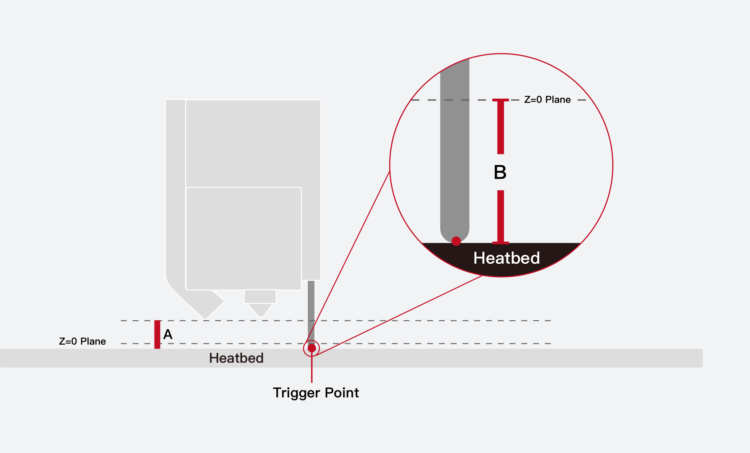
The Z-offset is the distance that the tip of the Z-probe moves before getting trigged. It is marked as “distance B” in the figure below. The Z-probe from Raise3D is designed with high precision (repeat error ≤ 0.012mm) giving it the ability to treat the distance between the tip of the nozzle and the trigger point (distance A in the figure below) as a stable value. The proper Z-offset can be determined automatically by adding the value A to the Z-offset (distance B). Keep in mind that the B distance varies slightly between probes, so achieving optimal results requires finding the correct B value for each printer.

Probe trigger height

Figure 1: Probe trigger height


What is the Best Way to Calibrate the Z-Offset?

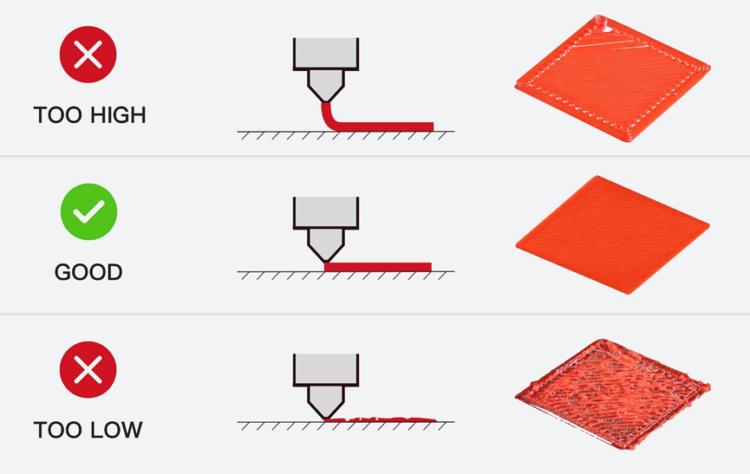
One way for users to calibrate the Z-offset is to observe the outcome of the first printed layer, then manually set the height differences values(as shown in Figure 2). If the nozzle is too high, then the value will be too small. If the nozzle is too low, then the value should be reduced.
Overall, this method requires repeated printing and measurement, which is tedious, complicated, and inefficient.

Guidelines for manually adjusting the Z-offset value based on first layer results

Figure 2: Guidelines for manually adjusting the Z-offset value based on first layer results


Raise3D built on the core principle of this method and developed some preliminary improvements. The user would be presented with multiple lines at a time, with each line using a slightly increased printing height. The user would then compare all the lines and select the one with the best printing quality. This method greatly reduces measurement times.

However, our double-blind trials found two main concerns regarding this method:

1. Because the difference between the printed straight lines is slight, it is difficult for users to determine which line achieves the best result.

2. “Best” is a subjective term, and individuals have different standards for “line quality”. This resulted in deviations as great as 0.5mm between values identified as the “best” printing height.

Due to these concerns, Raise3D wanted to find a measurement method with less variability. Testing showed that when the nozzle is a certain height above the heatbed, the printed line will become wavy, but if the nozzle is below this height, the printed line will not be wavy. Selecting the first wavy line in a series is a more straight-forward task than choosing the “best” line, which resolves issue 1.

After that, double-blind trials tested whether the first wavy line is a stable indicator. The results of these trials would show whether this updated process removes the subjectivity and variability discussed in issue 2.

The double-blind trial results are as follows:

Relative Error Compared to Standard Value
<=0.05mm <=0.1mm <=0.12mm
95% 99% 100%

Figure 3: Relative Error Compared to Standard Value.


Based on this trial result, this method resolves issue 2, and can be used to clearly and stably measure the height differences between the nozzle and the probe’s trigger point. Therefore, the E2’s offset calibration based on this method.


Some Factors Can Affect the Outcome When Using Offset Calibration

1. Different filaments will cause significant deviations in the offset calibrations measurement results

We have explored the principle of wavy line generation. Melted filament, as anon-Newtonian fluid, will generate the Liquid Rope-Coil Effect when extruded at a certain height. When the printer head moves, the rope coil is pulled, producing an even wavy line. The main influencing factors of the Liquid Rope-Coil Effect are the melt flow index of the non-Newtonian fluid, the extrusion height, and the extrusion speed. When different filaments melt at the same temperature, the non-Newtonian fluids have large differences in melt-index. This means that filaments with different diameters under the same feed rate may have different extrusion speeds. These differences affect the height of the wavy line, which can lead to large deviations in the offset calibration measurement results.

The measurements of the offset calibrations results were compared to measurements taken with high-precision instruments to find the deviation between them. So far this comparison has only been made using Raise3D Premium PLA filaments.

For third-party filaments, users can utilize the values from the offset calibration that was performed with Raise3D Premium PLA. All filaments are different, so small adjustments may need to be made depending on the results of the first layer. Exploration on how to make the offset calibration more compatible with third-party filaments is still ongoing.


2. The center of the print surface must be flat

Since the offset calibration prints lines in the center of the print surface, applying glue or other surface treatments may affect the accuracy of the final values. It is also important that the bed be as level as possible to achieve an accurate offset value.


3. How can the printer’s Z-offset be adjusted?

There are two ways that you can adjust the Z-offset:

1. You can use the calibration menu to automatically calibrate the Z-offset. On your printer’s screen, tap “Setting>Maintenance>Offset Calibration”.

2. You can manually modify the offset in “Setting>More Settings>Hardware>Z Probe Offset”. Increasing this value will reduce the Z-offset, and decreasing this value will increase the Z-offset.


Connect with Raise3D:

Have you had a great experience with Raise3D that you would like to share? Please contact us at inquiry@raise3d.com. We look forward to hearing from you.

For more information about Raise3D printers and services, browse our website, or schedule a demo with one of our 3D printing experts.

How to Replace a 3D Printer Build Surface on Pro2 Series

Replacing the build surface on the Rasie3D Pro 2 Series 3D printers is a straight-forward process. The three main steps to replacing the build surface on the Pro 2 and Pro 2 Plus 3D printers are removing the build plate, cleaning the build surface, and reinstalling the build plate. While Raise3D generally recommends replacing the build surface every 3 months, however, this changes depending on how heavily it is used. Is it possible to give an idea of how often it is necessary to replace a build plate?


Required Tools
-Scraper


Removing the Build Plate

1. Remove the build plate from the printer. Once the build plate is removed from the printer, place it gently on a flat surface.

Raise 3D Build Surface

2. Securely hold the build plate with one hand while you peel back the used Raise3D build surface from the plate with the other hand.


Cleaning the Build Plate

3. Once the build plate is separated from the old build surface, check for any remaining glue. If there are any remnants of glue, scrape the build plate clean. Take extra care to not scratch or gouge the surface.

  •  If the glue is hard to remove with the scraper, reinstall the plate and set the bed temperature to 110℃. After 30 minutes try removing the glue again with the scraper.Raise 3D Build Surface Cleaning

Reinstalling the Build Plate

4. Remove the protective liner from the back of build surface and apply it to the build plate
Note: Scrape away any bubbles that form

Raise 3D Build Plate

5. Then reinstall the build plate. After the build plate is reinstalled, recalibrate the distance between the nozzle and build plate.

Connect with Raise3D:

Have you had a great experience with Raise3D that you would like to share? Please contact us at inquiry@raise3d.com. We look forward to hearing from you.

For more information about Raise3D printers and services, browse our website, or schedule a demo with one of our 3D printing experts.

How to Calibrate 3D Printer Nozzle Offset on the Pro2 Series

Correctly calibrated nozzles on a 3D printer are essential for a quality printed result. Raise3D breaks down the steps to calibrate the nozzles for our Pro2 and Pro2 Plus 3D printers here using Model 1 and Model 2 as a tester. There are six total sections: preparation, print calibration using model 1, measuring the offset, adjusting the offset, print calibration using model 2, and compare model 1 and model 2 printing results.

Required Tools:
-USB Drive


Preparation:

1. Ensure Nozzle heights are calibrated properly before calibrating offsets.
2. Open ideaMaker. Click “File” on the top right corner and select “Examples” from the drop-down menu. Then select “Calibration-Extruder-Offset.idea”.

Pro2 Series Nozzle Screen


Print Calibration Using Model 1

1. Locate the USB storage drive that was included within the accessory box of your Pro2 Series packaging. Connect this drive to an available USB port on the right side of the touchscreen.

Pro2 Series 3D Printer Touchscreen Side

2. Ensure PLA is loaded into both extruders.


3. From the ‘Print’ tab, locate the pre-sliced files included in the Pro 2 Series flash drive. Select “Dual Head Calibration 1. Gcode” model, and press ‘Print’.


4. If you do not have your flash drive with this file, or would like to use a filament other than PLA, you can find the model in ideaMaker under File>Examples>Calibration-Extruder-Offset.idea.

Pro2 Series 3D Printed Model

Raise3D recommends printing with a wipe wall or wipe tower for the best results.


5. View the printed model from the top surface and align this to the visual graphic seen on screen. The direction can be identified with the large notch along the Y-direction, and the small notch in the X-direction.

3D Printed Parts with Notches


Measuring the Offset

If the original offset setting is correctly aligned, the model will be ladder-shaped and evenly spaced in all four directions. 

This position is X Offset = 0, Y Offset = 0.

Pro2 Series 3D Model Diagram

If the original offset requires adjustment, check each layer and identify two aligned layers for each direction. 

Record the upper value depicted in the model.

Pro2 Series Extruder Diagram

In this example, the values are: X Offset = + 0.2mm, Y Offset = -0.3mm.

Calculate the offset using the formula on the next page.

  • l Right Extruder Offset X = 25mm + (+0.2mm) = 25.2mm
  • l Right Extruder Offset Y = 0mm + (-0.3mm) = -0.3mm.


Adjusting the Offset 

1. Using the touchscreen on the printer, adjust the extruder offsets by navigating to the extruder settings. This can be found under Setting > Machine > More Settings > Hardware > Extruders.

Pro2 Series Extruder Screen

2. Check the X and Y offsets and add your recorded values to what is shown on the screen. If X was set to 25 mm and Y was set to 0 we would end with the values shown above based on the example from step 3.


Print Calibration Using Model 2

1. Ensure PLA is loaded into both sides.

2. Use the same USB drive as depicted in step 1. Open the ‘Print’ menu and select the “Dual Head Calibration 2.Gcode”. Press ‘Print’.

3. The model should resemble the model below.

If you do not have the flash drive with the file or would like to use a filament other than PLA this model can also be found under File>Examples>Dual-Color-Cube.idea.

Pro2 Series 3D Printed Dual Color Cube

Compare Model 1 and Model 2 Printing Results

1. Check for obvious gaps between the colored blocks (refer to the diagram below)

Pro2 Series Color Cube Gap Check

  • If there are noticeable imperfections, repeat the calibration steps from Step 1.
  • If there are no obvious gaps present in the model then the printer is now properly adjusted for dual extrusion printing. 


Connect with Raise3D:

Have you had a great experience with Raise3D that you would like to share? Please contact us at inquiry@raise3d.com. We look forward to hearing from you.

For more information about Raise3D printers and services, browse our website, or schedule a demo with one of our 3D printing experts.

How to Update 3D Printer Firmware on the Pro2 Series

This guide will provide simple steps on how to upgrade the firmware on the Pro2 3D printer. We recommend first downloading the latest version of the RaiseTouch software. To begin save the Raise Touch Firmware file inside the root directory of the USB drive which came included with your Pro2 3D printer at the time to purchase this.


Power off the 3D Printer

1. With the printer off, go ahead and insert the USB drive onto one of the available ports on the side of the touchscreen.


Power on the 3D Printer

2. When the 3D printer is on, the RaiseTouch Firmware will be updated automatically. Note: allow this process to complete before removing the drive.


3. Once the update has been completed, the screen will display the home page automatically.


4. Next, click the “Settings” icon on the top right-hand side of the screen tab. On this step, you will need to confirm that the firmware has been updated properly. Following, check on a few easy steps on how to upgrade the motion controller board firmware of the Pro2 3D printer.


Connect with Raise3D:

Have you had a great experience with Raise3D that you would like to share? Please contact us at inquiry@raise3d.com. We look forward to hearing from you.

For more information about Raise3D printers and services, browse our website, or schedule a demo with one of our 3D printing experts.

How to Unbox the Pro2 Series 3D Printers

Setting up the Pro2 and Pro2 Plus 3D printers is a simple process. There are six main steps to unboxing a Pro2 Series 3D printer. Raise 3D provides a video covering the step by step process in addition to this step by step manual.


Contents inside packaging
-Hex head wrench set
-Quick Start Guide
-5 international power cords
-3D build plate
-Accessories box


Carefully remove its protective packaging

1. First, cut off the packaging straps.

Cut off packing straps for Pro2 Series


2. Slice the packing tape along the top of the box.


Slice Along Top Flaps and Open

3. Remove cardboard spacers and keep the provided hex wrench set and Quick Start Guide in a space place to reference later.

Remove Cardboard Spacers


4. Out of the 5 international power cords, select the appropriate one for your use.

5. Remove the rest of the packing materials and set aside the clear acrylic lid.

Recommendation: it may be useful to have a second person to help you remove the tall cardboard box from the printer.  

6. Lift your printer out of the lower half of the cardboard and foam packaging, placing it in a clean, safe area to continue setup.


Remove 3D Printer from Packaging


Preparing the 3D Printer

7. Locate and remove the four shipping zip ties, then peel off the four yellow stickers. Remove the 24 plastic security spacers by gently twisting each one.

8. Once these are removed, manually slide the print head to the back center. Select the largest hex bead wrench and remove the z-axis clamps on both sides.

9. Attach the power cord to the printer and turn on.


Once your Raise3D printer is turned on and booted up

10. When you see the home screen, push the Utilities option on the bottom navigation bar, select the Z-Axis Home then OK to move the z-axis origin.

11. Remove additional accessories that were shipped inside your 3D printer.

Use the spatula from the accessories box to remove the test print pattern from the plate before it is installed.

12. Install the printing plate on the z-axis platform and secure it with the locking knobs.


Installing Filament

13. Place filament spool holders on slots located behind the side door and place the first filament spool on the left.

14. Feed the filament up the guide tube.

15. Add the second filament spool to the right and feed filament up the right guide tube.

Note: the filament spools feed toward the center

16. Remove the temporary guideline and feed the filament into the print head.

17. Close door to filaments and get ready to print.


Creating a test print

18. Move the z-axis down 60 millimeters.


19. Push the load button.


20. Wait while your printer heats up to the proper extrusion temperature


Note: the temperature indicator will show when ready


21. Once ready, press the Load button.


22. Discard the stream of melted filament from the print head and press “OK.”


23. Place lid on the machine and remove any leftover plastic shipping film from the surfaces of your printer.


Selecting a print file

24. You can use a USB drive or connect wirelessly to load a sliced g-code image into your machine.


25. Select “Print” then select the file location to locate the file you wish to print.


26. Open the file and select “Print.”


27. After that, your printer is ready and will begin printing.


Ready to Print


For more information about 3D printers and 3D printing, visit and subscribe to the official Raise3D Youtube channel


Connect with Raise3D:

Have you had a great experience with Raise3D that you would like to share? Please contact us at inquiry@raise3d.com. We look forward to hearing from you.

For more information about Raise3D printers and services, browse our website, or schedule a demo with one of our 3D printing experts.

How to Maintain the E2 3D Printer

Once you have your E2 Raise3D printer, the maintenance should be performed regularly to keep the 3D printer in good condition and achieve high-quality prints every time. Some parts of your E2 3D printer will require maintenance before each print, and some others will require maintenance less often at every few hundred working hours. The good news is that the 3D printer maintenance for this device does not take much time because they are quick and easy things to do. We recommend that before commencing any repairs, it is extremely important to turn off the device and let it cool down before proceeding. This manual will show you how to maintain with easy instructions your E2 Raise3D device. Follow the easy steps below to have the most of your 3D printer and provide a long-life and durable device.


Also, remember to always wear safety gloves and glasses to have a safe experience. The following tables present maintenance and repair guidelines connected with each section of the E2. You will also see important and specific checkpoints, all the necessary activities to do the maintenance on your 3D printer, and the frequency on which we recommend doing this. So, let’s start learning how to maintain your E2 Raise3D printer.


List of Tools Needed

  • 1 Pair of Gloves
  • 1 Pair of protective glasses
  • 1 soft cloth for cleaning
  • Isopropyl Alcohol
  • Rag for cleaning

Main Maintenance

1. For general maintenance, we recommend cleaning the 3D printer, it’s interior and surroundings before each print. Make sure to pay closer attention to the bottom plate under the Manual for build plate to have this area free of any materials or residues. We recommend performing this maintenance before each printing to have the best out of your machine.

Extruder Maintenance

2. Next, you want to make sure that the extruder is also clean and in good condition. When it comes to this part, make sure to follow the next recommendations:

  • Always check the screws that secure the hot end and verify that they are not loose. If they are, then make sure that you tighten them until they are placed in a position that can secure this piece. This step is recommended to perform every 300 working hours.
  • Then check the extruder to make sure that there are no leftovers from any of the materials used and lumps as a result of the extruder usage. This step is recommended to perform every 300 working hours.
  • Following, it is important to check if the fans from the 3D printer are working properly. This is an important piece as the fan provides a stream of cool air under the nozzle for the extruder plastic. If the fans are not working, it may cause for the 3D printer to jam. This step is recommended to perform every 300 working hours.

Hot End Maintenance

3. The next step is to maintain the hot end of the 3D printer with these easy instructions:

  • It is recommended that after finishing each one spool material, check if the hot end and the nozzle are not clogged with any material residue.
  • Clean the nozzle of the 3D printer carefully. It is important to keep this part maintained because it ensures the quality of your 3D prints. Always make sure that the tip of the nozzle is clean. You can try using a simple brush to clean up the area around this. This step is recommended to perform every 300 working hours.
  • Next, always check that the screws that secure the heater and thermocouple are properly tightened. Check if the first layer of the test sample is in a good position to avoid this to be stuck to the build plate.
  • Finally, for this part, you need to ensure that all materials feed smoothly into the extruder.

Build Plate

4. To maintain the build plate of the 3D printer, clean the build surface with isopropyl alcohol and a rag. This step is recommended to be performed before each printing.

  • Check the build plate for any deformation and make sure this is all fine. This step is recommended to be performed before each printing.

X Guide Rail

5. To maintain the x guide rail, review that the guide rail and belts are clean before each printing.

  • Check if the print head moves freely and without being stuck. We recommend this to be performed every 200 working hours or whenever you realize that the extruder is not moving smoothly, or the printer head makes a strange noise as it moves.
  • Lubricate the x-guide rail. We recommend this to be performed every 300 working hours or if you realize that the extruder is not moving smoothly, or the shaft makes a strange noise as it moves.


Y Axis

6. To maintain the Y axis, make sure to always check the tension on the drive belts on the Y axes. We recommend this step to be performed every 300 working hours.

  • Check if the screws on the Y axes and the motors pulleys are tightened. We recommend this step to be performed every 300 working hours.
  • Check if the build plate moves freely when motors are disabled. We recommend this step to be performed every 200 working hours or when you realize that the extruder does not move smoothly or the shaft makes a strange noise as it moves.
  • Lubricate the Y axes. We recommend this step to be performed every 200 working hours or when you realize that the extruder does not move smoothly, or the shaft makes a strange noise as it moves.

Z Axis

7. To maintain the Z-axis, check if the Z-axis screws and rails are clean from any material remains. We recommend doing this step before each printing.

  • Always check if the screws and nuts are well-positioned, especially the bottom plate under the build plate. We recommend performing this step every 300 working hours.
  • Finally, lubricate the Z-axis and rails every 400 working hours.


For more information about 3D printers and 3D printing, visit and subscribe to the official Raise3D Youtube channel


Connect with Raise3D:

Have you had a great experience with Raise3D that you would like to share? Please contact us at inquiry@raise3d.com. We look forward to hearing from you.

For more information about Raise3D printers and services, browse our website, or schedule a demo with one of our 3D printing experts.

How to Clean a 3D Printer BuildTak Surface on the E2

This manual will show you how to clean the BuildTak surface of your E2 Raise3D device. Follow the easy steps below to have the most of your 3D printer and provide a long-life and durable device.


List of Tools Needed

  • Warm water
  • Isopropyl Alcohol
  • Soft cleaning cloth or microfiber cloth


  1. This is a quite simple process that does not take time. To clean the BuildTak of your 3D printer, you will only need warm water or isopropyl alcohol, applied any of these on to a soft cloth and rub the area softly to clean it from any residue. It is particularly important to avoid soap or other cleaning products as these can damage the surface.


2. In case that an adhesive has been applied to the surface, only use warm water to soften it and use the scraper that comes with your 3D printer to remove the adhesive gently. See the images below for a reference when cleaning this surface.

Cleaning the BuildTak of a 3D Printer


Clean 3D Printer BuildTak


For more information about 3D printers and 3D printing, visit and subscribe to the official Raise3D Youtube channel


Connect with Raise3D:

Have you had a great experience with Raise3D that you would like to share? Please contact us at inquiry@raise3d.com. We look forward to hearing from you.

For more information about Raise3D printers and services, browse our website, or schedule a demo with one of our 3D printing experts.